
Claude
The Claude integration lets you reply to customers in messages with text written by a Claude model. You connect it with your own API key from Anthropic Console - you pay for usage directly to the provider.
You can add as many Claude integrations as you like, including several with the same API key - for example with a different model or system prompt for different channels. Each works on its own.
How to generate the API key
You create the key in Anthropic Console. Copy it straight away - the key is shown only once.
- Sign in at console.anthropic.com.
- Go to API Keys and click Create Key.
- Copy the key.
Connecting the account
Start in Ritevo:
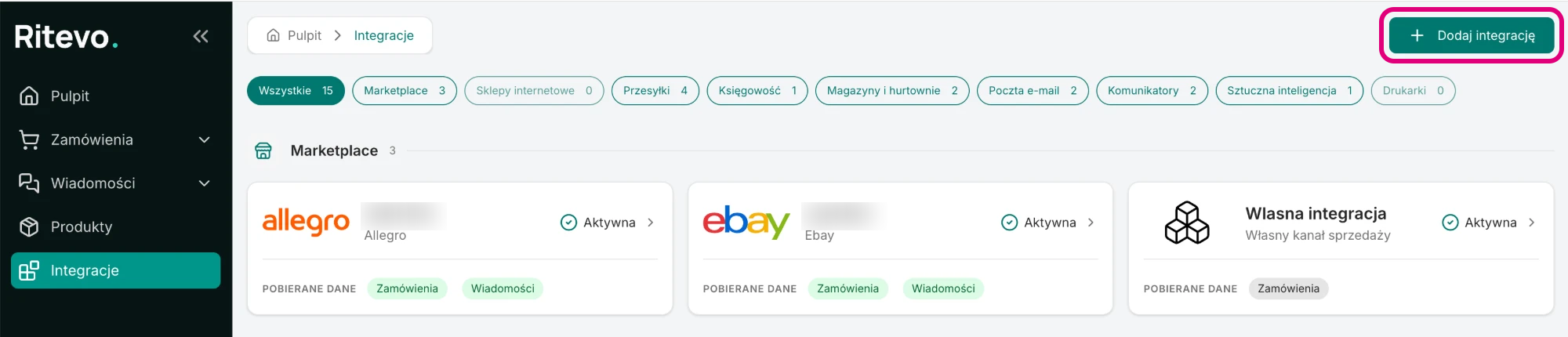
- Go to Integrations in the left panel and click Add integration in the top right corner.
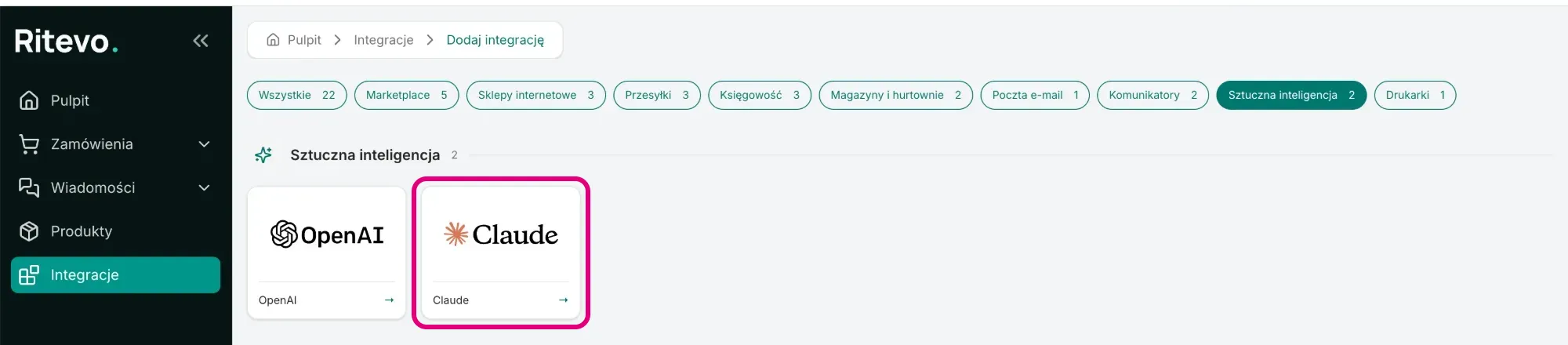
- In the Artificial intelligence section pick the Claude tile.
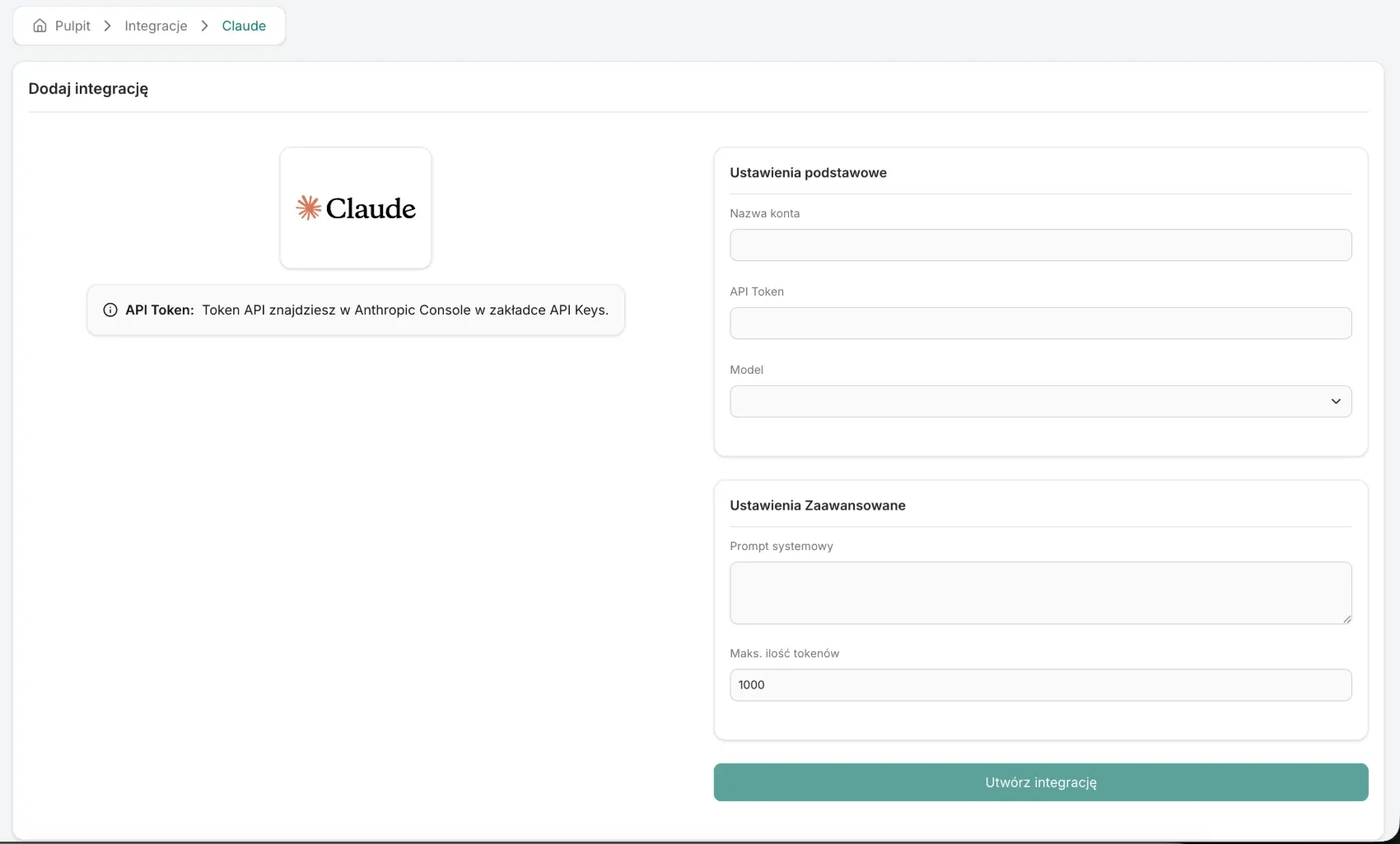
- In the Account name field enter your own name for the integration, paste the API Token and pick the Model.
- In the Advanced settings card enter the System prompt and set Max tokens - described below.
- Click Create integration. We send Claude a short test request with this key and model right away: if it works, the integration is added and its settings open. If not - you will see an error and nothing is saved.
Integration settings
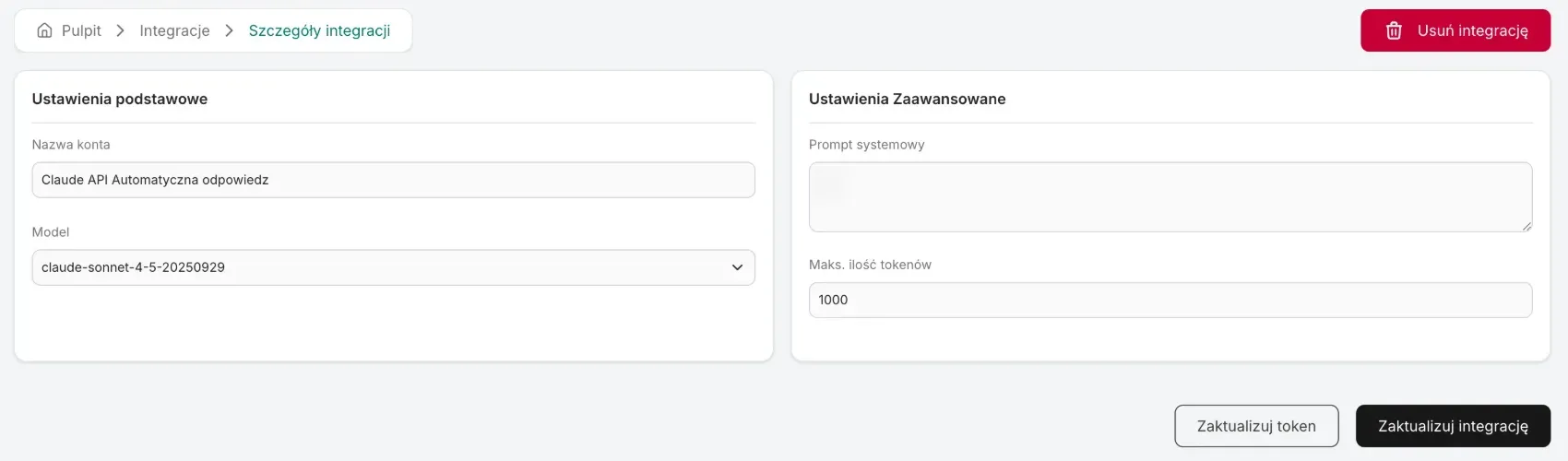
On the integration page you will find the fields below. You save changes with Update integration:
- Account name - your own name for the integration. You pick the integration by this name in an automatic action.
- Model - the Claude model that writes the replies: claude-sonnet-4-5-20250929, claude-sonnet-4-20250514, claude-opus-4-20250514, claude-haiku-4-5-20251001 or claude-3-5-haiku-20241022.
- System prompt - the instruction for the AI added to every reply: who you are, what tone to use, opening hours, return rules, which language to answer in. It is the only place where you give the AI knowledge about your business.
- Max tokens - the upper limit on reply length. 1000 by default. Too low a limit cuts the reply off halfway and the customer gets it truncated.
- Update token - you enter a new API key.
AI replies in messages
The AI integration works in message actions, in the Send AI message to thread step. Step details and a ready example are in Message actions.
- What the AI gets - the text of the latest message in the thread and the System prompt. It does not get the earlier conversation history or order data.
- Sending - the reply goes to the customer right away, without approval.
- Error - when the AI provider returns an error, nothing is sent and the action stops. You see the error in the message audit.
- Costs - every reply is billed to your account with the AI provider. Adding the integration and changing the key send one short test request.
Reconnection required
This state shows up when Claude rejected the API key while writing a reply - for example after the key was deleted. Until you enter a new key, the AI will not reply to customers.
- Create a new API key in Anthropic Console.
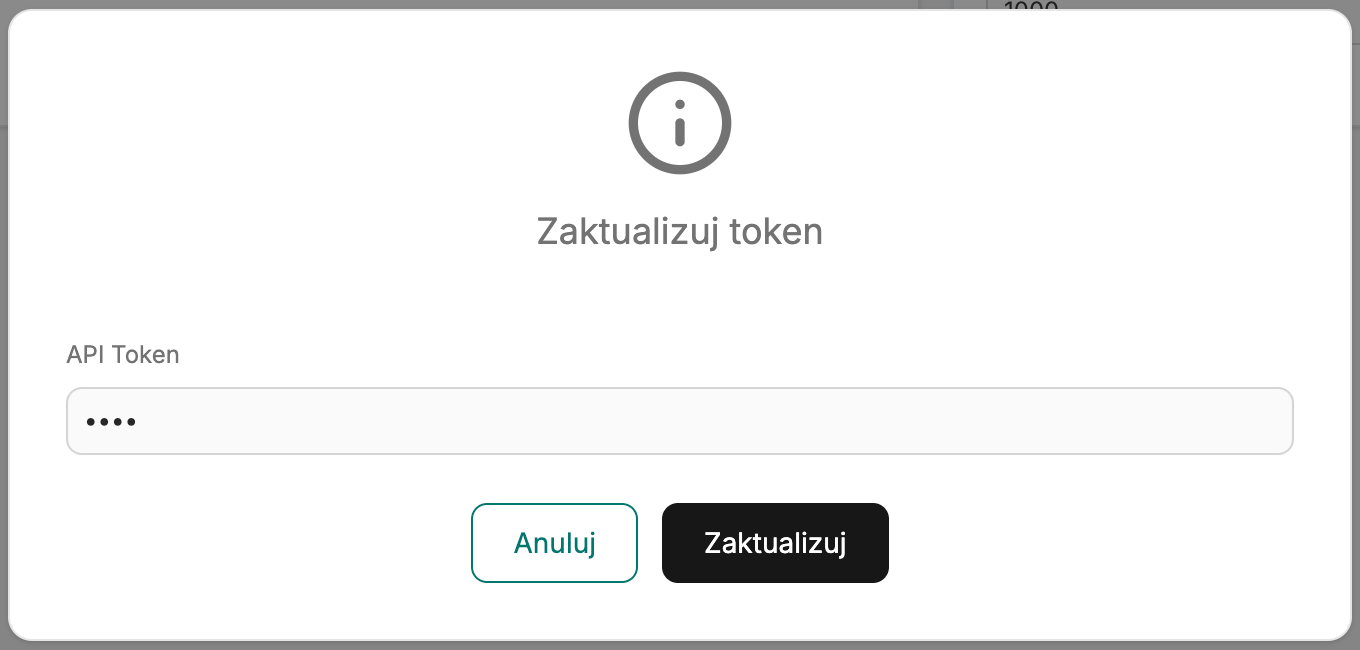
- On the integration page click Update token, paste the key into the API Token field and confirm. We check it with a short test request - a valid one refreshes the connection, and the settings stay unchanged.
Deleting the integration
Delete integration turns the integration off in Ritevo: it stops fetching and sending data, but what it fetched earlier stays. Restore integration turns it back on.
What the integration does not do
- It does not suggest replies to insert by hand - it replies only through an automatic action.
- It does not read the conversation history or order data.
- It does not save replies as drafts for approval.
- It does not cap spending - you set limits in your account with the AI provider.