
Allegro
The Allegro integration brings orders as well as messages, disputes and claims from your seller account into Ritevo. You connect it by signing in to Allegro as usual - no keys or passwords typed into Ritevo.
One Allegro account is connected once; if you sell from several accounts, add each one as a separate integration.
The same Allegro account can be connected only once. When you connect it again, Ritevo refreshes the existing integration and turns it back on, even if it was deleted.
Connecting the account
It takes a minute. Start in Ritevo:
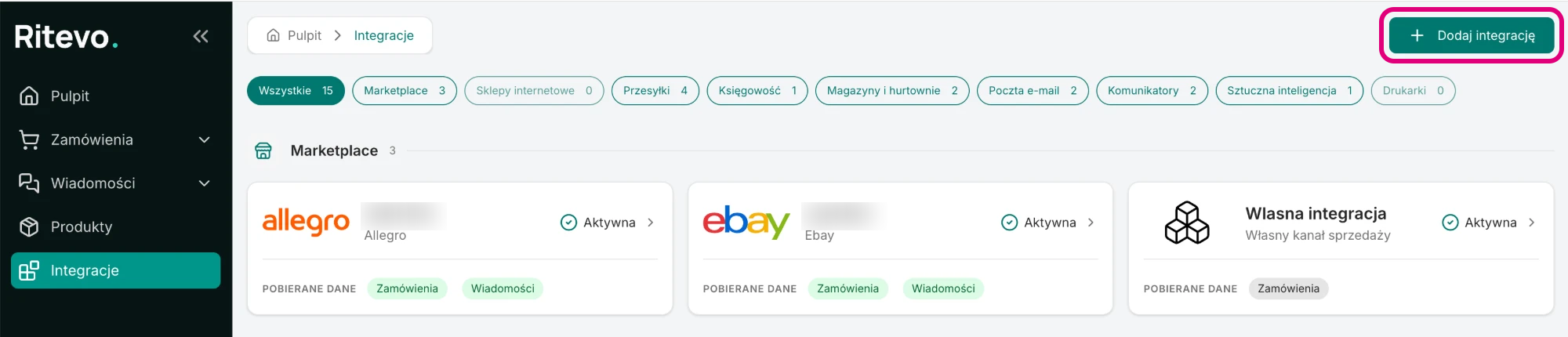
- Go to Integrations in the left panel and click Add integration in the top right corner.
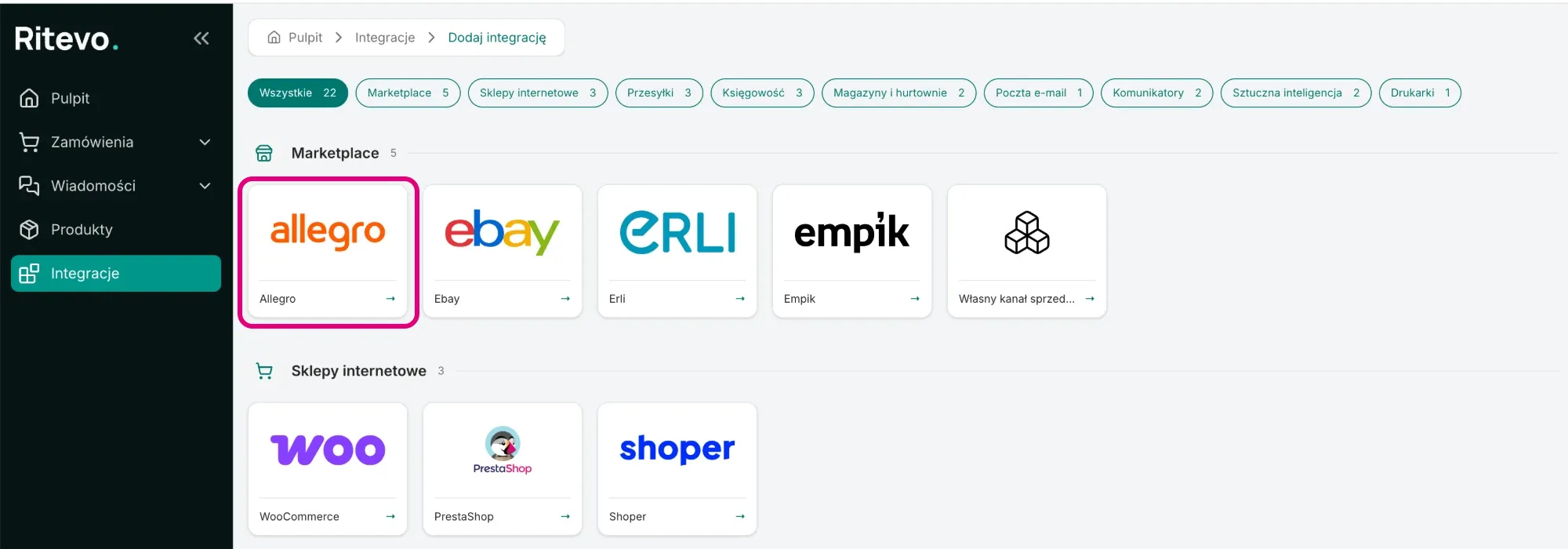
- In the Marketplace section pick the Allegro tile.
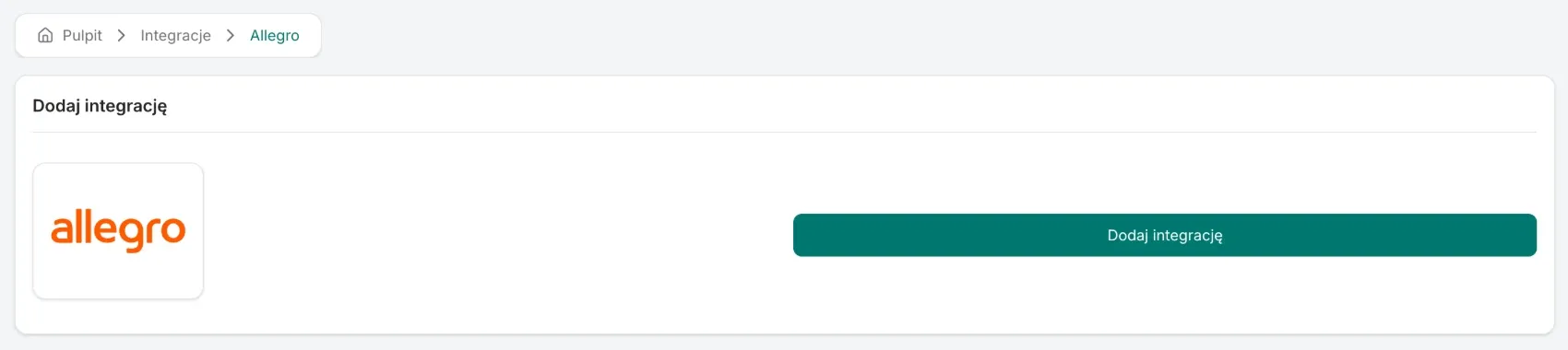
- Click Add integration. Ritevo redirects you to the Allegro sign-in page.
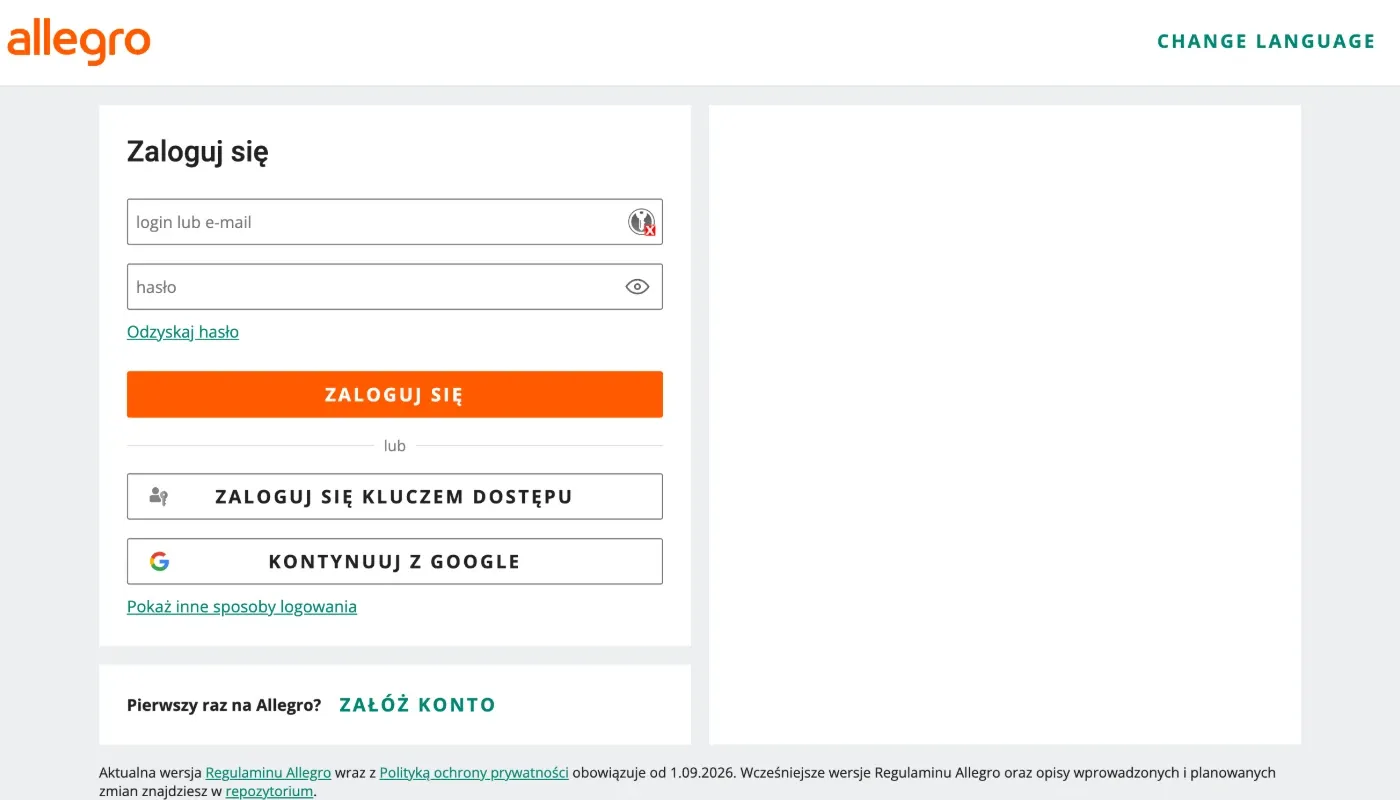
- Sign in to your seller account and approve access for Ritevo. Allegro sends you back to Ritevo.
- Back in Ritevo, wait a moment - do not close the window. Once the integration has been added, its settings open.
Integration settings
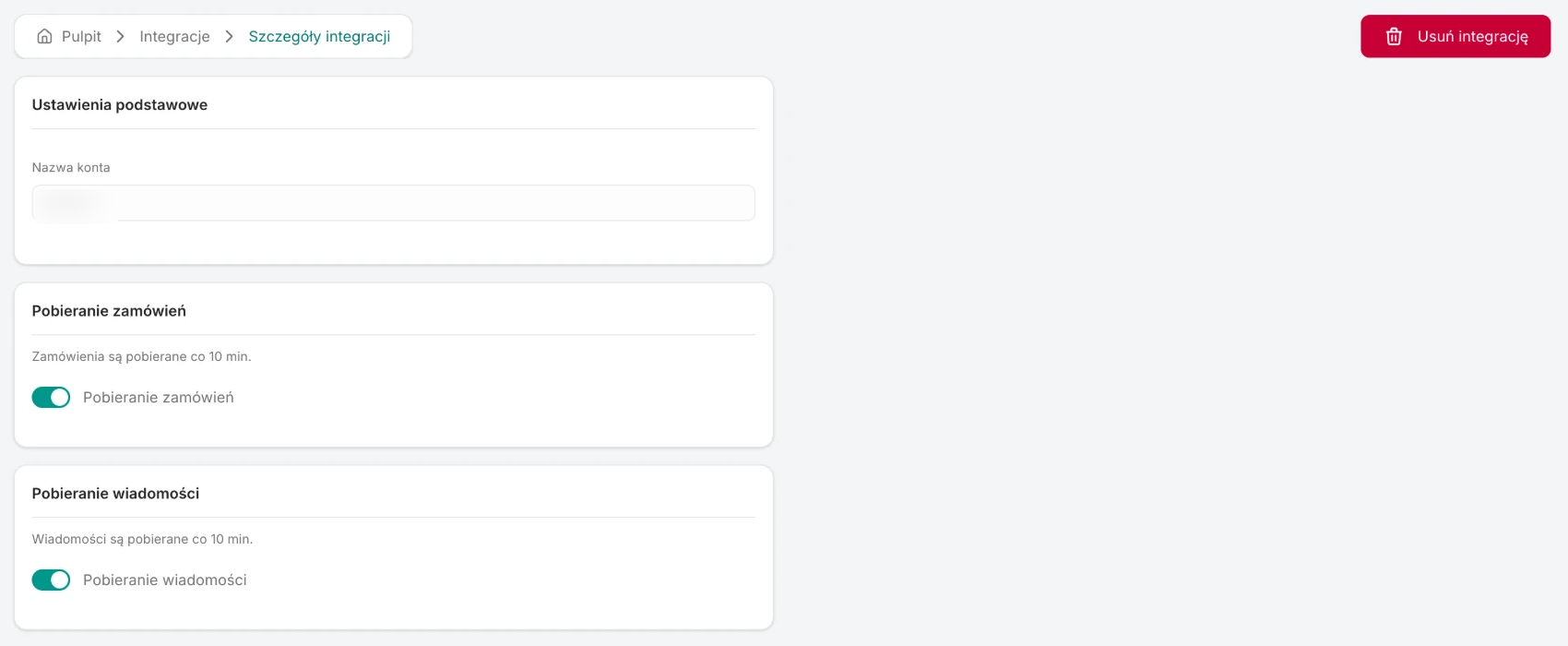
After connecting, the integration is Active, but order and message fetching are off - you turn them on yourself, separately:
- Account name - the login of your Allegro account. Ritevo takes it from Allegro; it cannot be changed.
- Fetch orders - once on, Ritevo checks for new and changed orders about every 10 minutes. The rules shared by all channels: Fetching orders.
- Fetch messages - once on, Ritevo fetches messages about every 10 minutes, reaching 7 days back on the first fetch. Shared rules: Fetching messages.
What this integration gives you
- Orders - new and updated Allegro orders land in the orders table, with the buyer's details, invoice details, delivery (including the pickup point) and line items with offer images.
- Messages - conversations from the Message Center as well as disputes and claims land in the shared inbox. You reply to all three from Ritevo, attachments included.
- Creating shipments through Send with Allegro is a separate integration you add after connecting the account - it uses the same Allegro account.
Orders from Allegro
Ritevo fetches the whole Allegro order: the buyer, payment, delivery together with the pickup point, line items with prices and offer images, and the buyer's message. Allegro provides all of this through its API, so nothing has to be filled in by hand.
- Statuses and payments - Allegro statuses and payment methods are translated to Ritevo statuses in one fixed way; marketplaces have no mappings of their own, unlike online stores. A cash-on-delivery order arrives as Awaiting payment with the Cash on delivery method.
- Additional services - supported. When the buyer adds, for example, gift wrapping or carry-in to a product, you see it in the order as a separate line item under that product - also when it is free. More about additional services.
- Invoice - Allegro states explicitly whether the buyer asked for an invoice. Such an order gets the Customer asks for an invoice flag with the company details and tax id filled in.
Messages, disputes and claims from Allegro
- Messages from the Message Center - only messages Allegro has already delivered reach Ritevo. Allegro checks your reply first, so confirming it was sent can take up to half a minute.
- Disputes and claims - with the subject, description, decision deadline, the buyer's demand (repair, exchange, refund, partial refund) and the linked order. You reply to them from Ritevo; you can also end a dispute and resolve a claim - accept it or reject it with a reason.
- If a message concerns an order that is not in Ritevo yet, we fetch it on our own - even with order fetching turned off.
Reconnection required
This state appears when the permission granted to Ritevo in Allegro has expired or was revoked - for example after a password change in Allegro or after disconnecting the app in the account settings. Until you reconnect, Ritevo neither fetches nor sends any data on that account.
- Go through Connecting the account again, signing in to the same Allegro account.
- Ritevo recognises the account by its identifier and refreshes the connection in the existing integration. The fetching settings and the history stay unchanged - no second integration is created.
Deleting the integration
Delete integration turns the integration off in Ritevo: it stops fetching and sending data, but what it fetched earlier stays. Restore integration turns it back on.
What the integration does not do
- It does not manage listings: it does not list, change prices or stock in Allegro.