
How automatic actions work
An automatic action is a rule: when something happens and the conditions are met, Ritevo carries out the steps you set. Everything an action does you can also do by hand - the action simply does it for you.
Two kinds of actions
You create actions separately for orders and for messages. They work the same way and differ in what they react to and what they can do:
- Order actions - react to changes in an order and can change its status, issue a document, create a shipment, print a label, update order data and much more.
- Message actions - react to customer messages and can reply for you, also with the help of AI, assign the thread to a user, set a status and much more.
What an action is made of
- Trigger - the one event that starts the action, for example Order status changed or New thread. Every action has exactly one trigger.
- Conditions - optional. They narrow the action down, for example to paid orders only or to messages from the customer only. You can add up to 50 conditions.
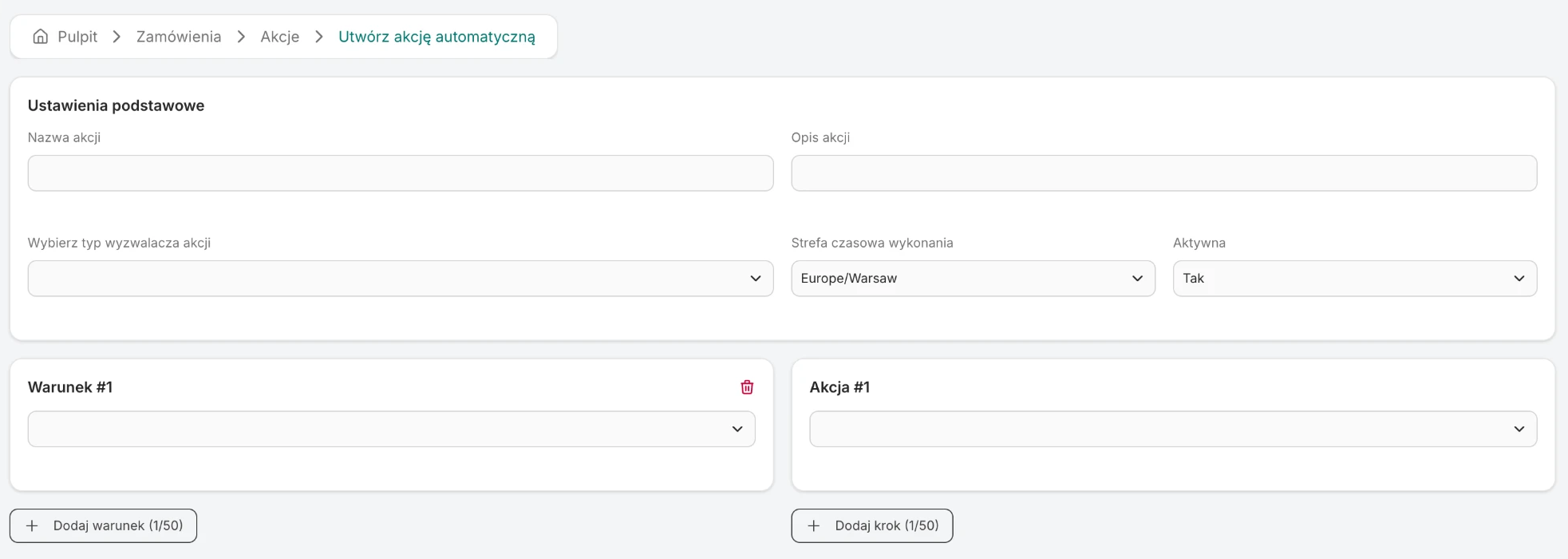
- Steps - what Ritevo should do. At least one, at most 50. They run in order. In the form these are the Action #1, Action #2 and further cards, added with the Add step button.
- Run time zone - conditions with a time of day or a day of the week are counted in it.
- Active / Inactive - only active actions run. An inactive action stays saved but does nothing.
You set everything in one form: basic settings at the top, conditions on the left, steps on the right.
How Ritevo runs an action
- Something that is a trigger happens - no matter whether you made the change, it came from the sales channel, or another action made it.
- Ritevo takes all active actions with that trigger.
- For each of them it checks the conditions. If one is not met, that action does not run.
- It carries out the steps in order. The next step starts only after the previous one succeeded.
- Every run is saved in the audit.
If several actions match one event, all of them run. Actions have no priority and no set order, so do not build actions that depend on which one fires first.
When order matters, you have two ways - pick the one you prefer:
- One action with several steps. Steps always run in order, and the next one starts only after the previous one succeeded. This is the simplest and most reliable way.
- A chain of actions. The last step of action A is the trigger of action B - for example A ends with the Create shipment step and B has the Shipment created trigger. It is useful when you want the second part kept apart: with its own conditions, or so you can turn it off independently of the first.
How conditions work
- All conditions of an action have to be met at the same time. There is no "or" between conditions.
- Inside one condition you can pick several values - then any of them is enough. For example in the Integration is condition you pick one or several from the list of your integrations: eBay and WooCommerce means "an order from eBay or from WooCommerce".
- A range is set with two conditions: from and to. Working hours, for example, are Action run time from 08:00 and Action run time to 16:00.
- Times of day and days of the week are counted in the time zone set in the action. The time in the form, however, is entered in your computer's time. So leave the action on the zone the form sets by itself - your own. Then Action run time from 08:00 simply means 8:00 where you are, also when the customer is in another country. If you change the action's zone to one different from yours, the time you entered shifts by the difference between the zones. Daylight saving time is handled automatically.
- A range that crosses midnight (for example 22:00-05:00) needs two actions: one with the condition from 22:00 and another with the condition to 05:00. The form lets you set both conditions in one action, but such an action will never run - every condition is checked on its own, and no time of day is both after 22:00 and before 05:00.
Branches inside a step
A step can have branches, that is several variants with their own conditions. It is useful when the same action should do something different depending on the order or message.
- Ritevo checks the variants in order and runs the first one whose conditions are met.
- If no variant matches, it runs the step's default action.
- If the step has no default action, the whole action stops and the audit shows Action stopped by conditions.
- Branches have one level - a variant holds a single operation, not further steps.
Loop protection
An action changes data, and a data change can be a trigger. Ritevo makes sure actions do not keep setting each other off forever - in three ways:
- An action never triggers itself. If an action with the Order status changed trigger changes the status itself, it will not start a second time because of that.
- Actions can trigger other actions, but not in a circle. The last step of action A can start action B, and that one action C. But when saving or turning on an action would close a circle (A starts B, B starts A - also through more actions), Ritevo will not save it and shows an error about a detected infinite cycle. Only active actions count.
- A safety switch at run time. If actions still run on the same order or thread too many times in a short period, Ritevo pauses them. The orders or messages audit then shows an Infinite loop detected entry together with the action and the step it happened on. Your manual changes are never blocked this way.
Run audit
Every run of an action is saved in the audit: Settings → Audit, separately for orders and for messages. You can filter entries by action and by result. Possible results:
- Action continues - a step ran and there are more.
- Action finished - the last step ran.
- Action stopped by conditions - in a step with branches no variant matched.
- Infinite loop detected - the safety switch kicked in.
- Error - a step failed, for example an integration rejected the request. The entry holds the error description. In order actions, after an error in a step that uses an integration - shipment, sending a document to accounting, printing - the action continues: Steps that wait for an external system. After an error in any other step, the remaining steps of that action do not run.
What actions do not do
- They do not start at a set time. There is no "every day at 8:00" trigger - time exists only as a condition.
- They do not wait. There is no "wait an hour" or "send after 2 days" step.
- They cannot be run by hand on a chosen order or thread. You can only turn an action on or off.
- One action has one trigger. For two events create two actions.
- Limits: up to 1000 actions per company, up to 50 steps and 50 conditions per action.