
Shoper
The Shoper integration brings orders from your store into Ritevo. You connect it with API access details generated in the Shoper panel. Because every Shoper store sets up its own statuses and payment methods, after connecting you assign them to Ritevo statuses in the mapping. Shoper delivers buyer messages by email - you handle them in Ritevo through an email integration.
The same Shoper store can be connected only once. When you add it again, Ritevo refreshes the existing integration and turns it back on, even if it was deleted.
How to generate the API key
You create the access details in the Shoper admin panel. Copy them right away - you will paste them into Ritevo when adding the integration.
- Sign in to the Shoper panel and choose Aplikacje i integracje (apps and integrations), then Zewnętrzne aplikacje (external apps).
- Click Dodaj integrację (add integration) and enter any name, for example "Ritevo".
- Tick all access areas with full permissions - even though Ritevo uses only some of them today, new features will then work without changes in the Shoper panel.
- Save and copy the Client ID and the API token.
Connecting the account
Start in Ritevo:
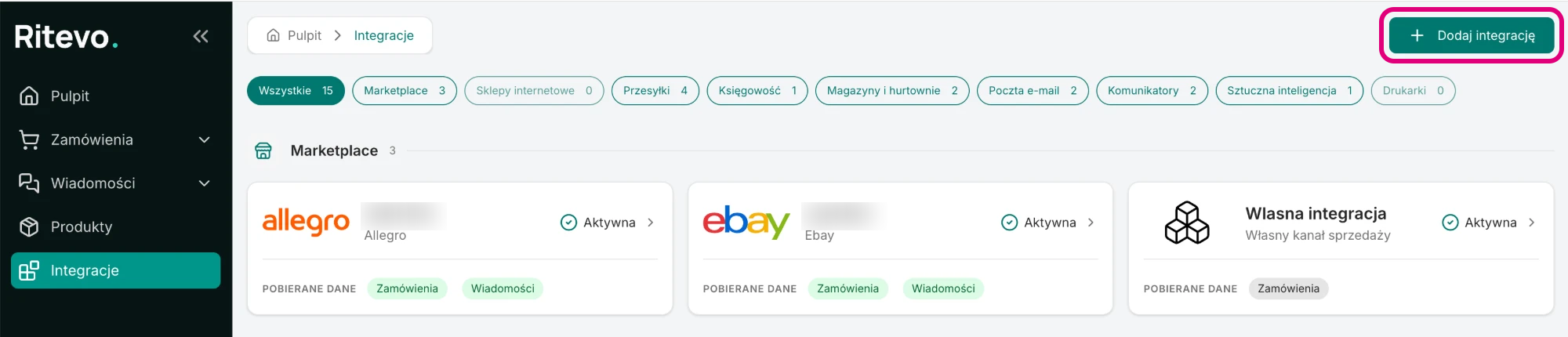
- Go to Integrations in the left panel and click Add integration in the top right corner.
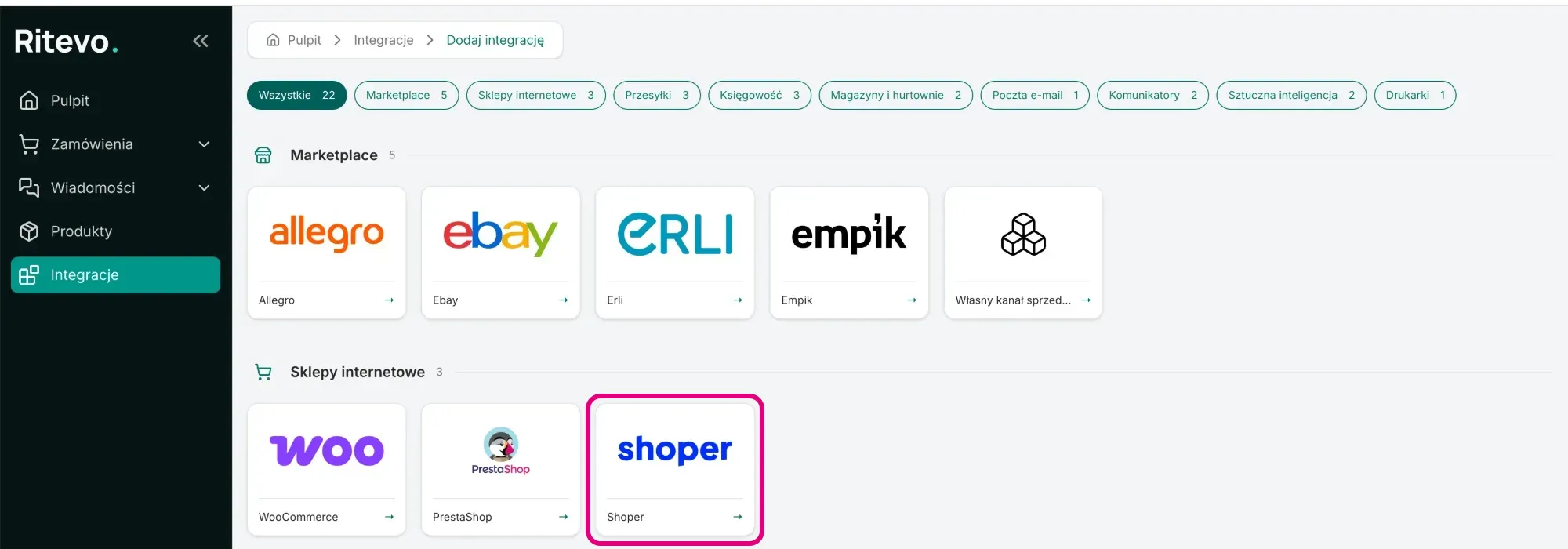
- In the Online stores section pick the Shoper tile.
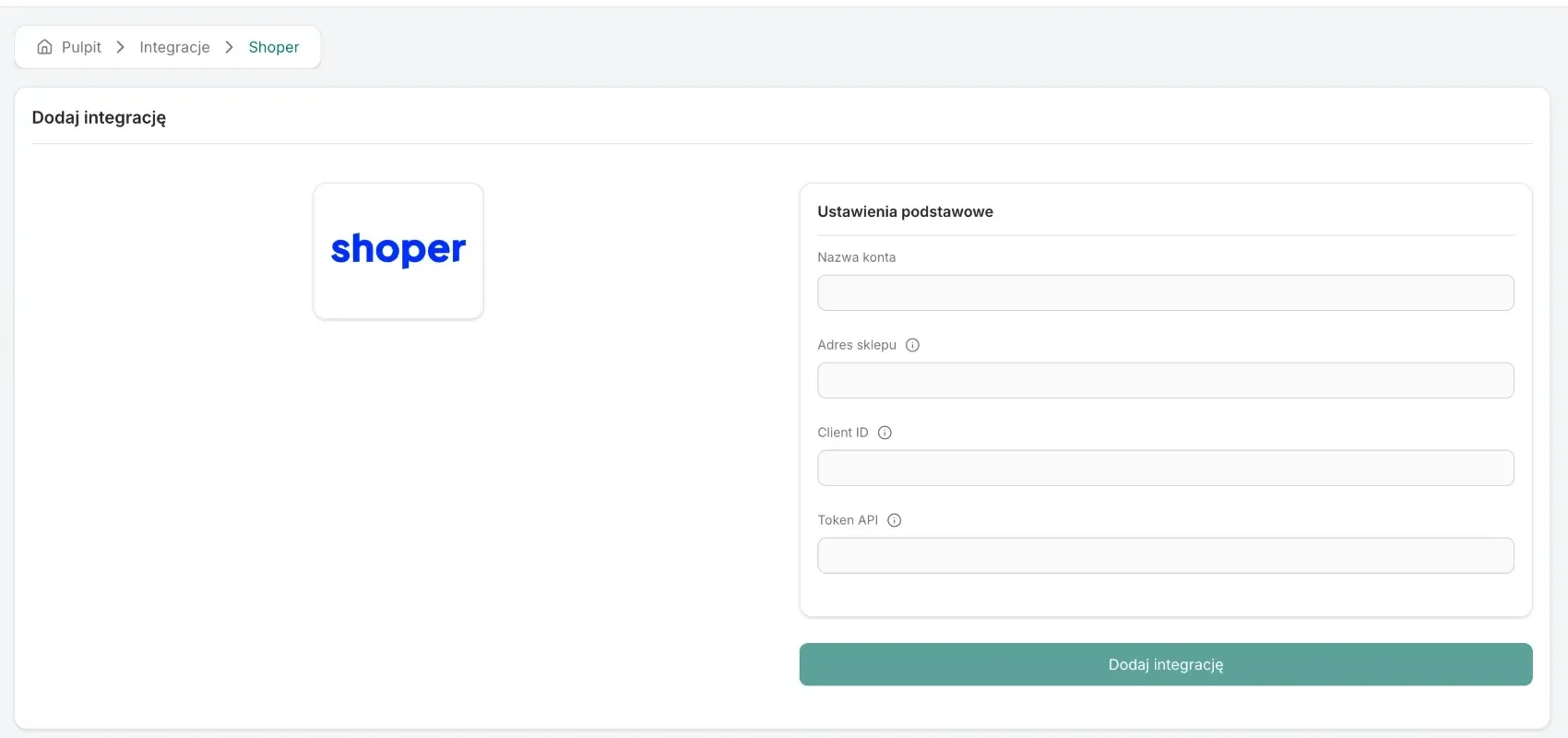
- In the Account name field enter your own name for the integration, for example the store's name.
- In the Store address field enter the store's full address with
https://, without a trailing slash - for examplehttps://mystore.shoparena.pl. - In the Client ID and API token fields paste the details from the Shoper panel.
- Click Add integration. Ritevo connects to the store right away and checks the details: if they are valid, the integration is added and its settings open. If not - you will see the error returned by the store and nothing is saved.
Integration settings
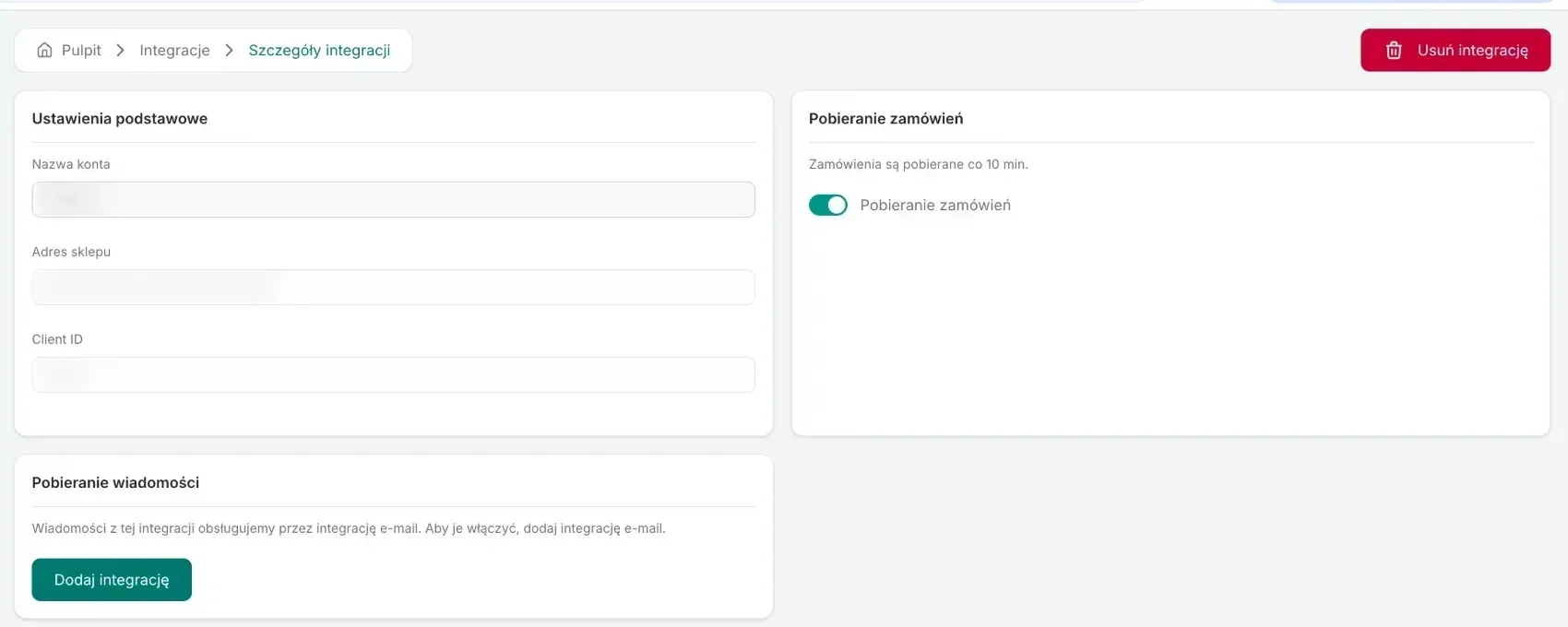
After connecting, the integration is Active, but order fetching is off - you turn it on yourself. On the integration page you will find:
- Account name - your own name for this integration, for example the store's name. You can change it at any time.
- Store address - the address given when adding. It cannot be changed here; a new address or new keys go through Update credentials.
- Client ID - the identifier from the Shoper panel, given when adding. You change it together with the token through Update credentials.
- Fetch orders - once on, Ritevo checks for new orders and status changes about every 10 minutes. The rules shared by all channels: Fetching orders.
- Fetch messages - instead of a switch there is a note that Shoper messages are handled through an email integration, and an Add integration button that leads to adding one.
- Order status mapping and Payment method mapping - described below.
Mapping statuses and payments
Every store names its order statuses and payment methods its own way, so with online stores you decide yourself how they translate to Ritevo statuses and methods. You set the mapping once, on the integration page, and it applies to every order fetched from then on.
Order status mapping
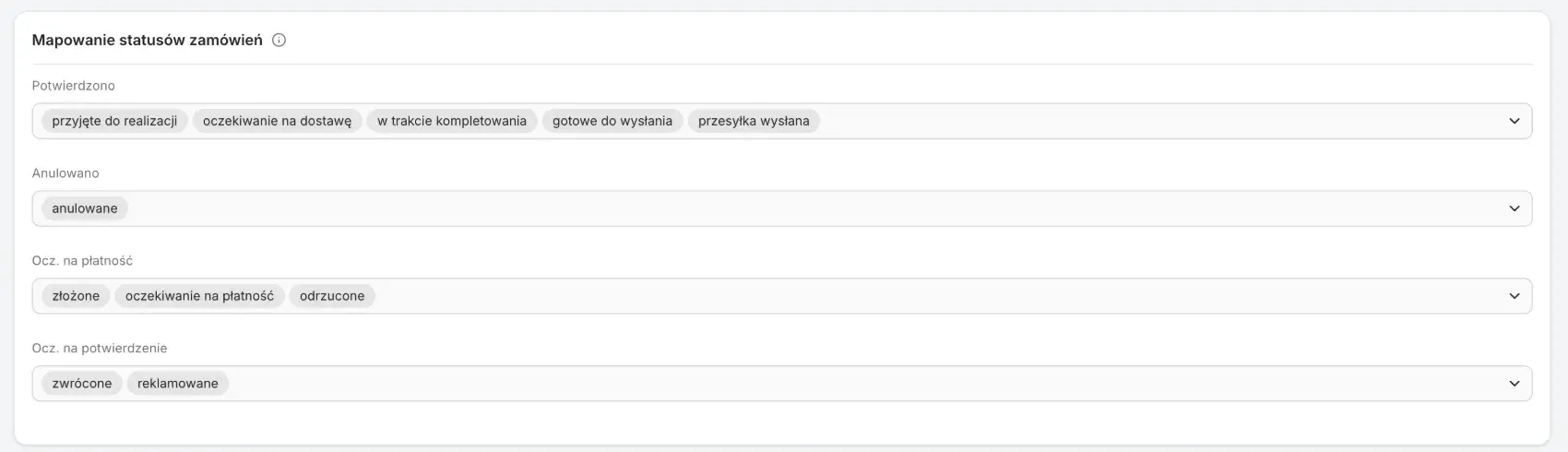
Ritevo reads the status list from your store, so you see them under the names you gave them in the Shoper panel. Up front nothing is assigned. You assign yourself every status, because every store creates its own. An example assignment for Shoper's standard statuses:
- Confirmed - accepted for processing, awaiting delivery, being packed, ready to ship, shipped.
- Cancelled - cancelled.
- Awaiting payment - placed, awaiting payment, rejected.
- Awaiting confirmation - returned, claim - orders you want to look at before doing anything with them.
One Ritevo status can have several store statuses assigned, but one store status only one Ritevo status. An order with a status you have not assigned anywhere arrives as Awaiting confirmation - you will see it and decide what to do.
Payment method mapping
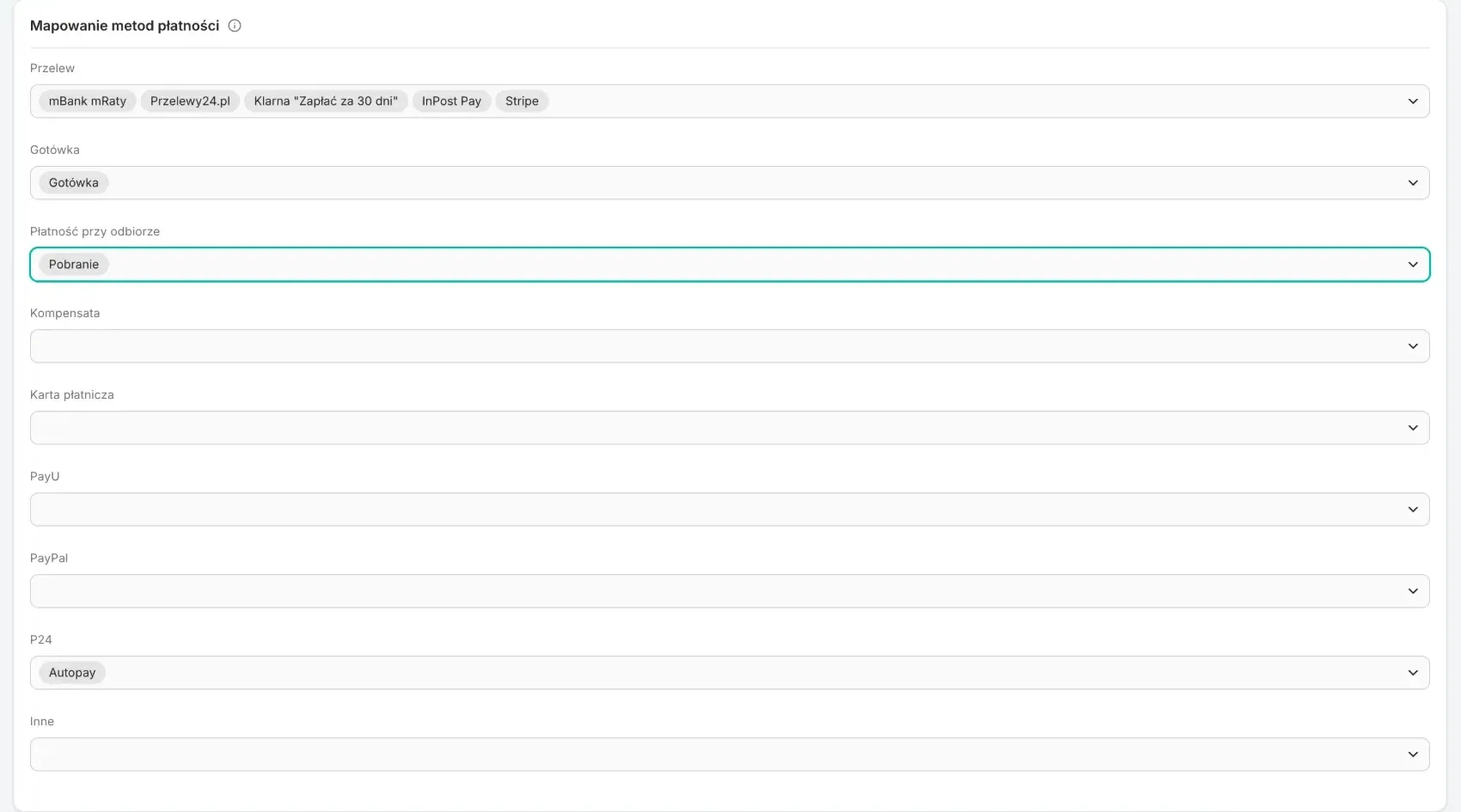
Ritevo reads the method list from the payments set up in your store, under their names from the Shoper panel. Up front nothing is assigned. You assign yourself every method, because every store has its own. An example assignment:
- Bank transfer - mBank mRaty, Przelewy24.pl, Klarna, InPost Pay, Stripe - online payment operators you want to settle like a transfer.
- Cash - Cash.
- Cash on delivery - Cash on delivery.
- P24 - Autopay or another operator you want to see separately.
A payment made with a method you have not assigned anywhere arrives as Other.
What this integration gives you
- Orders - new and changed Shoper orders land in the orders table, with the buyer's details, invoice details, delivery and line items with product images.
- Messages - through an email integration, see below.
Orders from Shoper
Ritevo fetches the whole Shoper order: the buyer, billing and delivery address, payment, line items with gross prices and the product's main image. An order whose status changed in the store is fetched again.
- Statuses and payments - translated according to your mapping, described above. The paid amount is what the buyer actually paid - including a partial payment.
- Delivery address - when the buyer gave no separate delivery address, Ritevo uses the billing address.
- Dispatch deadline - the dispatch date the store declared (from the products' lead times) goes into the order as the dispatch deadline.
- Variants and custom fields - the chosen variant and whatever the buyer typed into the product's fields (for example an engraving) are appended to the line item's name.
- Merged orders - if you merged several orders into one in Shoper, Ritevo fetches the original orders and skips the merged one, so goods are not counted twice.
- Additional services - not supported. This integration does not pass on services such as gift wrapping or carry-in. If you want to sell them, list them as a separate product or offer - they then show in the order as a regular line item. More about additional services.
- Invoice - if Shoper provides the buyer's tax id or its equivalent, the order gets the Customer asks for an invoice flag with the company details and the number filled in.
Buyer messages from Shoper
Shoper does not expose an inbox through its API - buyers write to you by email to the store's address. To see and answer those messages in Ritevo, add an email integration for that mailbox. The messages then appear in Ritevo like ordinary emails; they are not linked to the Shoper integration or its orders.
Reconnection required
This state appears when the store stopped accepting the credentials - the key was deleted in the store's panel, lost its permissions, or the store address changed. Until you provide new details, Ritevo neither fetches nor sends any data from that store.
- Generate new keys in the store's panel - the same way as when connecting for the first time.
- On the integration page in Ritevo click Update credentials, enter the store address and the new keys and confirm. Ritevo checks them with the store just like when adding - wrong details return an error, valid ones refresh the connection. The mappings, fetching settings and history stay unchanged.
Deleting the integration
Delete integration turns the integration off in Ritevo: it stops fetching and sending data, but what it fetched earlier stays. Restore integration turns it back on.
What the integration does not do
- It does not manage listings: it does not list, change prices or stock in Shoper.
- It does not support deliveries to pickup points yet (for example parcel lockers). An order with such a delivery is fetched normally, but without the chosen point.
- It does not fetch messages - Shoper does not expose them through its API.
- It sends nothing back to Shoper: when you change an order's status, create a shipment or issue an invoice in Ritevo, the order in Shoper stays unchanged.