
Messenger
The Messenger integration connects a Facebook Page to Ritevo. Messages customers send to the Page through Messenger land in the shared Messages inbox right away, and you reply from there.
One integration is one Page. In Facebook's window tick exactly one Page - if you tick several, you see an error and nothing is saved. You connect several Pages one by one, each as a separate integration.
Within one company account a Page can be connected only once: when you or a colleague connect it again, the existing integration is refreshed - even if it was deleted before - and no second one is created.
You connect Messenger through Facebook's sign-in window. You never give us your password - Meta passes on only the access you agree to in that window.
Connecting the account
Start from the integrations list:
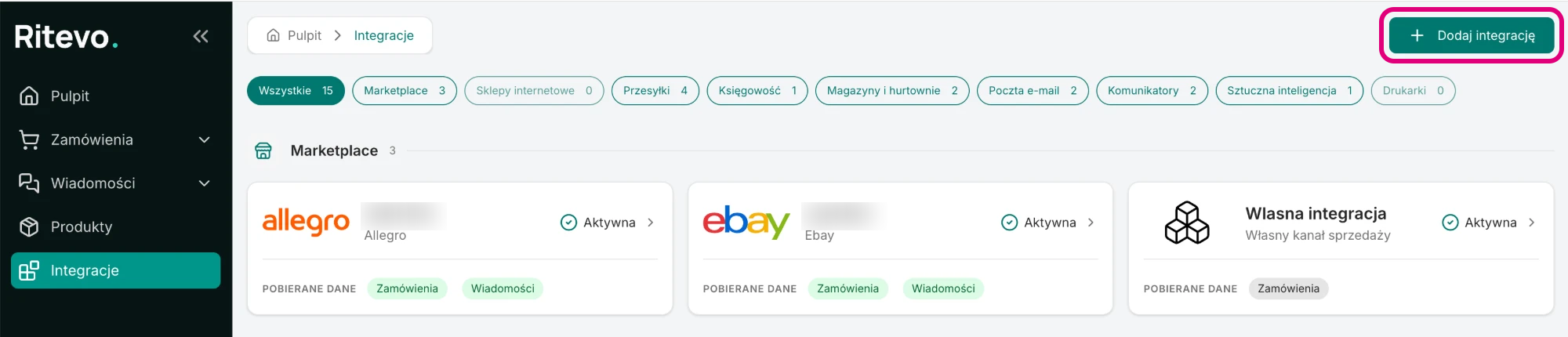
- Go to Integrations in the left panel and click Add integration in the top right corner.
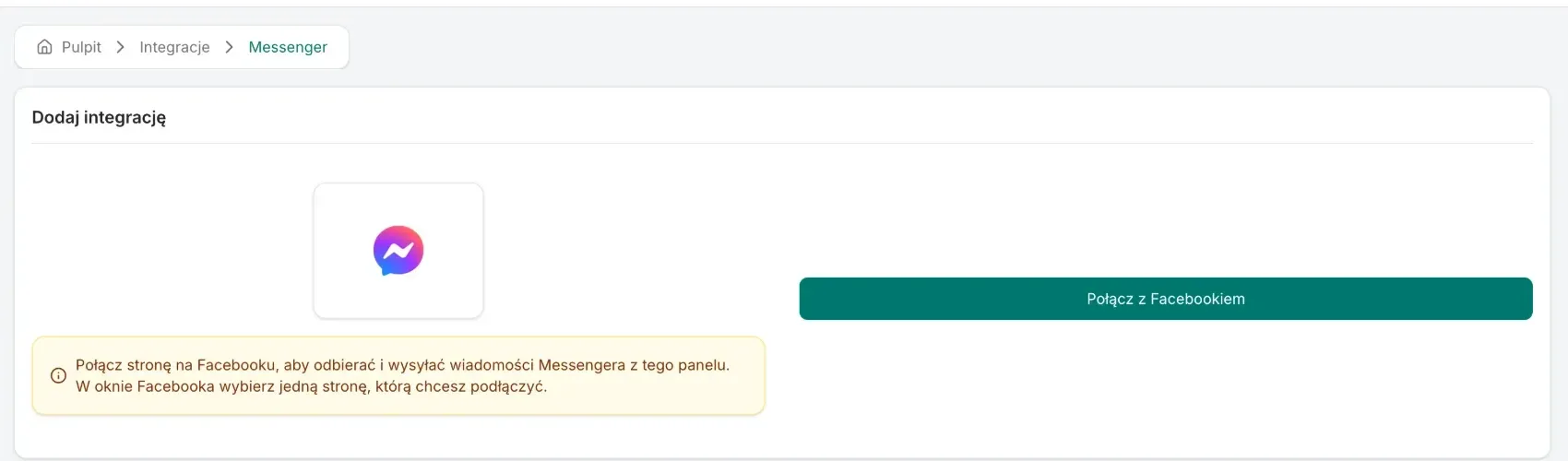
- In the Messaging section pick the Messenger tile.
- Click Connect with Facebook. Facebook's window opens.
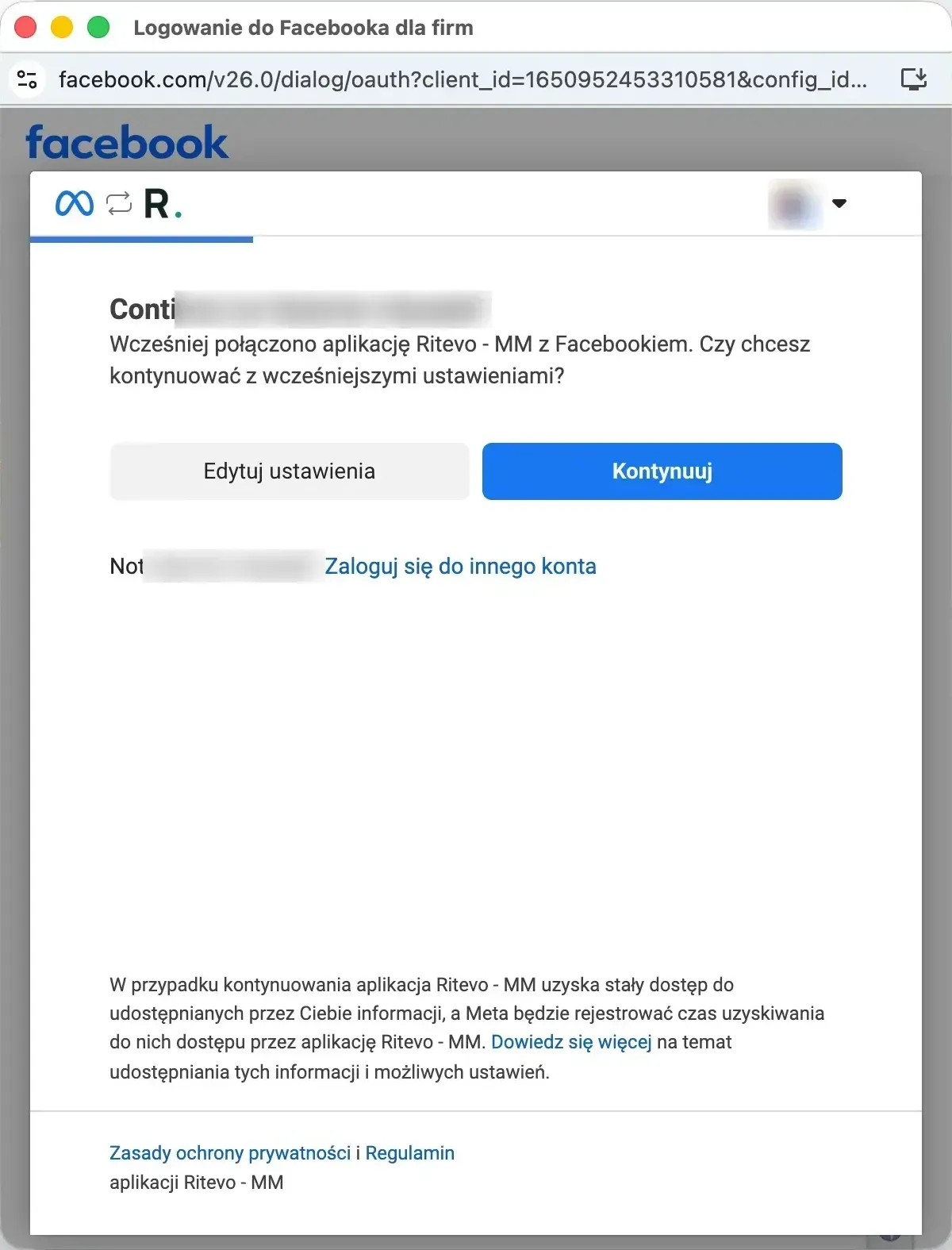
- Sign in and tick one Page you want to connect. If you have connected your account with Facebook before, the window asks whether to continue with the previous settings - click Edit settings to pick another Page, or Continue.
- Go back to the integrations window and wait a moment - do not close it. We connect the Page for receiving messages and open the new integration's settings. If something fails, you see the error returned by Facebook and nothing is saved.
Integration settings
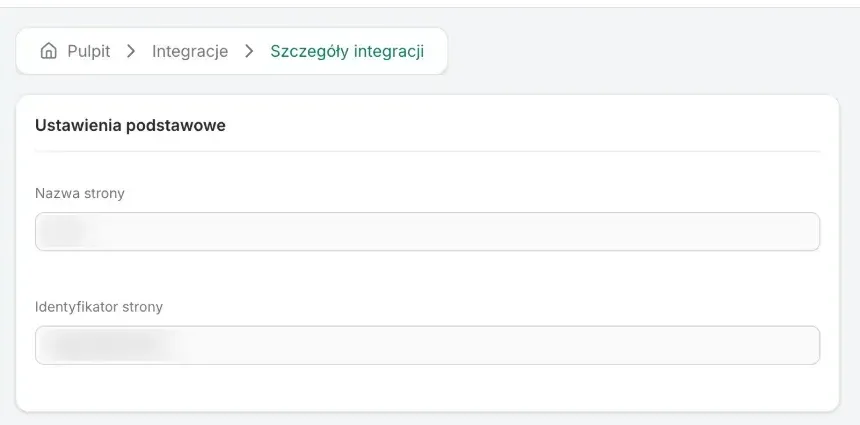
The integration is Active and receives messages right away - there is no fetching switch here, because Messenger delivers messages as they arrive. On the integration page you will find, read-only:
- Page name - the name of the connected Facebook Page.
- Page ID - the Page's id in Facebook.

Messages from Messenger
- Conversation history - Messenger does not share history, so we store the messages and attachments ourselves from the moment of connecting. You can read them even when the integration needs reconnecting - without a connection you only cannot send replies.
- Live - a customer's message shows up in the inbox right away, with no waiting for the next check.
- Threads - each conversation with one person is one thread of the Message type, labelled with the name from their profile. It is not linked to an order automatically.
- Page buttons - when the customer taps a button set up on your Page in Messenger instead of writing (for example "Get started" or a menu item), the thread shows a message with that button's name.
Replying to customers
- Right in the thread - a sent reply shows in the thread right away, and its status changes once Messenger confirms it was sent.
- Attachment and text - Messenger does not send a file and text in one message, so the customer gets two: the file first, then the text.
- 24 hours - Messenger lets you reply freely for 24 hours after the customer's last message. After that it rejects an ordinary reply and you see an error. From then on you can only write with messages carrying a special Meta tag (for example a human agent reply within 7 days) - we do not send such messages yet, so you can write again only once the customer writes first.
Reconnection required
This state appears when Facebook stopped accepting our access to the Page - for example after a password change, losing permissions to the Page or disconnecting the app in Facebook's settings. Until you reconnect, you cannot send replies from that Page.
- Go through Connecting the account again and pick the same Page in Facebook's window.
- The connection is refreshed in the existing integration - the history stays, no second integration is created.
Deleting the integration
Delete integration turns the integration off in Ritevo: it stops fetching and sending data, but what it fetched earlier stays. Restore integration turns it back on.
What the integration does not do
- It does not fetch conversations from before the Page was connected.
- It does not start conversations with customers - you reply in conversations the customer opened.
- It does not send messages with a special Meta tag, so it cannot write to the customer after the 24 hours.
- It does not handle post comments or Instagram messages.