
Automatic actions for orders
An order action reacts to a change in an order and carries out the steps you set on it. Most often it changes the order status or your own custom status, issues an invoice or a receipt, sends a document to the accounting system, creates a shipment, prints a label or a receipt, updates order data - the buyer, invoice details, delivery, payment - adds a note, marks the order as a favorite and much more. The general rules - conditions, branches, loop protection - are covered in How automatic actions work.
Where to find actions
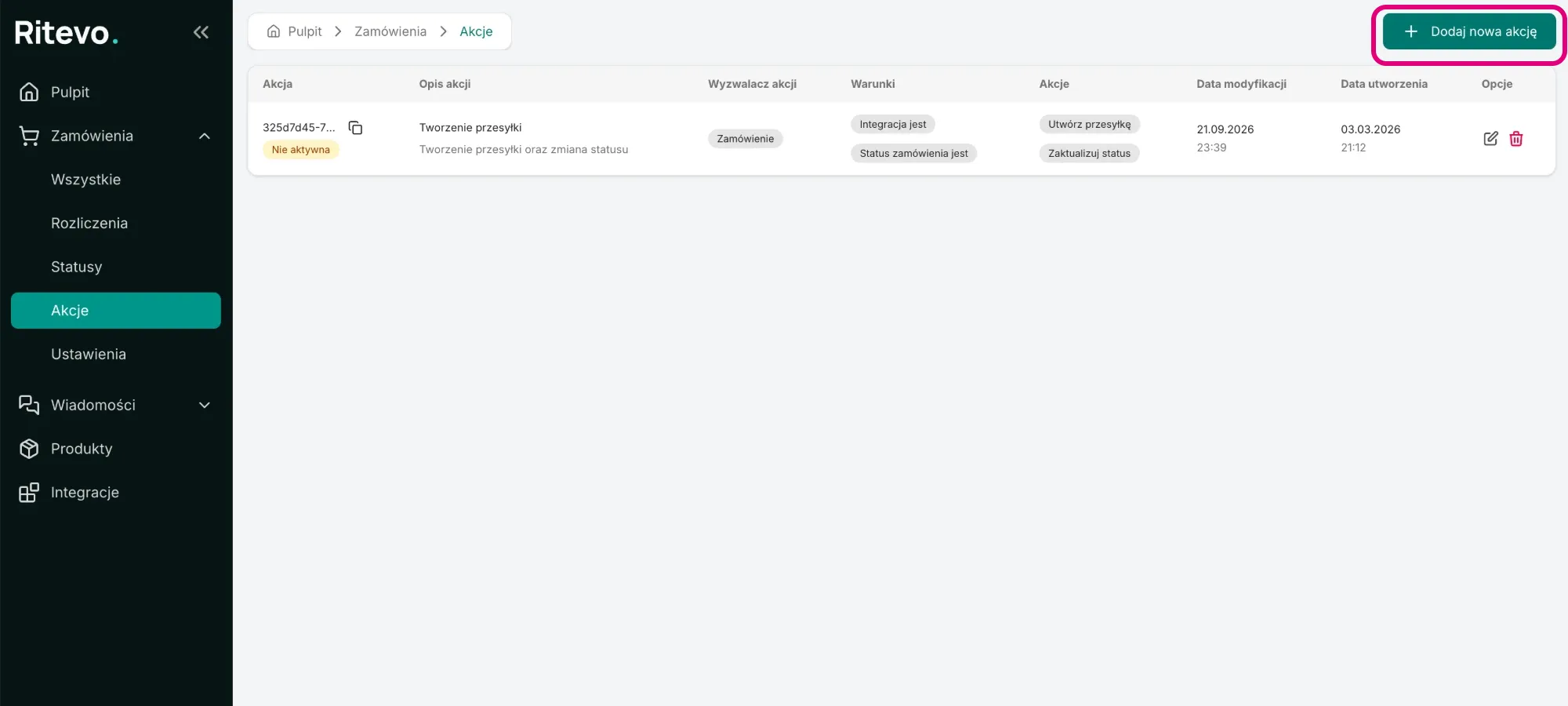
Order actions are in the Orders → Actions menu (in the left panel). For every action the list shows its trigger, conditions and steps, and whether it is active. You add a new action with the Add new action button in the top right corner. The breadcrumbs at the top of the page (Dashboard → Orders → Actions) always show where you are.
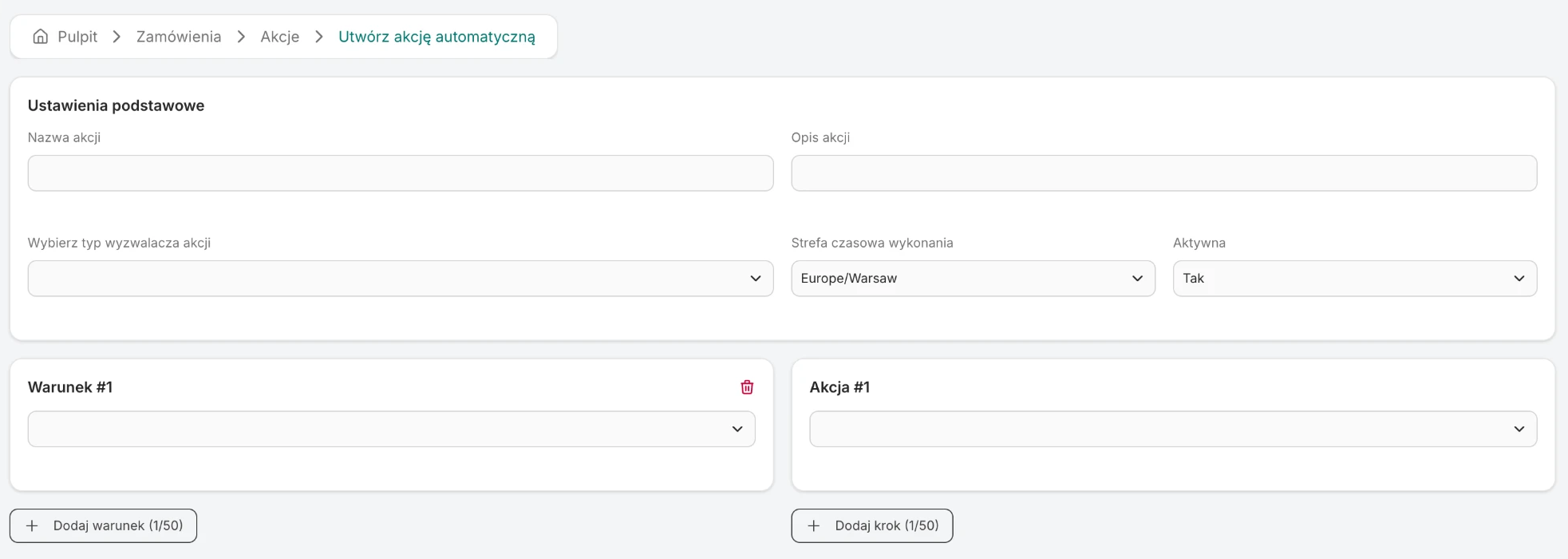
The action form: basic settings at the top (name, description, trigger, time zone, Active), conditions on the left, steps on the right.
Triggers
A trigger is a change that happened in the order. It does not matter who made it: you, the sales channel while the order was fetched, or another action.
Order and statuses
- Order - a new order reached Ritevo or an existing one was updated when fetched from the sales channel; also deleting and restoring an order. This is the trigger for "do something with every new order" actions.
- Order status changed - the order status changed, for example to Confirmed.
- Status changed - your own custom order status changed.
- Payment data changed - the payment changed, for example the order was paid.
- Order date changed, Own note changed, Favorite status changed.
Order data
- Line item changed - an item was added, changed or removed.
- Buyer data changed, Company data changed.
- Delivery address changed, Delivery method changed, Pickup point changed, Delivery time changed, Basic delivery data changed.
Documents, shipments and printing
- Invoice (added/removed), Receipt (added/removed) - a document was issued or deleted.
- Invoice sent to external accounting, Receipt sent to external accounting.
- Shipment created - a shipment was created for the order.
- Print job - a label or receipt print was requested.
Conditions
Conditions check the order at the moment the action runs. The names below match the list in the action form.
Integration and statuses
- Integration is / Integration is not - you pick one or several from the list of your integrations. With several, it is enough that the order comes from any of them.
- Order status is / Order status is not - you pick one or several order statuses, for example Confirmed.
- Order status changed to - use it with the Order status changed trigger: the condition is met when, after the change, the order has one of the statuses you picked.
- Status is / Status is not / Status changed to - the same for your own custom statuses.
Payment
- Payment status is / Payment status is not - for example Paid, Underpaid, Overpaid.
- Payment method is / Payment method is not - one or several methods.
- Order not paid - nothing has come in yet.
- Amount paid greater than / less than / equal to - compared with the amount you enter.
- Amount to pay greater than / less than / equal to - for example different steps for orders above 100 EUR.
Delivery and line items
- Delivery country is / Delivery country is not - one or several countries.
- Delivery region is / Delivery region is not - currently Europe is available.
- Delivery city contains / Delivery city does not contain - part of the city name.
- Number of line items greater than / less than / equal to - how many different items the order has.
- Item quantity greater than / less than / equal to - how many units an item has.
- Item name contains / Item name does not contain - one or several words; any of them is enough.
Documents and shipment
- Has invoice / Has no invoice, Has receipt / Has no receipt, Has correction / Has no correction.
- Has a successful invoice transfer to external accounting / Has no successful invoice transfer to external accounting, Has a successful receipt transfer to external accounting / Has no successful receipt transfer to external accounting - you pick the accounting integration.
- Has shipment / Has no shipment.
- Shipment status is / Shipment status is not - one or several shipment statuses.
- Shipment belongs to integration / Shipment does not belong to integration - you pick the shipping integration.
Buyer, note and favorites
- Buyer email contains / does not contain, Buyer name contains / does not contain, Buyer company contains / does not contain - part of the text.
- No note / Has note / Note was removed.
- Own note contains keywords / Own note does not contain keywords.
- Order is a favorite / Order is not a favorite, Favorite status changed from / to.
Time
- Action run time from / to, Action run day is / is not, Action run date from / to - counted from the moment the action runs.
- Order time from / to, Order day is / is not, Order date from / to - counted from the moment the order was placed.
- Order age greater than (days) / Order age less than (days) - how many days have passed since the order was placed.
Steps - what an action can do
Statuses and flags
- Update order status, Update status (custom).
- Update own note, Update favorite status.
Documents
- Generate invoice, Generate receipt - using the document settings template you pick.
- Delete invoice, Delete receipt.
- Send invoice to external accounting, Send receipt to external accounting - needs an accounting integration.
- Update company data with buyer data - copies the buyer's data into the data on the document.
Plan sending documents step by step - first issuing, then sending:
- Invoice - the first action ends with the Generate invoice step. The second starts on the Invoice (added/removed) trigger, has the Has invoice condition and the Send invoice to external accounting step.
- Receipt - the same: the first action ends with the Generate receipt step, and the second starts on the Receipt (added/removed) trigger, has the Has receipt condition and the Send receipt to external accounting step.
- Corrections - you can issue many corrections to one invoice. Send each right after issuing it, before you issue the next one.
Shipments and printing
- Create shipment - needs a shipping integration.
- Print shipment label - prints the label of the order's newest successful shipment, needs a printer integration.
- Print receipt - prints the order's newest receipt.
Plan label printing step by step, as two actions:
- First action - ends with the Create shipment step.
- Second action - starts on the Shipment created trigger, has the Shipment status is condition with Created successfully and a single Print shipment label step. This way every new shipment prints its label right away - also when the order has several parcels.
Order data
- Update buyer data, Update company data, Update delivery address, Update delivery method, Update pickup point, Update delivery time, Update basic delivery data, Update payment data, Update order date - set the given data in the order. The Fill empty fields with the order's current data option leaves the fields you do not fill in unchanged.
- Delete order, Restore order.
Steps that delete something require an explicit confirmation when you create the action.
Steps that wait for an external system
Some steps do not finish right away, because the answer has to come from outside:
- Send invoice to external accounting / Send receipt to external accounting - some systems accept the document and confirm it only after a while. Until then the transfer is "in progress".
- Create shipment - the carrier accepts the request and returns the tracking number and the label after a while.
Until there is a final result, the action waits: it does not move to the next step and does not start other actions. It continues only when the external system answers - with success or an error. The same thing happens in both cases:
- Next step - the action moves to the next step, after an error too. An error does not stop the action, so that you can react to it, for example set a custom status "Shipment problem".
- Other actions - if it was the action's last step, actions with the Shipment created or Invoice sent to external accounting trigger can start. They also start after both a success and an error.
- Audit - you will see the result, and for an error also its reason, in the orders audit.
Examples
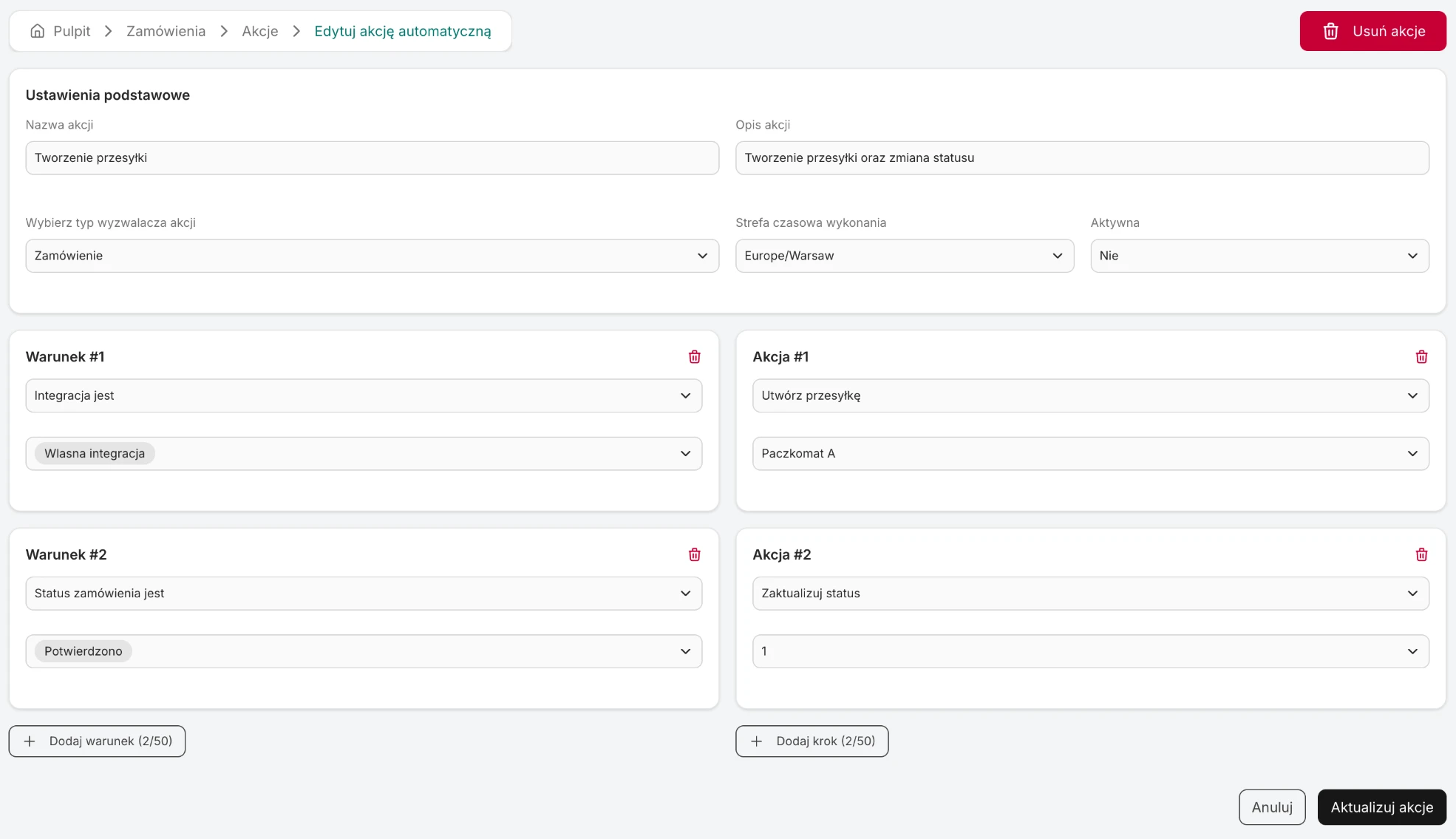
A shipment for confirmed orders from a chosen integration
- Trigger: Order.
- Conditions: Integration is the chosen sales integration, Order status is Confirmed.
- Steps: Create shipment with the chosen shipping integration, then Update status to a custom status, for example "To pack".
Invoice and shipment after payment
- Trigger: Payment data changed.
- Conditions: Payment status is Paid, Has no invoice, Has no shipment.
- Steps: Generate invoice, then Create shipment, then Print shipment label.
Flagging international orders
- Trigger: Order status changed.
- Conditions: Order status changed to Confirmed, Delivery country is not your home country.
- Step: Update status to a custom status, for example "International".
One action, different carriers
- Trigger: Order status changed, condition Order status changed to Confirmed.
- Step Create shipment with branches: the first variant with the condition Delivery country is not your home country and an international carrier integration, the default action with the domestic one.
What an order action will not do
- It will not send a message or an email to the customer and will not use AI. Only message actions have those steps.
- It will not run with a delay or at a set time. The Order age greater than (days) condition is checked only when something changes in the order - the passing of time alone starts nothing.
- It will not issue a document or create a shipment without the settings those operations also need when done by hand (a document template, a shipping integration).
Run audit
Runs of order actions are in Settings → Audit → Orders. Every entry shows the action, the step number, the result and an error, if any. What the results mean is explained in How automatic actions work.