
InPost
The InPost integration creates parcel locker shipments through the InPost ShipX API. You connect it with an API token and an organization ID from InPost's Manager Paczek (parcel manager).
You can add as many InPost integrations as you like, including several for the same account - for example with a different label format, parcel or sender address. Each works on its own.
Which shipments it creates
- Parcel locker - the shipment always goes to the parcel locker the buyer chose. The order must have a pickup point - without it InPost rejects the shipment.
- Courier - courier shipments are not supported.
- Allegro orders - get the Paczkomat Allegro service, the others the standard Paczkomat service.
- Cash on delivery and insurance - cash on delivery from the order, insurance from the integration settings.
- Any sales channel - you can create a shipment for an order from any channel.
Where to find the token and the organization ID
You will find both in InPost's Manager Paczek. Have them ready before adding the integration:
- Sign in to InPost's Manager Paczek at manager.paczkomaty.pl.
- Go to Moje konto → API (my account, API) and in the API ShipX tab click Generuj (generate). Copy the token.
- In the Ustawienia organizacji (organization settings) tab copy the organization ID. It only shows up after the token is generated.
Connecting the account
Start in Ritevo:
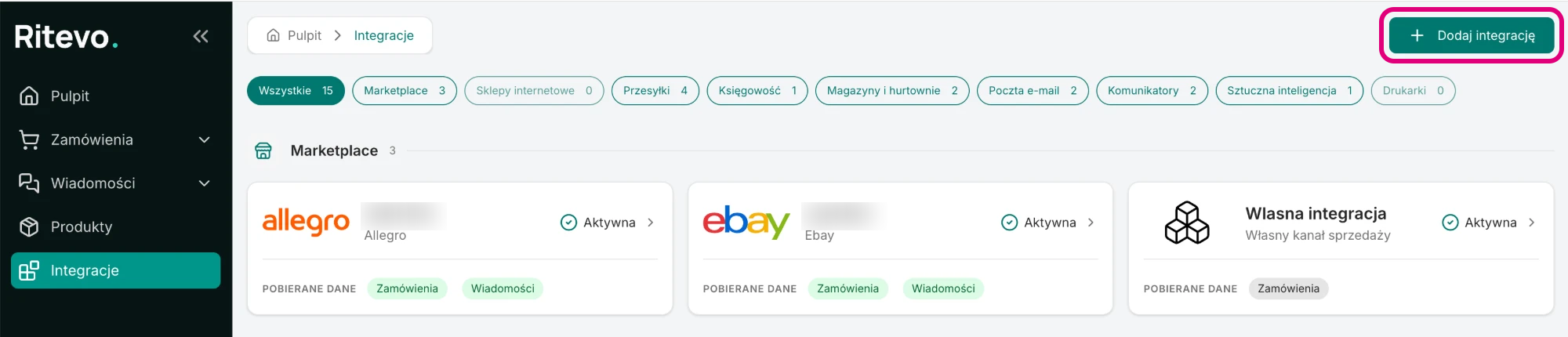
- Go to Integrations in the left panel and click Add integration in the top right corner.
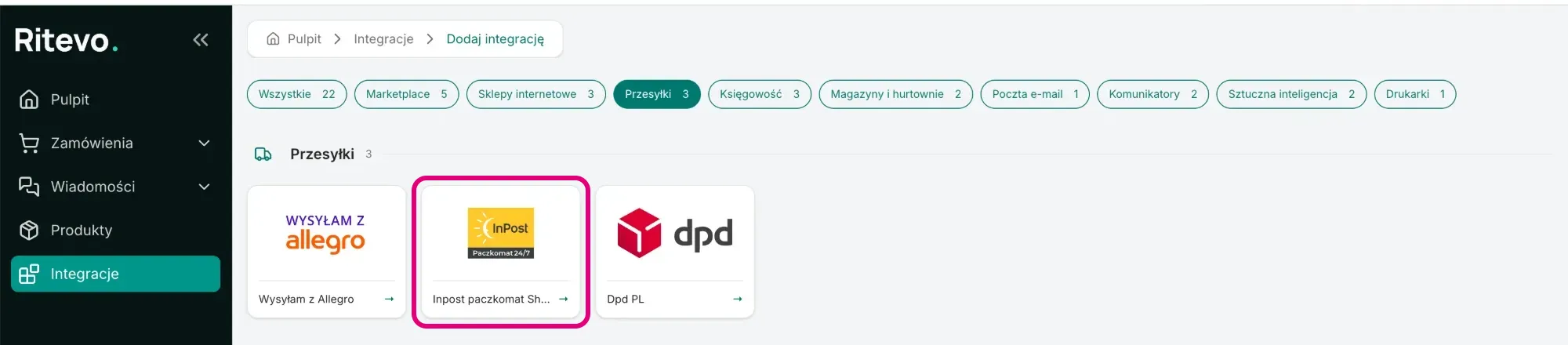
- In the Shipments section pick the Inpost paczkomat ShipX tile.
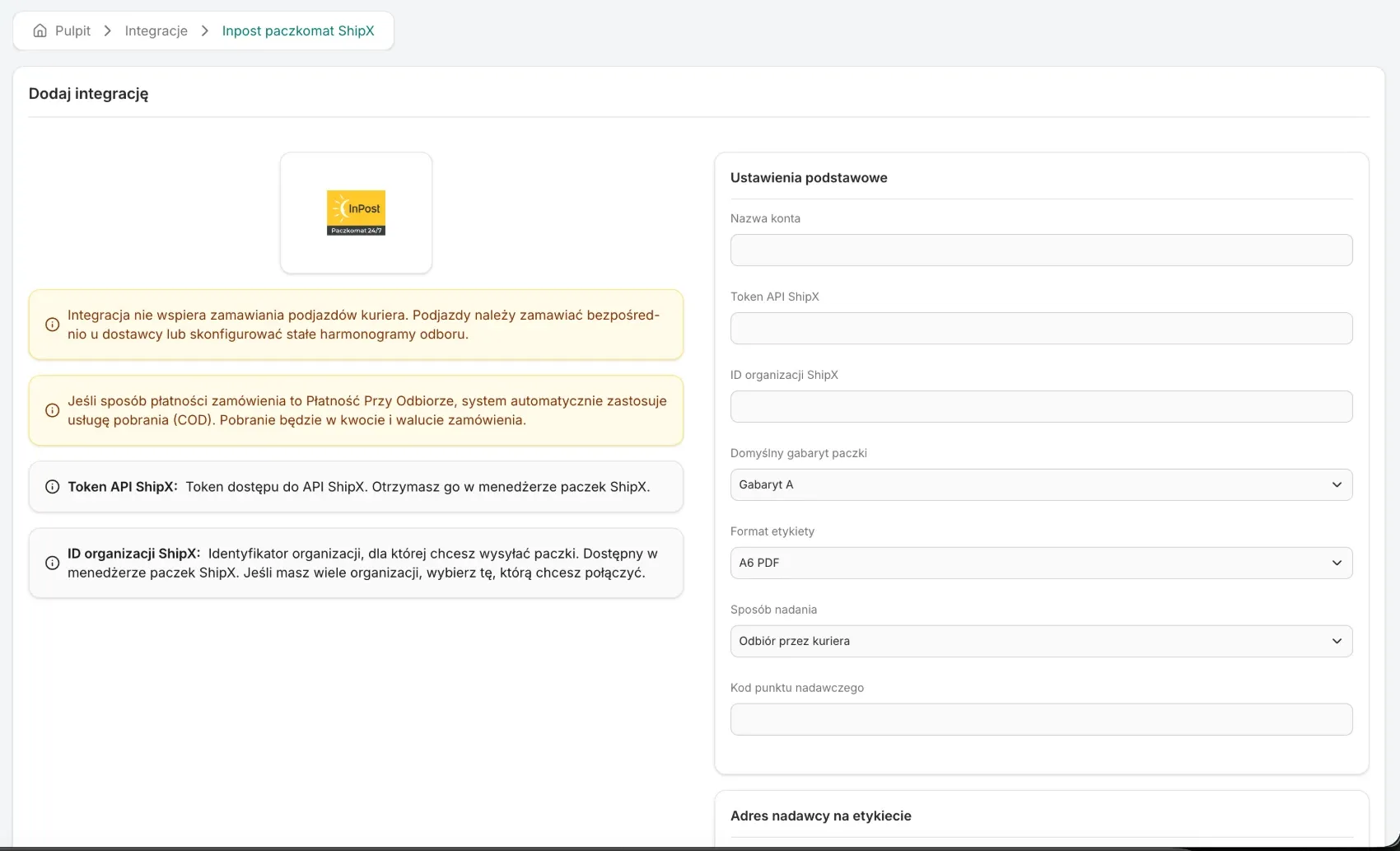
- Enter the Account name - your own name for the integration - and paste the ShipX API token and the ShipX organization ID.
- Fill in the other settings described below and click Add integration. We check the token in InPost right away: if it is wrong, you will see the error returned by InPost and nothing is saved.
Integration settings
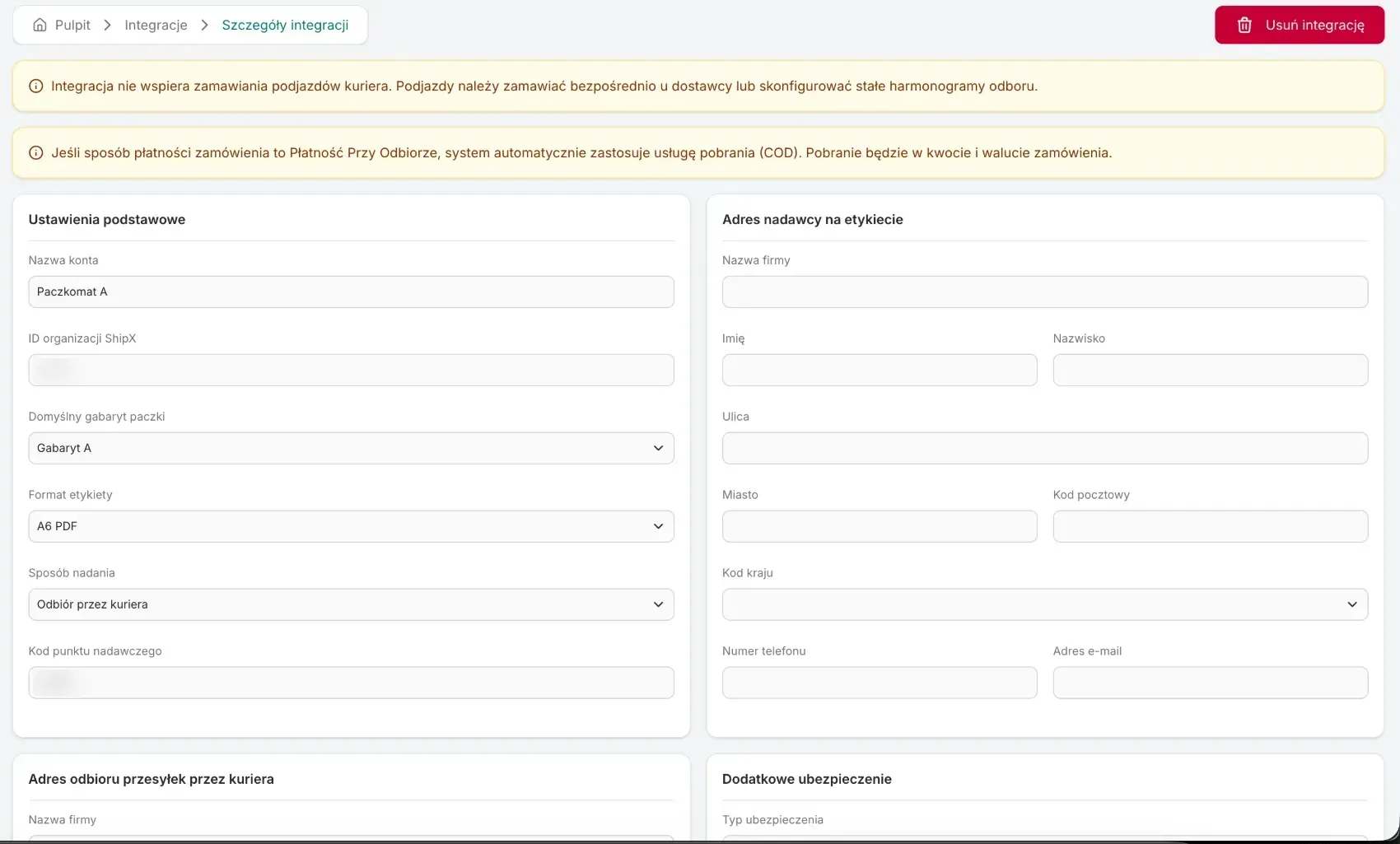
On the integration page you will find the fields below. You save changes with Update integration:
- Account name - your own name for the integration.
- Default parcel size - Size A, Size B or Size C. A by default.
- Label format - A4 PDF, A6 PDF, A6 ZPL, A6 ZPL 300dpi or A6 EPL. A6 PDF by default.
- Drop-off method - how you hand parcels over to InPost: Courier pickup, Drop-off at a Paczkomat locker, Drop-off at an InPost branch, Drop-off at a POK, Drop-off at a POP (PaczkoPunkt) or Drop-off at any point. Courier pickup by default.
- Drop-off point code - the code of the point where you drop off parcels. The field is required for every drop-off method.
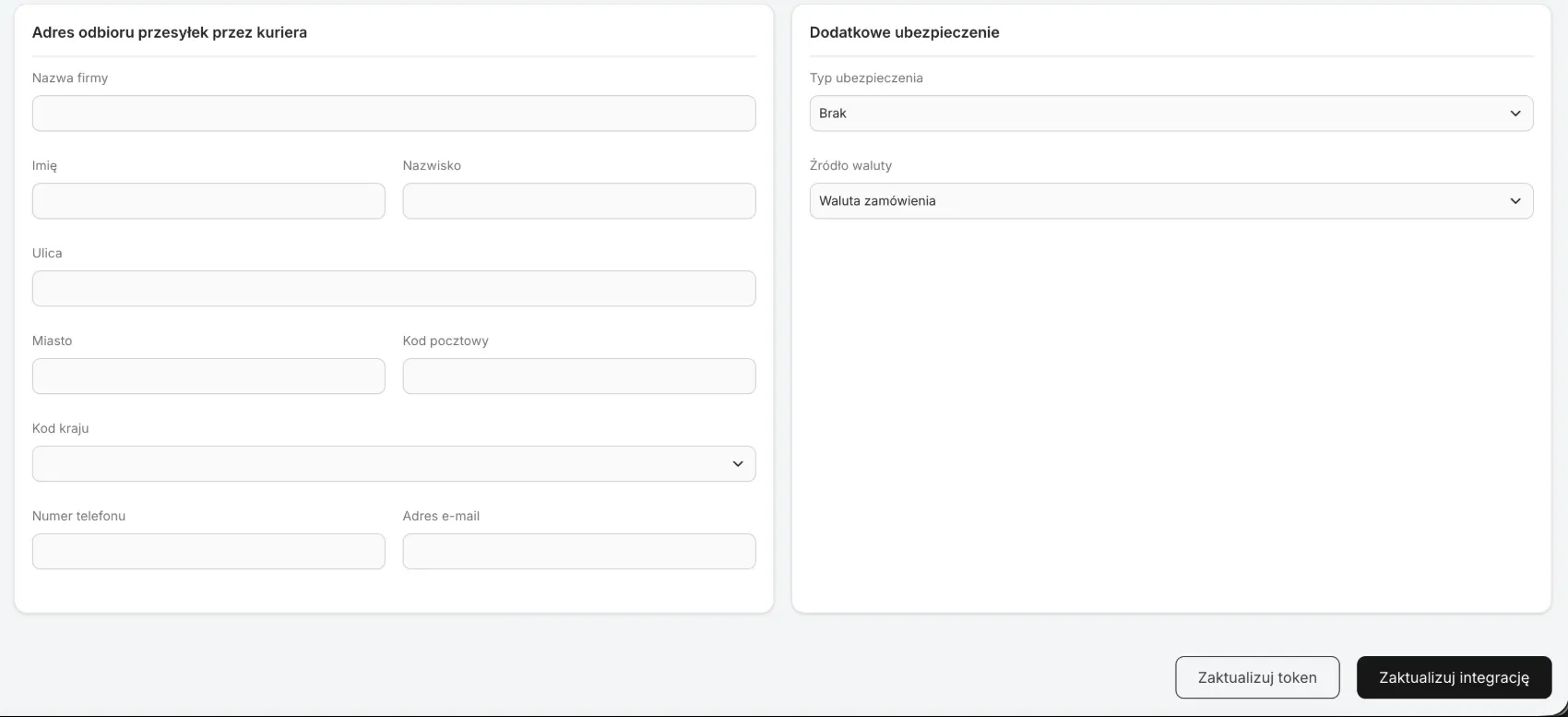
- Update token - you enter a new ShipX API token.
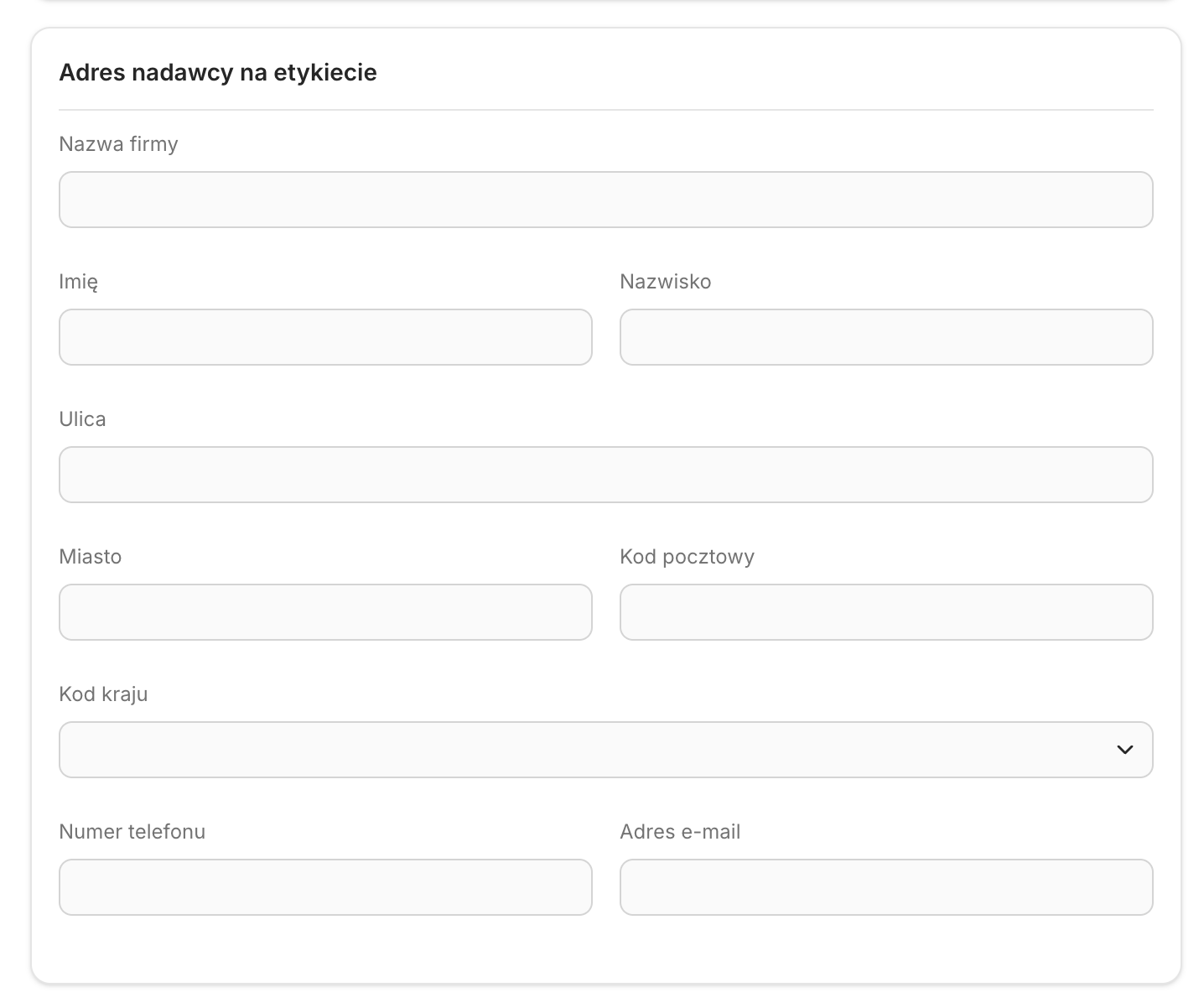
- Sender address on the label - the sender details the carrier prints on the label.
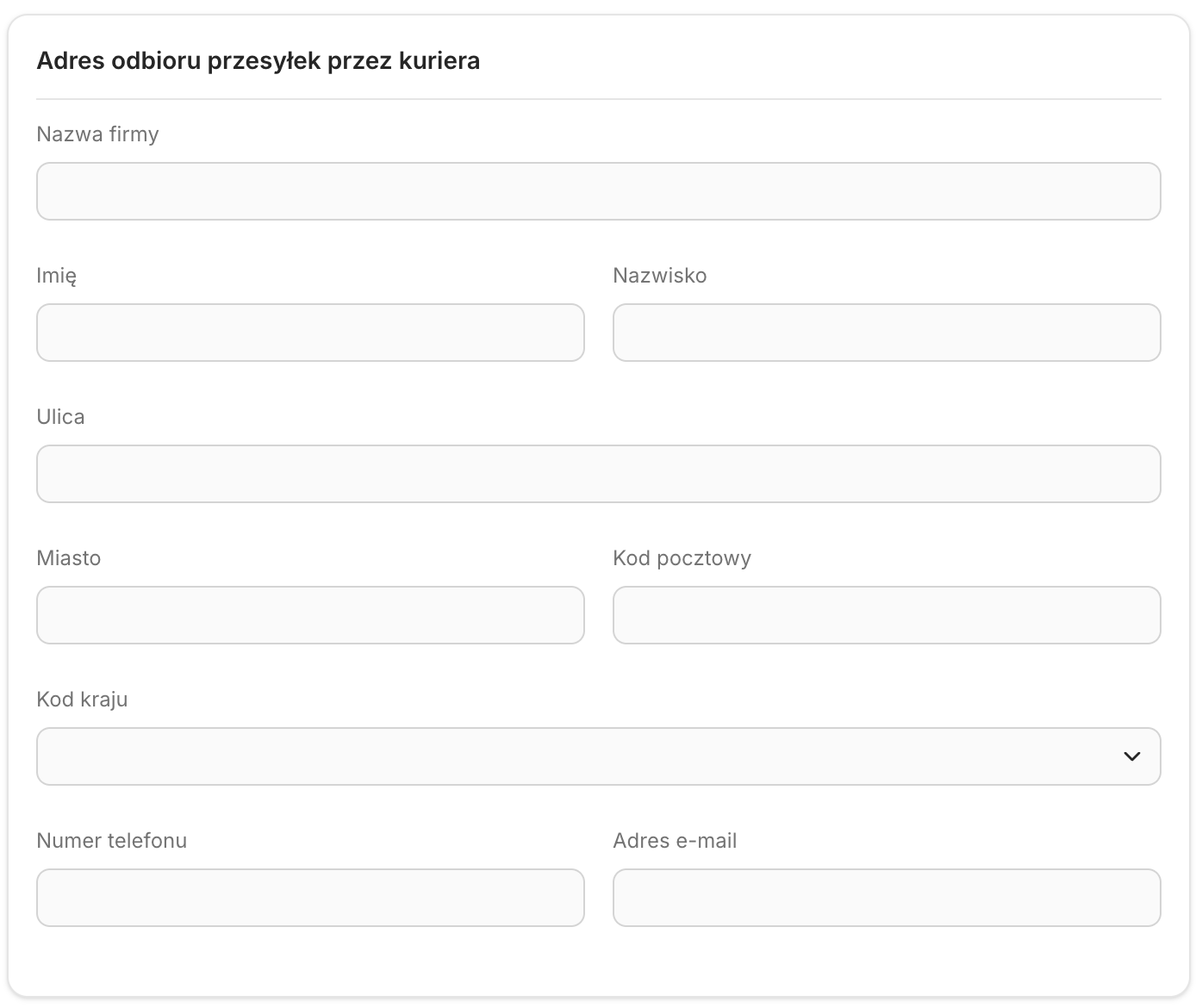
- Courier pickup address - the address the courier collects parcels from. It can differ from the sender address on the label - for example in dropshipping: the label shows your shop, and the courier collects the parcel from the wholesaler.
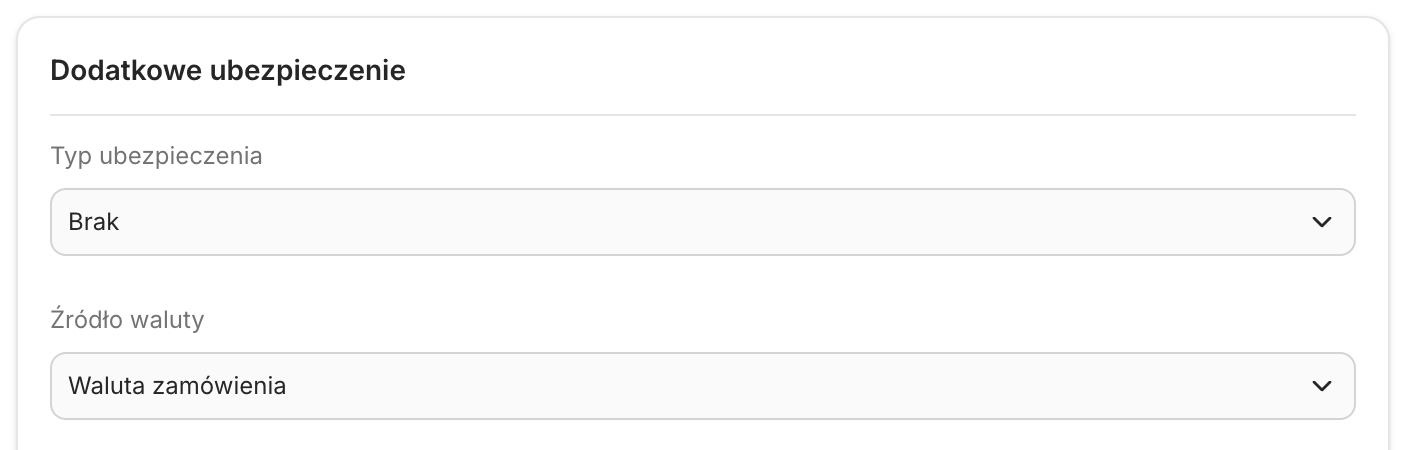
- Additional insurance - the insurance amount of every shipment: None, Order value with delivery, Order value without delivery or Fixed amount. In Currency source you pick the order currency, the delivery country currency or a fixed currency.
Creating shipments
You create a shipment from the order in two ways:
- By hand - in the order details, in the Shipments card, click the button with the InPost integration name. You only see buttons for active integrations that match the order.
- Automatically - with the Create shipment step in order actions.
The shipment details come from the order:
- Recipient - the order's delivery address and the buyer's phone and email.
- Pickup point - the point the buyer chose, if the order has one.
- Cash on delivery - the amount to pay from the order, when the payment method is Cash on delivery.
- Parcel - one shipment is always one parcel.
In the same card every shipment has a tracking number, a state and a creation date. The states:
- Being created - the carrier is still creating the shipment. We check it every few seconds. If the carrier does not confirm the shipment within 24 hours, it ends with an error.
- Created successfully - the shipment is with the carrier and has a tracking number.
- Creation failed - the carrier did not accept the shipment. The reason is shown next to the state, and for a carrier error also the carrier's message.
You download the label of a created shipment with the Download button in the Shipments card. You print it in two ways - the Ritevo Printer app must run on the computer with the printer:
- By hand - in the Shipments card click Print and pick the printer.
- Automatically - with the Print shipment label step in order actions. The step prints the label of the latest shipment in the Created successfully state - it skips shipments being created and failed ones.
Plan label printing step by step, as two actions:
- First action - ends with the Create shipment step.
- Second action - starts on the Shipment created trigger, has the Shipment status is condition with Created successfully and a single Print shipment label step. This way every new shipment prints its label right away - also when the order has several parcels.
How a shipment reaches InPost
- Confirmation - InPost creates the shipment in the background, so at first it is Being created. When InPost assigns the tracking number, it changes to Created successfully.
- Tracking number - the InPost shipment number. The same number is on the label.
- Cancelled in InPost - a shipment cancelled in InPost while being created ends with an error.
Reconnection required
This state shows up when InPost stops accepting the token - for example after a new token was generated in Manager Paczek. Until you enter a new token you cannot create shipments or download labels.
- Copy the current token from the API ShipX tab in InPost's Manager Paczek.
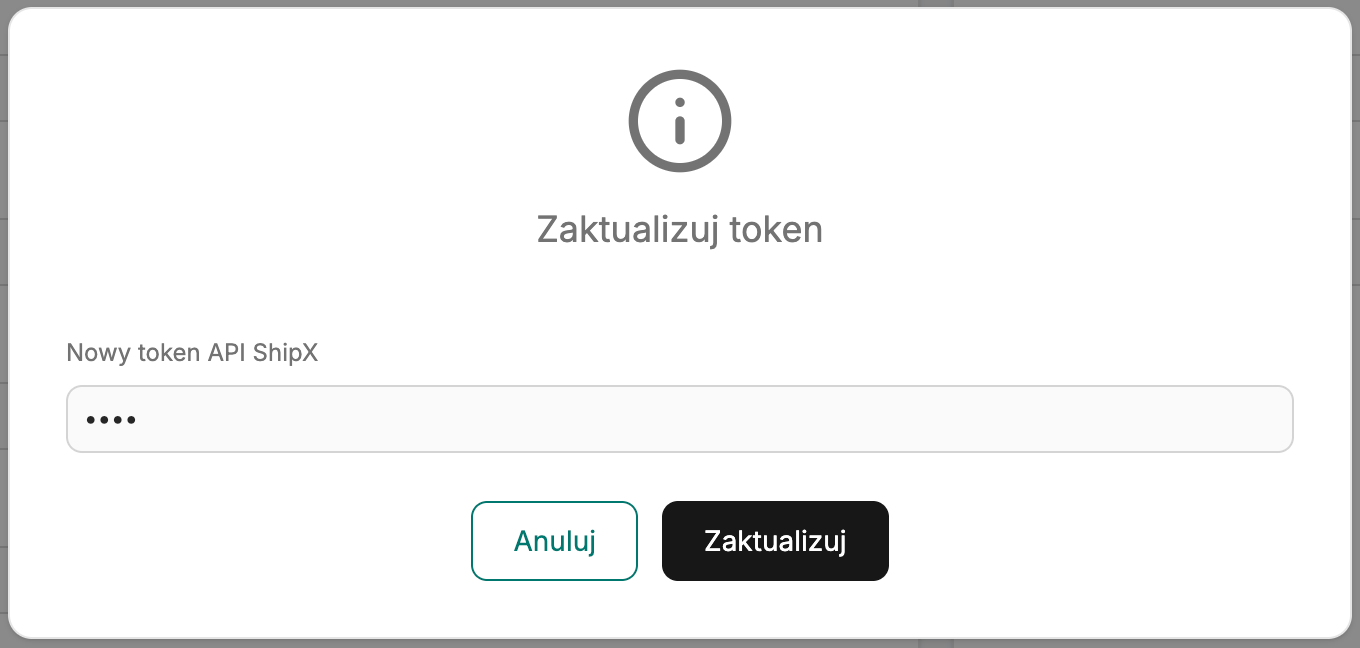
- On the integration page click Update token, paste it into the New ShipX API token field and confirm. We check it in InPost the same way as when adding - a valid one refreshes the connection, and the settings stay unchanged.
Deleting the integration
Delete integration turns the integration off in Ritevo. Shipments created earlier stay in the orders and with the carrier. Restore integration turns it back on.
What the integration does not do
- It does not book a courier pickup.
- It does not cancel shipments.
- It does not track a shipment after it is created - you check the delivery state with the carrier.
- It does not send the tracking number to the sales channel.
- It does not create shipments with several parcels.
- It does not create courier shipments - parcel lockers only.