
Automatic actions for messages
A message action reacts to what happens in your inbox: a new thread, a new message, a status change. Most often it replies to the customer - with fixed text, a template filled with the thread's data or a reply written by AI - assigns the thread to a specific user, sets your own custom status, marks the thread as read or favorite, adds a note and much more. The general rules are covered in How automatic actions work.
Where to find actions
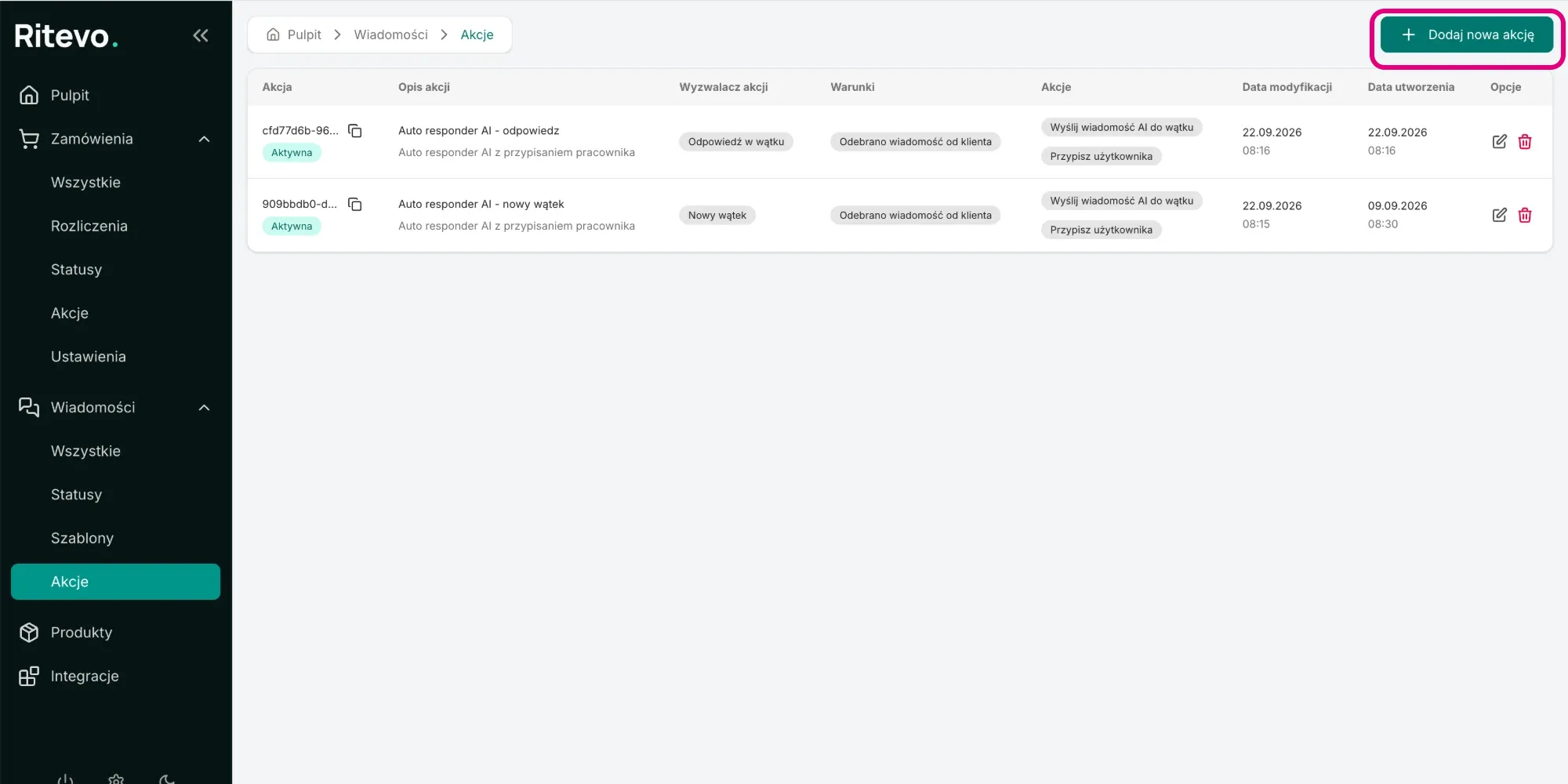
Message actions are in the Messages → Actions menu (in the left panel). For every action the list shows its trigger, conditions and steps, and whether it is active. You add a new action with the Add new action button in the top right corner. The breadcrumbs at the top of the page (Dashboard → Messages → Actions) always show where you are.
The action form looks the same as for orders: basic settings at the top (name, description, trigger, time zone, Active), conditions on the left, steps on the right.
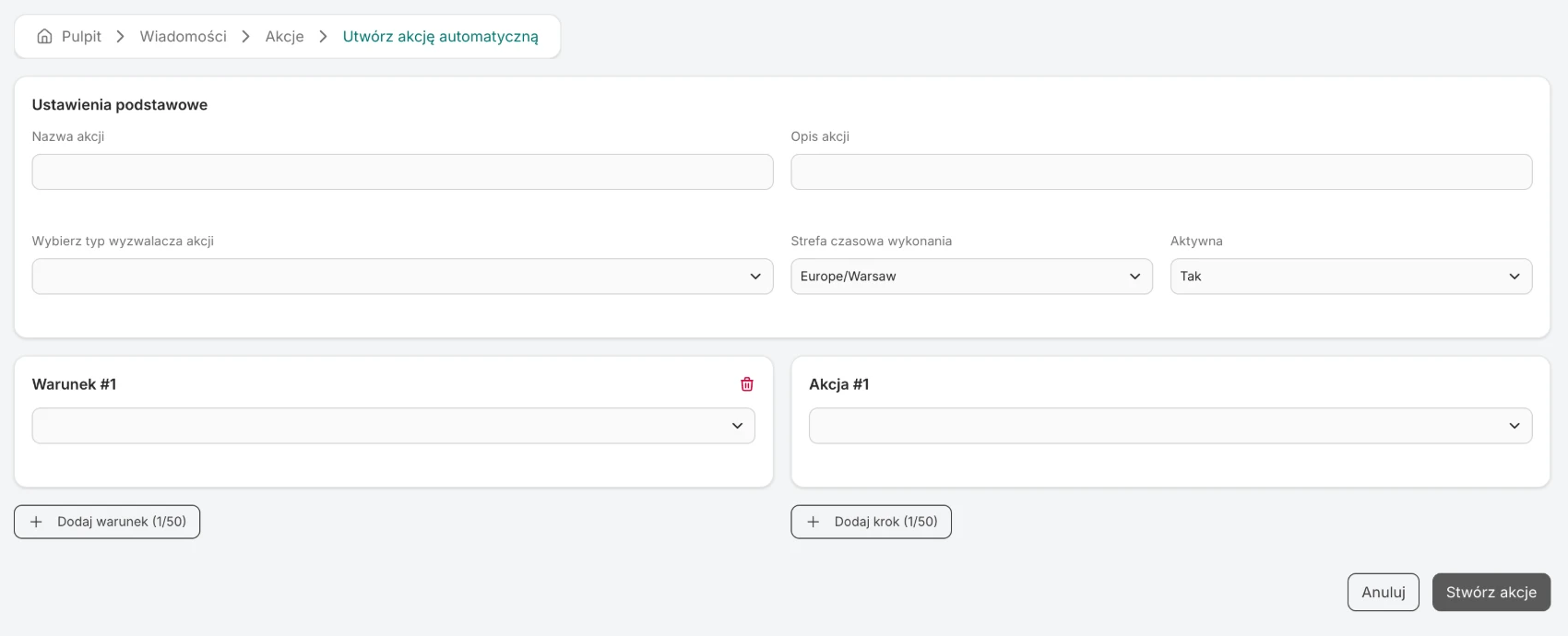
Triggers
- New thread - a thread that was not in Ritevo before appeared. Usually this is the customer's first message about a matter.
- Reply in thread - a new message appeared in an existing thread. No matter who wrote it - the customer or you.
- Template reply in thread - an automatic action sent a template reply.
- AI reply in thread - an automatic action sent an AI reply.
- Status changed - your own custom thread status changed.
- Assigned user changed, Read status changed, Favorite status changed, Own note changed.
The customer's first message fires New thread, and every later one in the same conversation fires Reply in thread. A thread can be old: a customer who bought from you a year ago often writes in the same conversation, and then it is Reply in thread, not New thread. So always build an autoresponder as a pair of actions - one with the New thread trigger and one with the Reply in thread trigger, with the same conditions and steps.
Why the "from customer" condition is necessary
Messages you send - by hand or through an action - come back to Ritevo on the next fetch from the channel and are also "a new message in the thread". The Reply in thread trigger does not tell direction. Only conditions do:
- Message received from customer - the last message in the thread is from the customer.
- Message sent to customer - the last message is from you.
An action without the Message received from customer condition can loop. Its own reply comes back on the next message fetch as a new message in the thread, the action replies to it again - and so on at every fetch, without end. The safety switch described on the general page will not stop this, because several minutes pass between the replies and it reacts to many runs in a short time. The customer would keep getting the same reply until you turn the action off. This one condition solves the problem at the source, so always add it.
Conditions
Who wrote and where from
- Message received from customer / Message sent to customer.
- Integration is / Integration is not - which channel the thread comes from. You pick from the list of your integrations - one or several. With several, any of them is enough.
- Conversation type is / Conversation type is not - Message, Dispute or Claim; one or several.
- Conversation status is / Conversation status is not - the state of the dispute or claim in the sales channel.
Content
- Message contains keywords / Message does not contain keywords - the last message in the thread is checked. One of the given words is enough, letter case does not matter.
- Topic contains keywords / Topic does not contain keywords, Own note contains keywords / Own note does not contain keywords - work the same way.
Time of day, day and date
- Action run time from / to - what time it is at the moment the action runs.
- Message time from / to - what time the last message came in.
- Action run day is / is not, Message day is / is not - days of the week.
- Action run date from / to, Message date from / to - for a holiday period, for example.
Thread state
- Status is / Status is not - your own custom statuses, one or several.
- Assigned user is / is not - one or several users.
- Conversation is read / Conversation is not read, Conversation is a favorite / Conversation is not a favorite.
- No note / Has note / Note was removed.
- Read status changed from / to, Favorite status changed from / to - they react to the change itself.
Steps - what an action can do
Replying to the customer
- Send message to thread - fixed text, up to 2000 characters. Sent literally, without inserted values.
- Send template message to thread - content from a saved template. Inserted values work only in a template: Other party, Thread topic, Thread status, Order number, Order ID (external), Offer ID (external). In the template editor you click the value you want, and when the message is sent the thread's data is filled in. If the thread does not have a given value (for example a topic or an offer ID), it is inserted as empty.
- Send AI message to thread - the chosen AI integration writes the reply and Ritevo sends it to the customer right away.
How the AI reply works
- AI receives the text of the customer's last message and the instructions you entered in the AI integration settings. It does not receive the earlier thread history or order data.
- Everything AI should know about your business - working hours, return policy, tone of voice - goes into the AI integration's instructions.
- There is no draft mode. The reply goes to the customer without your approval, so start with narrow conditions, for example keywords or a single channel.
- If AI returns an error, nothing is sent and you will see the error in the messages audit. The cost of replies is billed by your account with the AI provider.
Tidying the thread
- Assign user - also removing the assignment.
- Update status (custom), Update read status, Update favorite status, Update own note.
Example: an out-of-hours autoresponder
You work Monday to Friday, 8:00-16:00. A customer who writes outside those hours should be told when you will reply.
Action 1 - weekend
- Conditions: Message received from customer, Action run day is Saturday, Sunday.
- Step: Send template message to thread with text like "Thank you for your message. We will reply on the next working day."
Action 2 - working days after 16:00
- Conditions: Message received from customer, Action run day is not Saturday, Sunday, Action run time from 16:00.
- Step: the same as in action 1.
Action 3 - working days before 8:00
- Conditions: Message received from customer, Action run day is not Saturday, Sunday, Action run time to 08:00.
- Step: the same as in action 1.
In total you create six actions: action 1, 2 and 3, each in two versions - with the New thread trigger and with the Reply in thread trigger. Actions 2 and 3 are separate because the 16:00-08:00 range crosses midnight. The day-of-week condition in actions 2 and 3 makes sure the customer does not get two replies at the weekend.
Example: an AI reply with an assigned employee
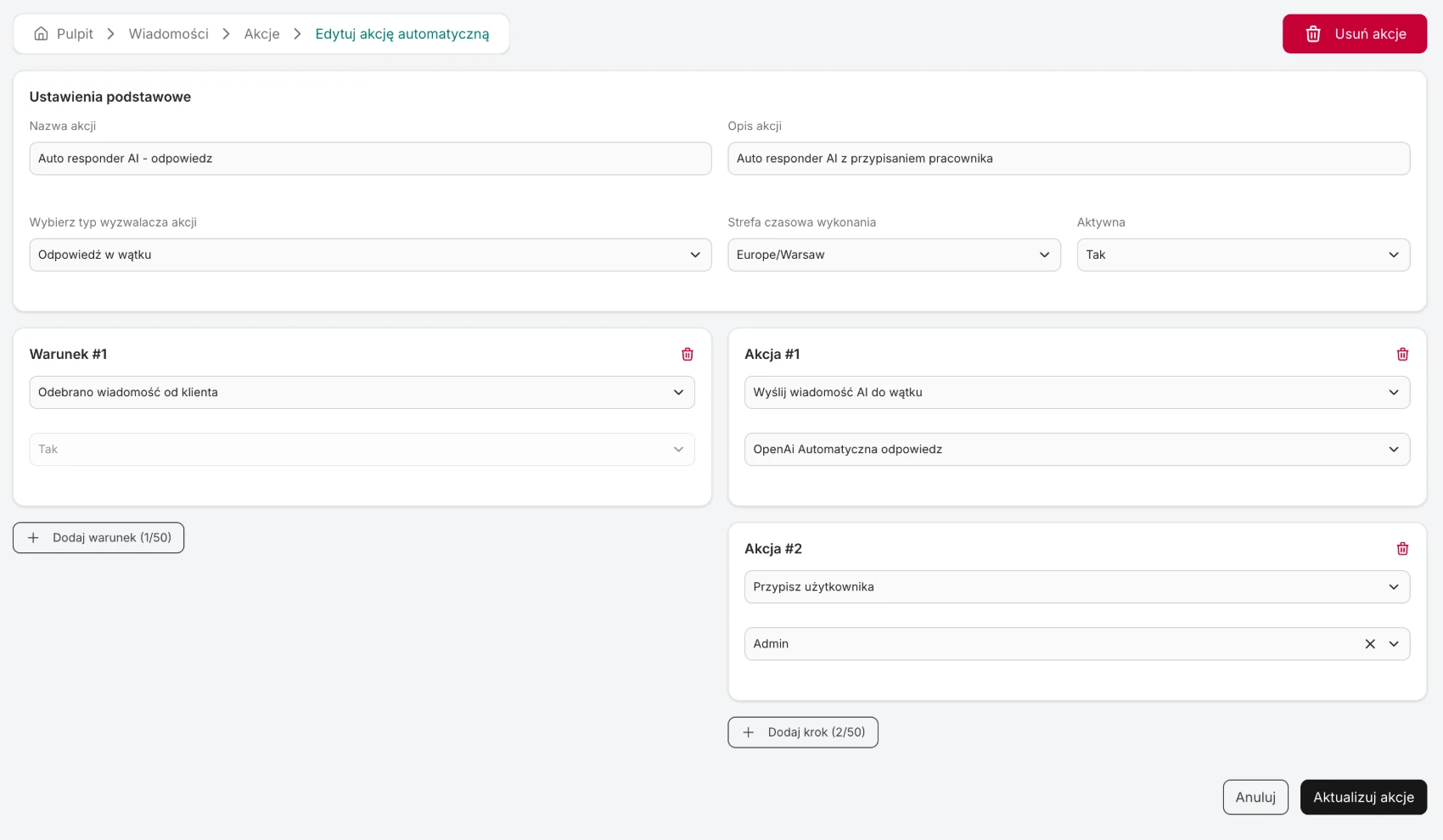
A pair of actions from the app: AI replies to every customer message and the thread goes to a chosen employee. Both actions have the same conditions and steps and differ only in the trigger.
Action 1 - the New thread trigger
- Trigger: New thread.
- Condition: Message received from customer.
- Steps: Send AI message to thread with the chosen AI integration, then Assign user to the chosen person.
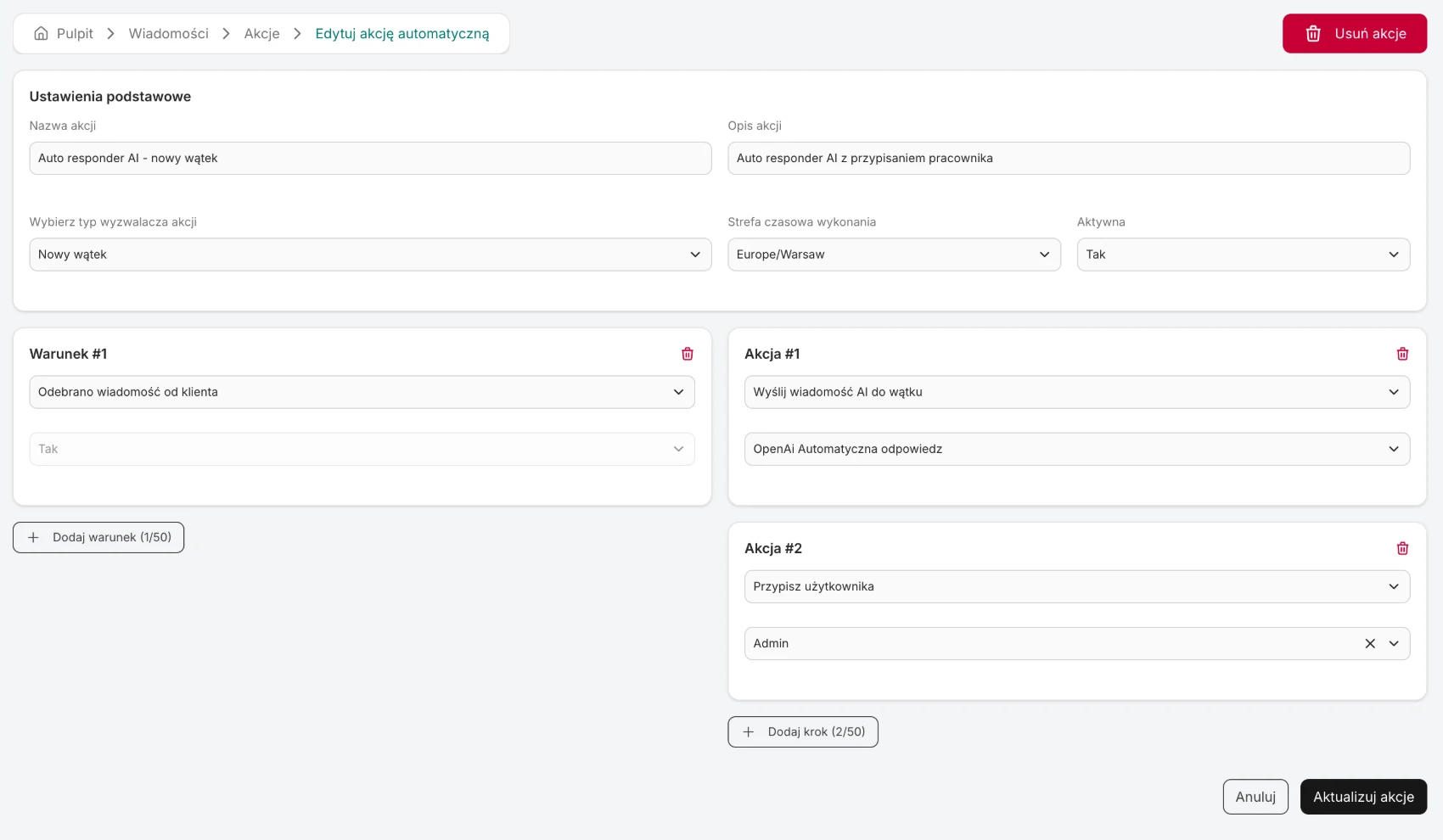
Action 2 - the Reply in thread trigger
- The same, only with the Reply in thread trigger - so AI also replies to the customer's later messages in the same conversation.
In which channels the reply works
The action sends the reply the same way you reply by hand. If a channel does not allow a manual reply, the action will not reply there either. On a given integration's page you can check whether it lets you reply to messages, disputes and claims.
What a message action will not do
- It will not send an attachment.
- It will not insert values from the thread into plain text - only into a template.
- It will not close a dispute or claim or change their state in the sales channel.
- It will not reply with a delay or "if nobody answered within an hour".
- There is no "once per thread" limit and no pause between replies - you set the scope with the trigger and conditions.
Run audit
Runs are in Settings → Audit → Messages. What the results mean is explained in How automatic actions work.