
Shopify
The Shopify integration brings orders from your store into Ritevo. You connect it by approving the Ritevo app in your Shopify admin - no keys to copy. In the mapping you translate payment statuses, payment methods and the order's additional fields (tax id, pickup point) into Ritevo data. Shopify sends buyer messages by email - you handle them in Ritevo through an email integration.
The same Shopify store can be connected only once. When you add it again, Ritevo refreshes the existing integration and turns it back on, even if it was deleted.
Connecting the account
Start in Ritevo:
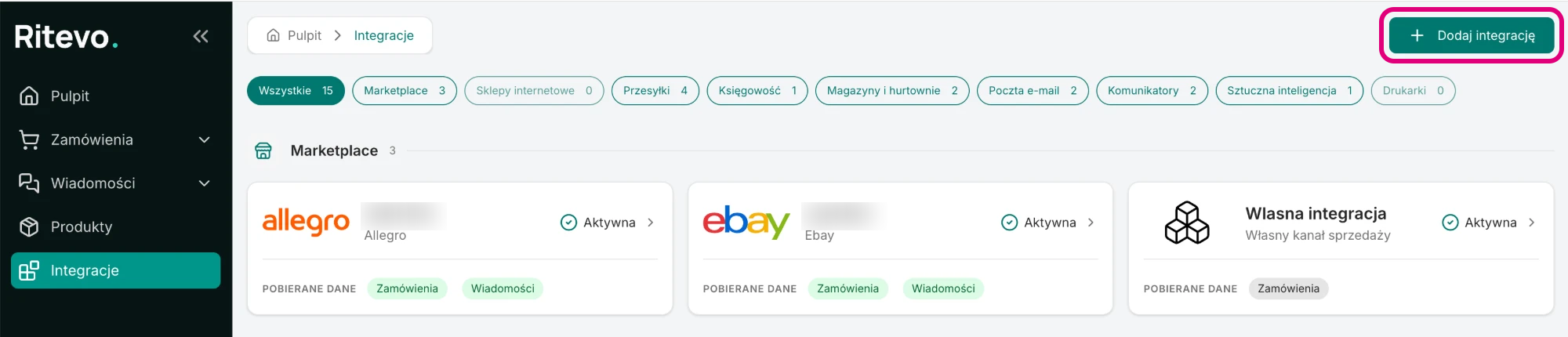
- Go to Integrations in the left panel and click Add integration in the top right corner.
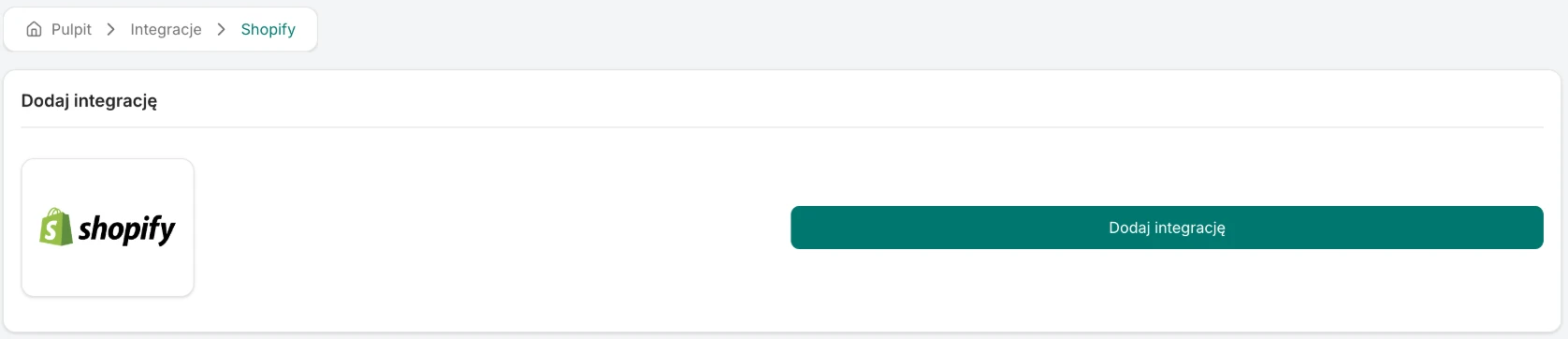
- In the Online stores section pick the Shopify tile and click Add integration.
- Ritevo takes you to Shopify - sign in if needed, choose your store and install the Ritevo app.
- Shopify asks right away for permission to access the store - approve it.
- Back in Ritevo, wait a moment - do not close the window. Once the integration has been added, its settings open.
Integration settings
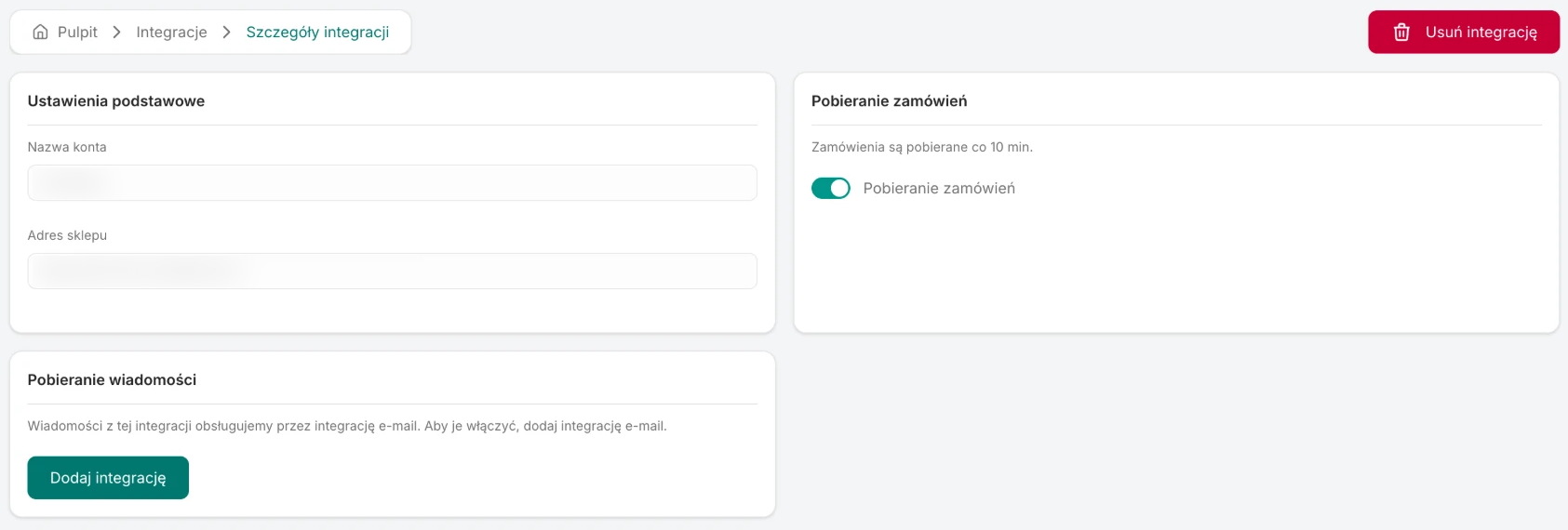
After connecting, the integration is Active, but order fetching is off - you turn it on yourself. On the integration page you will find:
- Account name - the store's name from Shopify. Ritevo takes it from Shopify; it cannot be changed here and is refreshed when you reconnect.
- Store address - the
.myshopify.comaddress of the store you installed the app on. It cannot be changed. - Fetch orders - once on, Ritevo checks for new and changed orders about every 10 minutes. The newest orders can show up a few minutes late. The rules shared by all channels: Fetching orders.
- Fetch messages - instead of a switch there is a note that Shopify messages are handled through an email integration, and an Add integration button that leads to adding one.
- Order status mapping, Payment method mapping and Advanced mapping - described below.
Mapping statuses and payments
Every store names its order statuses and payment methods its own way, so with online stores you decide yourself how they translate to Ritevo statuses and methods. You set the mapping once, on the integration page, and it applies to every order fetched from then on.
Order status mapping
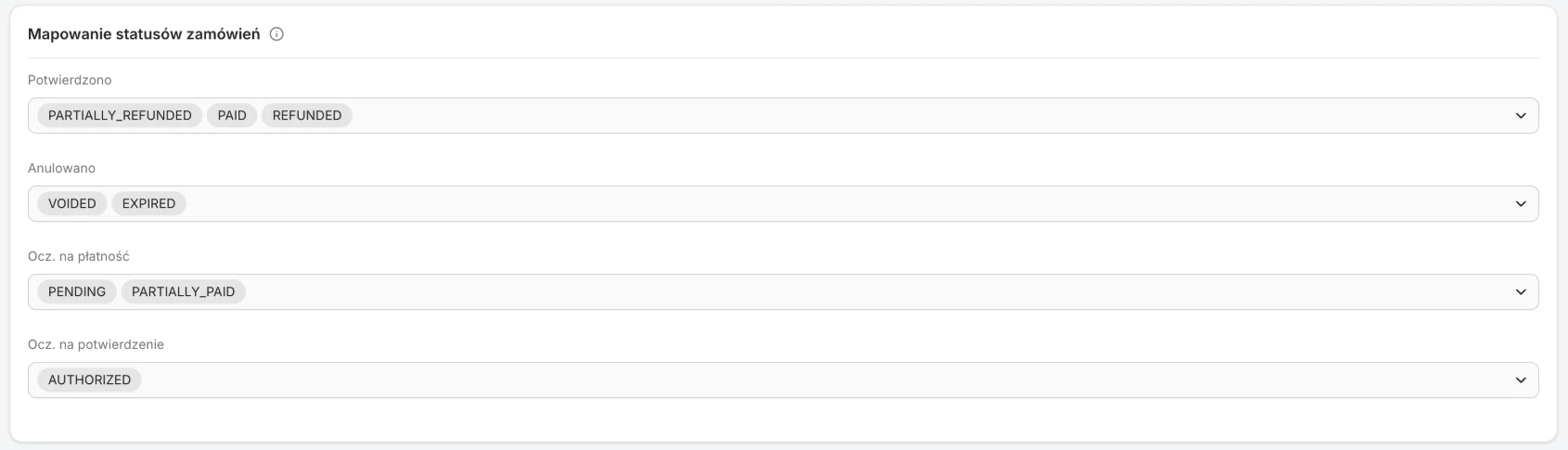
The order status in Ritevo follows the order's payment status in Shopify. These statuses are the same in every store, so up front all of them are assigned - in the list you see them under their Shopify names. The starting assignment:
- Confirmed - PAID (paid), PARTIALLY_REFUNDED (partially refunded), REFUNDED (refunded). A refunded order was a real sale, so it stays confirmed - you settle the refund separately.
- Cancelled - VOIDED (payment voided), EXPIRED (payment expired).
- Awaiting payment - PENDING (waiting for payment), PARTIALLY_PAID (partially paid).
- Awaiting confirmation - AUTHORIZED (payment approved, but the money has not been captured yet).
One Ritevo status can have several store statuses assigned, but one store status only one Ritevo status. An order with a status you have not assigned anywhere arrives as Awaiting confirmation - you will see it and decide what to do.
Payment method mapping
Shopify does not expose a store's list of payment methods, so you type the method names by hand - the way Shopify saves them in the order. You will find the name in the Shopify admin in the order details. Up front Shopify Payments, PayPal and the manual methods built into Shopify are filled in. You add yourself methods from payment apps and remove the ones you do not need. The starting assignment:
- Payment card -
shopify_payments. - PayPal -
paypal. - Cash on delivery -
Cash on Delivery (COD). - Bank transfer -
Bank Deposit,Money Order.
A payment made with a method you have not assigned anywhere arrives as Other.
Advanced mapping - additional order fields
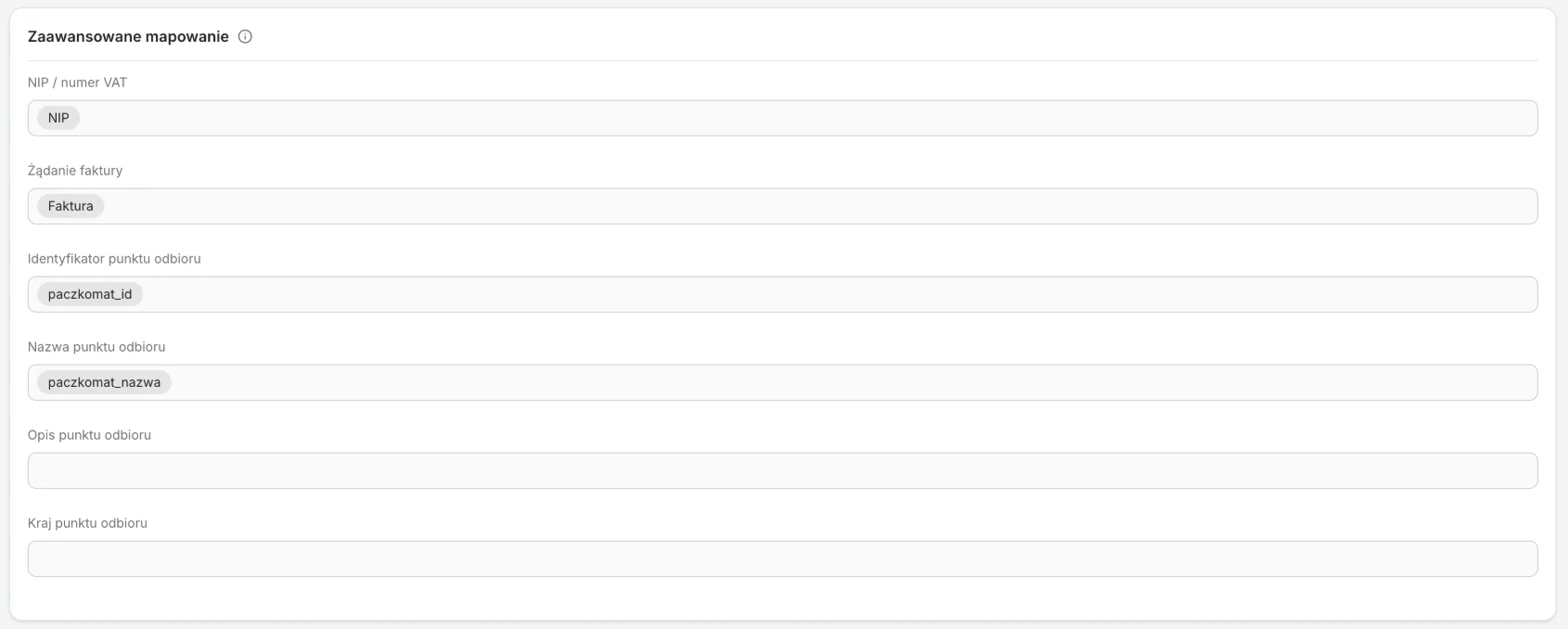
Shopify has no standard fields for a tax id, an invoice request or a pickup point - apps add them, each under its own name, as the order's additional details. In this card you point to the field Ritevo should read each of these from. Up front the fields are empty. You enter yourself the field names of the apps your store uses.
- Tax id / VAT number - the field with the buyer's tax id. When it has a value, the order gets the company details and the number for the invoice.
- Invoice request - the field Ritevo reads to tell whether the buyer wants an invoice. Only the value in the field matters: if it is "0", "no", "false" or "off", there is no request; any other value (for example "1", "yes") is a request. When the field is empty, an invoice is requested whenever the buyer gave a tax id.
- Pickup point id - the field with the locker or point code (for example
WAW123). - Pickup point name and Pickup point description - the fields with the point's name and address, if the app stores them.
- Pickup point country - usually stays empty; Ritevo then takes the country from the delivery address.
You will find the field name in the Shopify admin in the details of a test order, in the additional details section. Enter it exactly - letter case matters. One field can hold several names (for example after switching apps): Ritevo uses the first one that has a value in the order.
What this integration gives you
- Orders - new and changed Shopify orders land in the orders table, with the buyer's details, invoice details, delivery and line items with product images.
- Messages - through an email integration, see below.
Orders from Shopify
Ritevo fetches the whole Shopify order: the buyer, billing and shipping address, shipping method, payment and line items with product images. An order changed in the store (for example once paid) is fetched again. Every order is fetched - including in-person sales (Shopify POS) and test orders.
- Statuses and payments - translated according to your mapping, described above. The payment number and payment date come from the latest successful capture of the money, and the paid amount is what the buyer actually paid.
- Amounts and VAT - amounts are in the currency the buyer paid in. VAT rates come from the taxes Shopify charged on each line item; a line item without tax has 0% VAT.
- Tip - it is a line item of the order, because that is how Shopify sends it, with the VAT rate from Shopify.
- Additional services - supported. Additional fees added to the order in Shopify show up as separate line items for the whole order, under the store's name for them. Duties, when not included in prices, arrive as a Duties line item - a separate one for each VAT rate Shopify charged. More about additional services.
- Delivery - when an order has several shipping methods, their names are joined with a comma and their costs added up. The dispatch deadline and estimated delivery date go into the order when Shopify provides them.
- Buyer - the buyer's details come from the billing address, or from the shipping address when there is no billing address.
- Invoice - the company name comes from the billing address and the tax id from the field set in Advanced mapping; with neither a company name nor a tax id the order has no invoice details. The invoice request follows the Invoice request field and gives the Customer asks for an invoice flag.
- Pickup point - the point's code and name are read from the fields set in Advanced mapping; without them the order has only the delivery address.
- Country of origin - follows the language and region the buyer ordered in (for example
de-DEis Germany). When Shopify gives no region, Ritevo takes the store's country. The buyer's country is separate, in their address. - Buyer's note - the order note typed at checkout goes into the order as the buyer's message.
Buyer messages from Shopify
Shopify does not expose its inbox (Shopify Inbox) through its API - buyers write to you by email to the store's address. To see and answer those messages in Ritevo, add an email integration for that mailbox. The messages then appear in Ritevo like ordinary emails; they are not linked to the Shopify integration or its orders.
Reconnection required
This state appears when the Ritevo app was uninstalled in the Shopify admin or the connection expired - for example when the integration did not connect to the store for over 90 days because fetching orders was off. Until you reconnect, Ritevo neither fetches nor sends any data from that store.
- Go to Integrations, click Add integration and pick the Shopify tile.
- Choose the same store in Shopify and approve the Ritevo app - just like the first time.
- Ritevo recognises the store by its address and refreshes the connection in the existing integration. Mappings, fetching settings and history stay unchanged - no second integration is created.
Deleting the integration
Delete integration turns the integration off in Ritevo: it stops fetching and sending data, but what it fetched earlier stays. Restore integration turns it back on.
What the integration does not do
- It does not manage listings: it does not list, change prices or stock in Shopify.
- It does not fetch messages - Shopify does not expose them through its API.
- It does not carry over a cancellation or refund made in Shopify after the order was confirmed - the order in Ritevo stays unchanged.
- It sends nothing back to Shopify: when you change an order's status, create a shipment or issue an invoice in Ritevo, the order in Shopify stays unchanged.