
Own warehouse
An own warehouse is a place for products you manage yourself. Nothing is fetched from outside - you add products, prices and stock in Ritevo or through the API.
You can add as many Own warehouse integrations as you like - each has its own set of products, for example with different price rules. Each works on its own.
Connecting the account
Start in Ritevo:
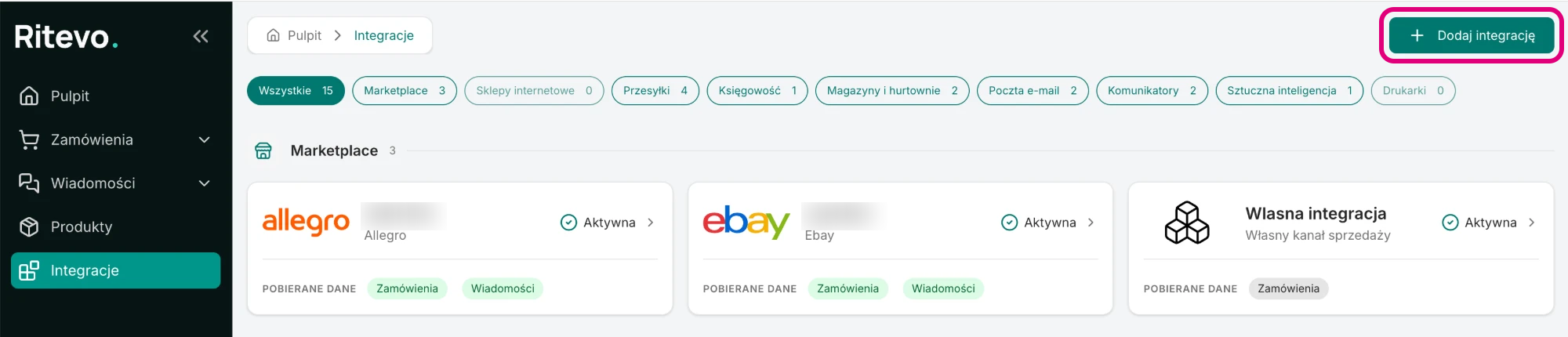
- Go to Integrations in the left panel and click Add integration in the top right corner.
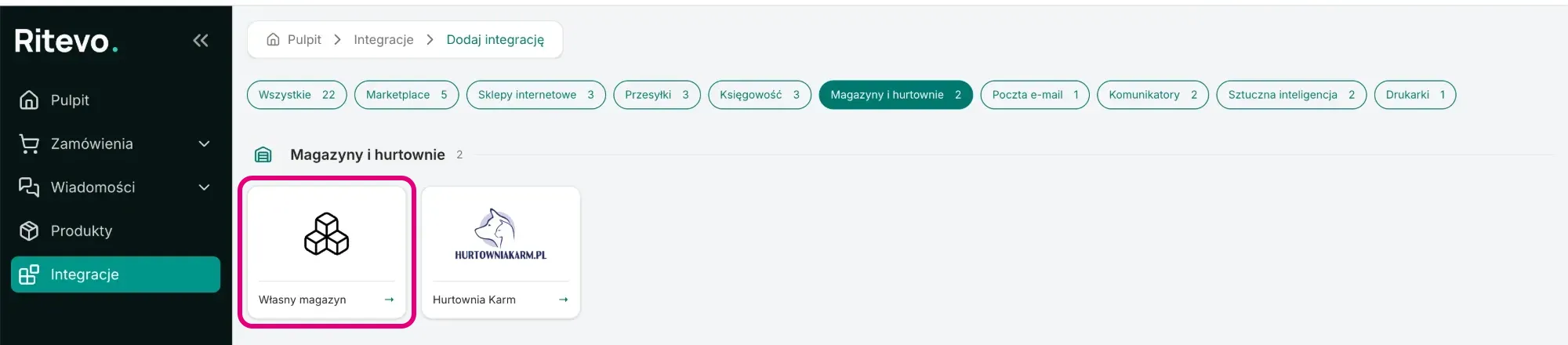
- In the Warehouses and wholesalers section pick the Own warehouse tile.
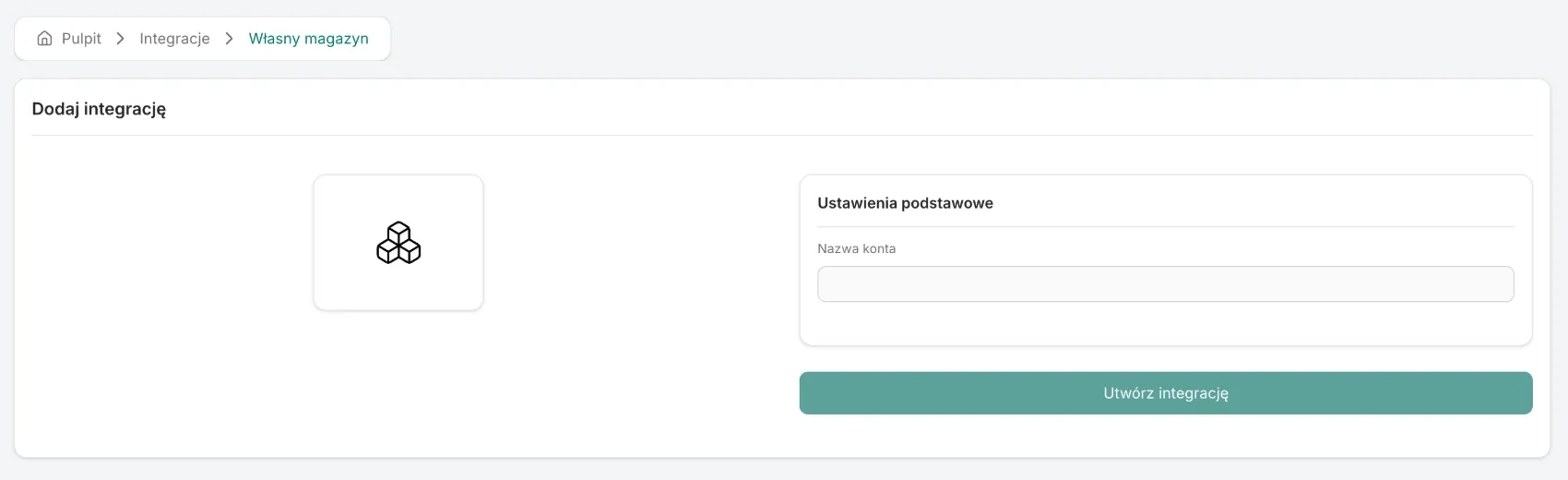
- In the Account name field enter the warehouse name, for example “Main warehouse”, and click Create integration.
Integration settings
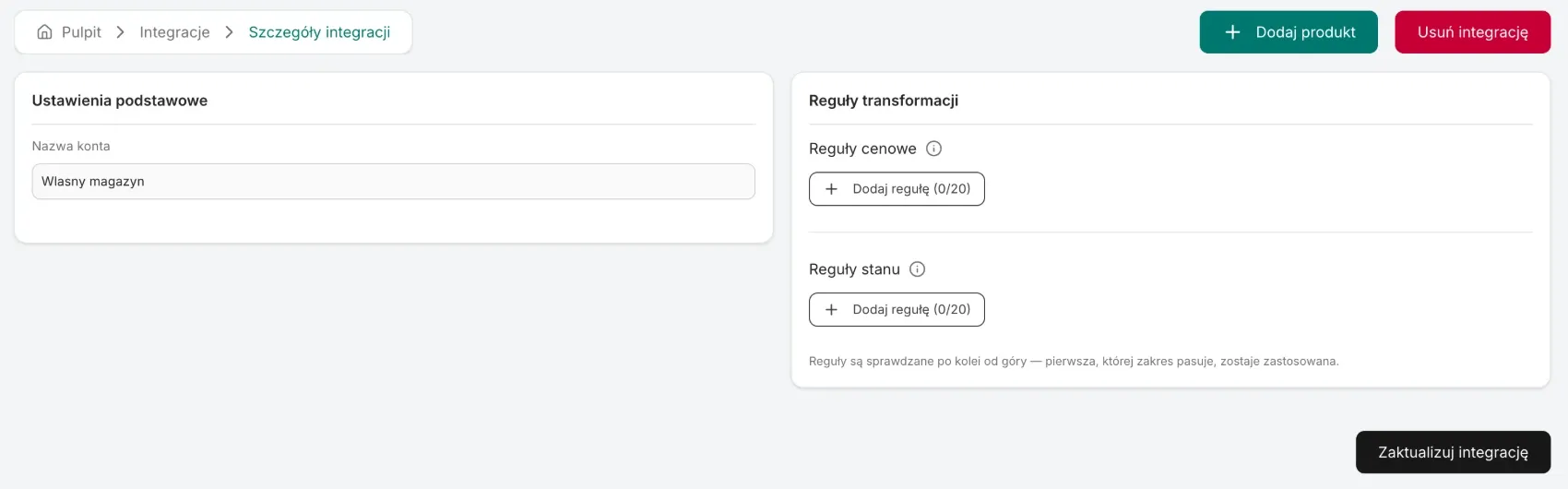
On the integration page you will find the fields below. You save changes with Update integration:
- Account name - your own name for the integration. You see products under it in the Integration column of the Products list.
- Transformation rules - Price rules and Stock rules that change every price and every stock level of this integration, for example to add a margin. Described in Fetching products.
- Add product - a button in the page header. It opens the new product form with this integration already selected.
Adding products
You add a product in the Products menu or on the integration page:
- Click Add product and pick this warehouse, if it is not selected yet.
- Fill in Basic data, Identifiers, Description and Dimensions. You can leave External id empty - if you enter a value that already exists in this warehouse, we update that product instead of creating a new one.
- Click Save product.
- In the product add a price with Add price and save it with Save price.
- Add stock with Add stock and save it with Save stock. A product can have several stock levels, for example from different shelves or locations.
Deleting the integration
Delete integration turns the integration off in Ritevo and stops fetching. Products, prices and stock levels saved earlier stay in the Products list. Restore integration turns it back on.
What the integration does not do
- It does not import products from a file - you add larger amounts through the API, up to 1000 products per request.
- It does not deduct or reserve stock after a sale - stock in Ritevo changes only through a wholesaler fetch or your own edit.
- It does not send products, prices or stock levels to sales channels.