
Erli
The Erli integration brings orders from your seller account into Ritevo. You connect it with an API key from the Erli seller panel. Erli delivers buyer messages by email - you handle them in Ritevo through an email integration.
One Erli account is connected once; if you sell from several accounts, add each one as a separate integration.
The same Erli account can be connected only once. When you connect it again, Ritevo refreshes the existing integration and turns it back on, even if it was deleted.
How to generate the API key
You create the API key in the Erli seller panel. Copy it in full - you will paste it into Ritevo when adding the integration.
- Sign in to the Erli seller panel.
- In the top right corner open Moje ERLI and choose Ustawienia sklepu (shop settings).
- In the left menu choose Metoda integracji (integration method), then Własna integracja po API (own API integration).
- In the Opis klucza (key description) field enter any name, for example "Ritevo", and click Wygeneruj nowy klucz (generate new key).
Connecting the account
Start in Ritevo:
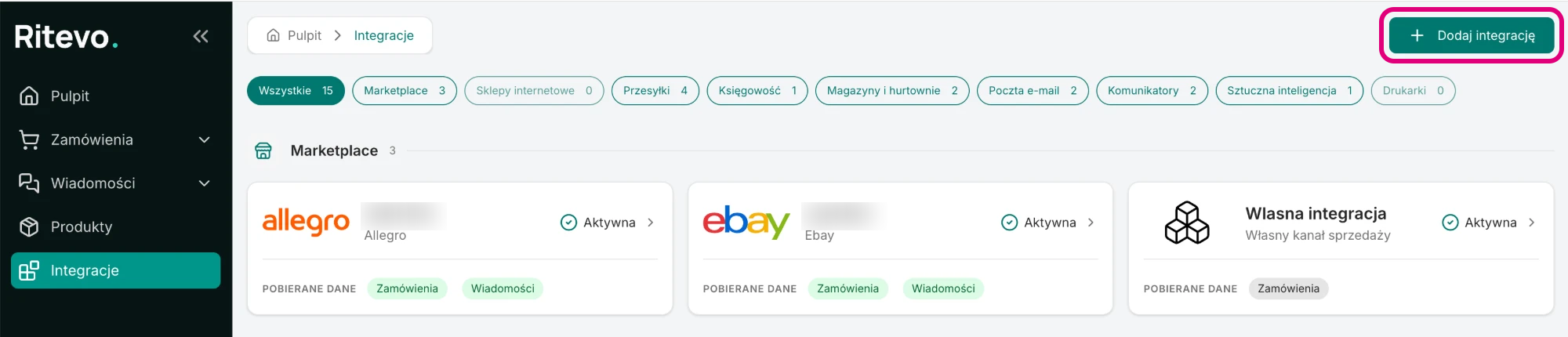
- Go to Integrations in the left panel and click Add integration in the top right corner.
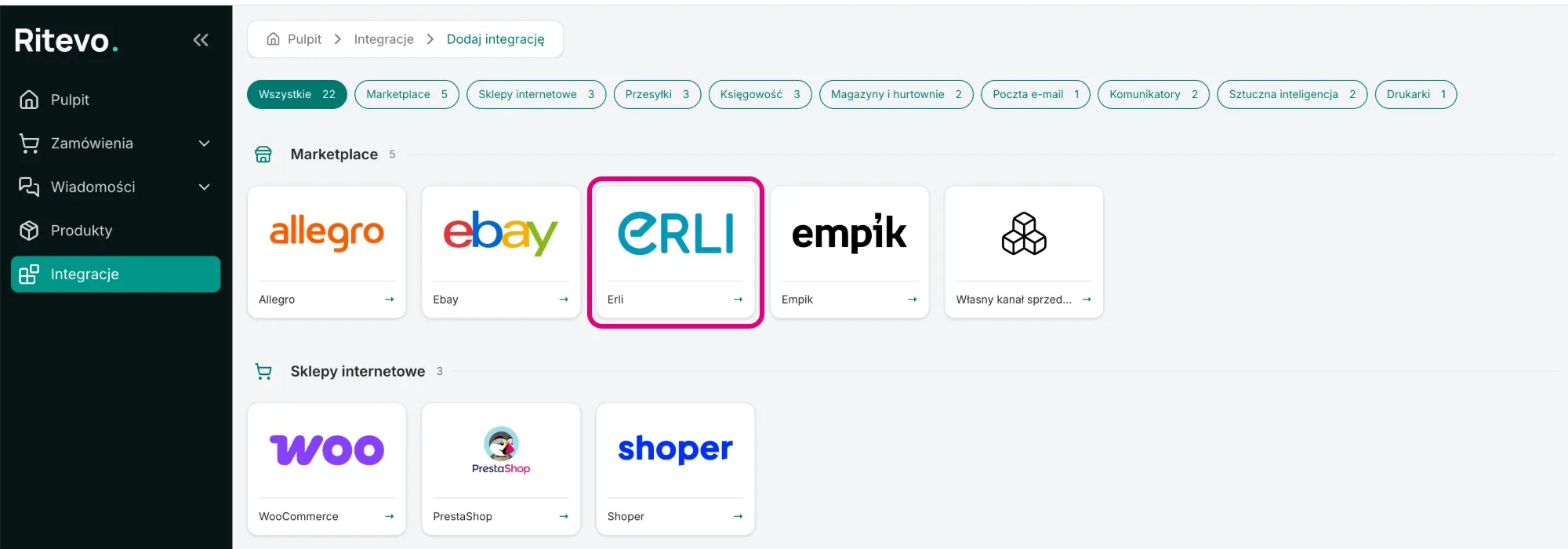
- In the Marketplace section pick the Erli tile.
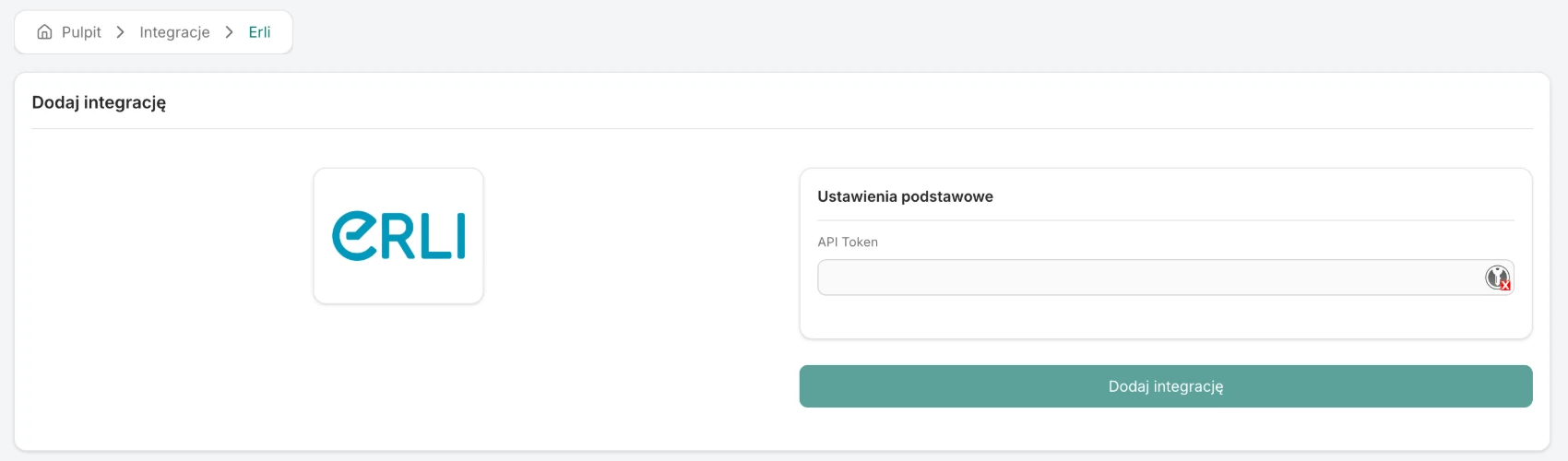
- In the API Token field paste the API key from your Erli seller panel.
- Click Add integration. Ritevo checks the key with Erli right away: if it is valid, the integration is added and its settings open. If not - you will see the error returned by Erli and nothing is saved.
Integration settings
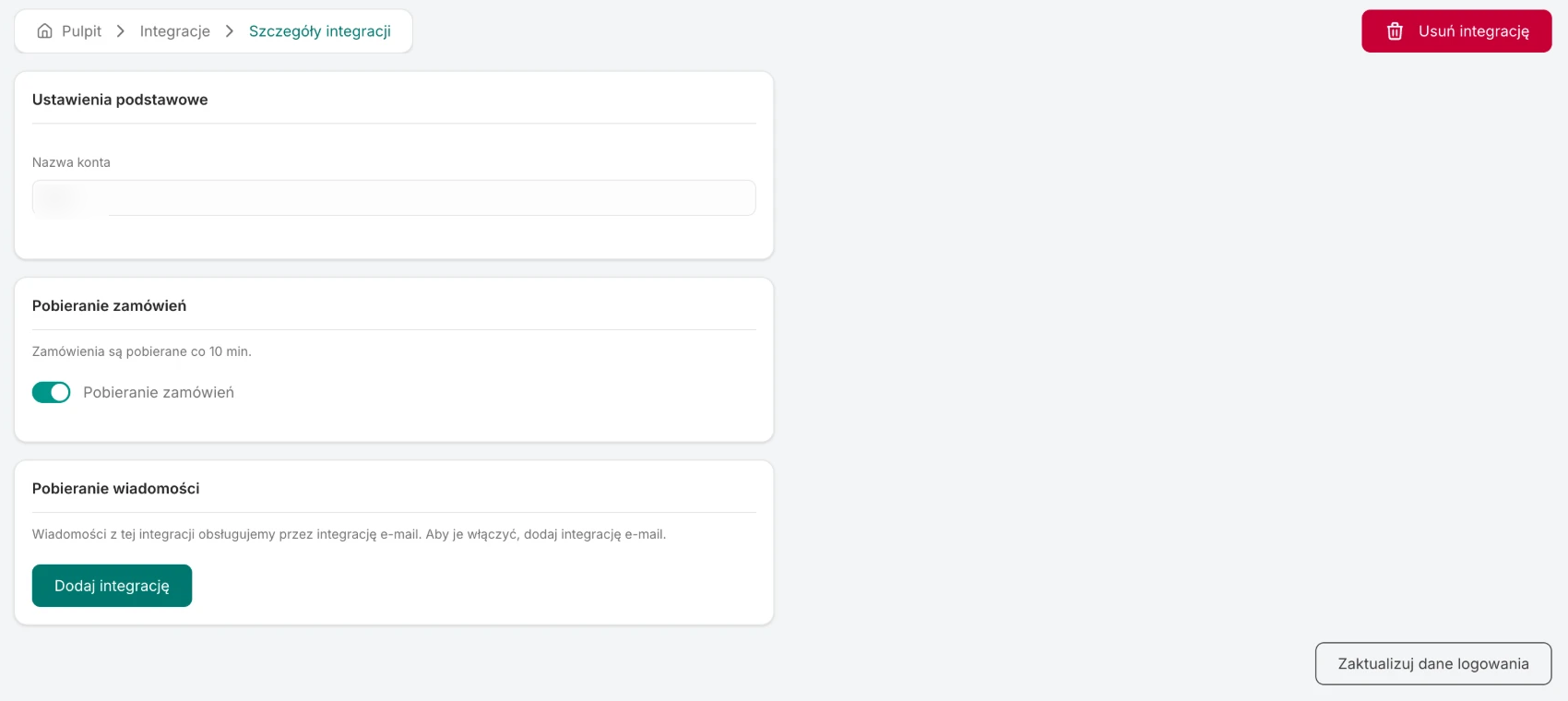
After connecting, the integration is Active, but order and message fetching are off - you turn them on yourself, separately:
- Account name - the name of your seller account, which Ritevo takes from Erli. It cannot be changed.
- Fetch orders - once on, Ritevo checks for new and changed orders about every 10 minutes. The rules shared by all channels: Fetching orders.
- Fetch messages - instead of a switch there is a note that Erli messages are handled through an email integration, and an Add integration button that leads to adding one.
What this integration gives you
- Orders - new and updated Erli orders land in the orders table, with the buyer's details, invoice details, delivery (including the pickup point) and line items with images.
- Messages - through an email integration, see below.
Orders from Erli
Ritevo fetches the whole Erli order: the buyer, payment, delivery together with the pickup point, line items with prices and product images.
- Statuses and payments - Erli statuses and payment methods are translated to Ritevo statuses in one fixed way; marketplaces have no mappings of their own, unlike online stores. A cash-on-delivery order arrives as Awaiting payment with the Cash on delivery method.
- Returns - an order the buyer has returned is still shown by Erli as purchased; in Ritevo it stays Confirmed.
- Additional services - not supported. This integration does not pass on services such as gift wrapping or carry-in. If you want to sell them, list them as a separate product or offer - they then show in the order as a regular line item. More about additional services.
- Invoice - if Erli provides the buyer's tax id or its equivalent, the order gets the Customer asks for an invoice flag with the company details and the number filled in.
Buyer messages from Erli
Erli has no inbox of its own - buyers write to you by email to the address set in your Erli account. To see and answer those messages in Ritevo, add an email integration for that mailbox. The messages then appear in Ritevo like ordinary emails; they are not linked to the Erli integration or its orders.
Reconnection required
This state appears when the API key stopped working - it was revoked in the Erli panel or lost its permissions. Until you provide a new key, Ritevo neither fetches nor sends any data on that account.
- Generate a new API key in your Erli seller panel.
- On the integration page in Ritevo click Update credentials, paste the new key and confirm. Ritevo checks it with Erli just like when adding - a wrong key returns an error, a valid one refreshes the connection. The fetching settings and the history stay unchanged.
Deleting the integration
Delete integration turns the integration off in Ritevo: it stops fetching and sending data, but what it fetched earlier stays. Restore integration turns it back on.
What the integration does not do
- It does not manage listings: it does not list, change prices or stock in Erli.
- It does not fetch messages or disputes - Erli does not expose them through its API.