
Ritevo Printer
Ritevo Printer prints courier labels and fiscal receipts straight from your Ritevo orders. You install it on the computer your printer is connected to - or several printers at once - and order printouts in the panel: from an order, with an automatic action or even from your phone.
How it works
- One printer - one integration. Every printer is a separate Printer integration in the panel, with its own token.
- Many printers in one app. At one workstation you can add e.g. a fiscal printer for receipts and an ordinary printer for PDF labels - each works on its own.
- Many workstations. Every computer has its own Ritevo Printer app with its own printers - e.g. a till with receipts and a packing station with labels, or separate workstations for several employees.
- Order from anywhere. You order a printout in the panel - on a computer or on your phone - and it is printed by the computer running the app with that printer.
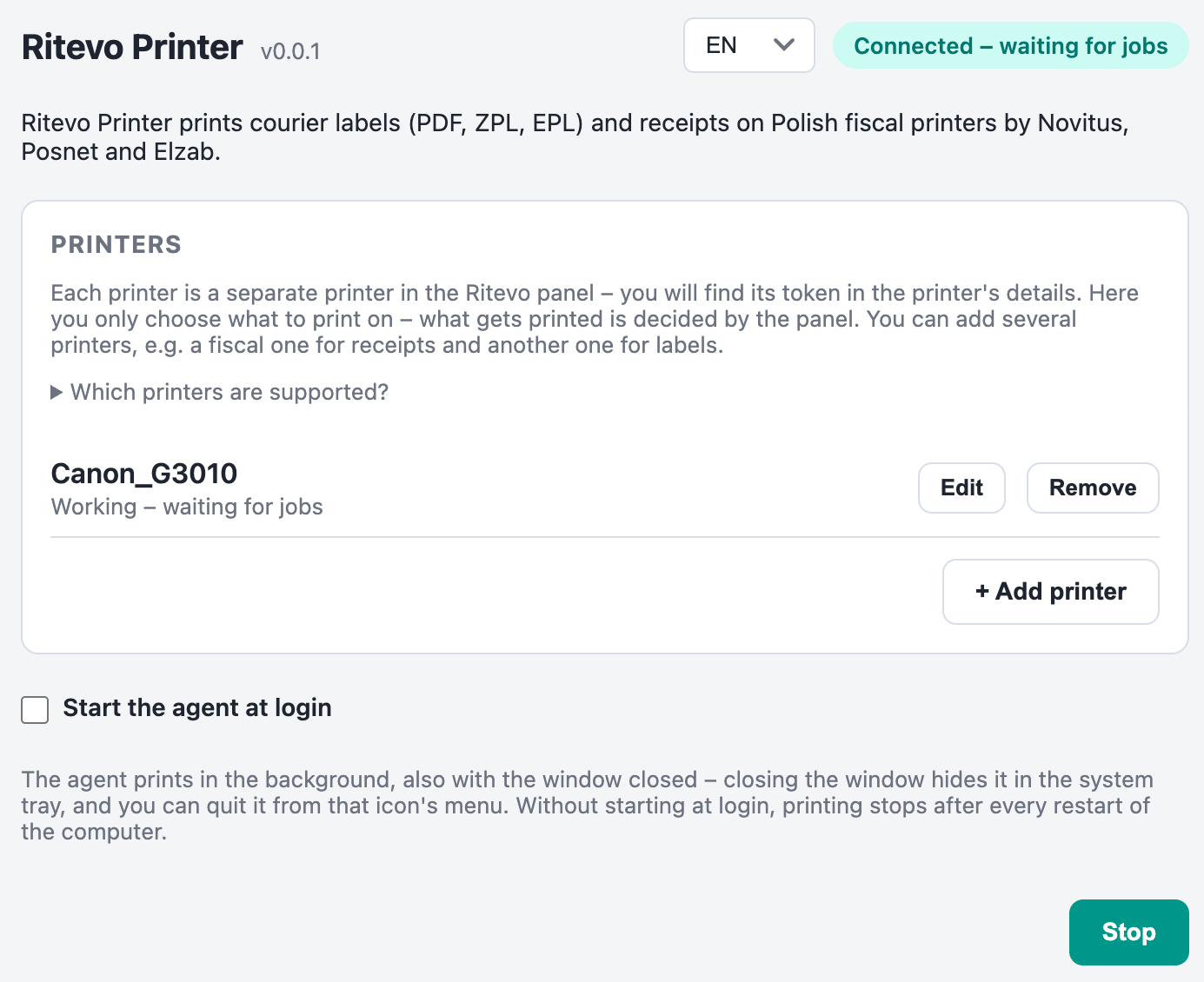
- Runs in the background. Closing the window hides the app in the system tray. Tick Start the agent at login so it keeps printing after the computer restarts.
Supported systems and printers
PDF labels print on any printer added to the computer, also an ordinary inkjet or laser printer. ZPL and EPL labels print only on a label printer, e.g. Zebra. Receipts are printed through software supplied by the fiscal printer vendor - and not every vendor made it for every system. What works where:
| Windows | Linux | macOS | |
|---|---|---|---|
| PDF labels | ✓ | ✓ | ✓ |
| ZPL / EPL labels | ✓ | ✓ | ✓ |
| Receipts - Novitus | ✓ | ✓ network printer only | ✓ |
| Receipts - Posnet | ✓ | ✓ | ✓ Intel Macs only |
| Receipts - Elzab | ✓ | ✓ /dev/ttyS port or network printer | ✗ |
- A Novitus printer must use the XML protocol - a setting in the printer's menu. In the older classic protocol the app recognises it but cannot print a receipt.
- The system sees a fiscal printer connected over USB as a serial port (a COM port on Windows) - on Windows this needs the printer vendor's driver.
- A fiscal printer on the network is given as its address and port, e.g.
tcp:192.168.1.50:6666- you will find the port in the printer's settings. - We support Novitus, Posnet and Elzab fiscal printers, and receipts are printed only in PLN.
Download and installation
Download the version for your system - all versions are also on the Download Ritevo Printer page:
- Windows - ritevo-printer-setup.exe
- macOS, Apple Silicon (M1 and newer) - ritevo-printer-arm64.dmg
- macOS, Intel - ritevo-printer-x64.dmg
- Linux - ritevo-printer.AppImage or ritevo-printer_amd64.deb
The app is not signed with a certificate, so on the first launch the system asks for your consent:
- Windows - in the SmartScreen window click More info, then Run anyway.
- macOS - when told that Apple cannot verify the app, click Done, go to System Settings → Privacy & Security and click Open Anyway.
Updates: on Windows and Linux (AppImage) a new version downloads by itself and installs when nothing is printing - you can also click Restart and update. On macOS the app shows Download the new version - download the file and drag Ritevo Printer to the Applications folder. The .deb version is updated by hand.
Adding the printer in the panel
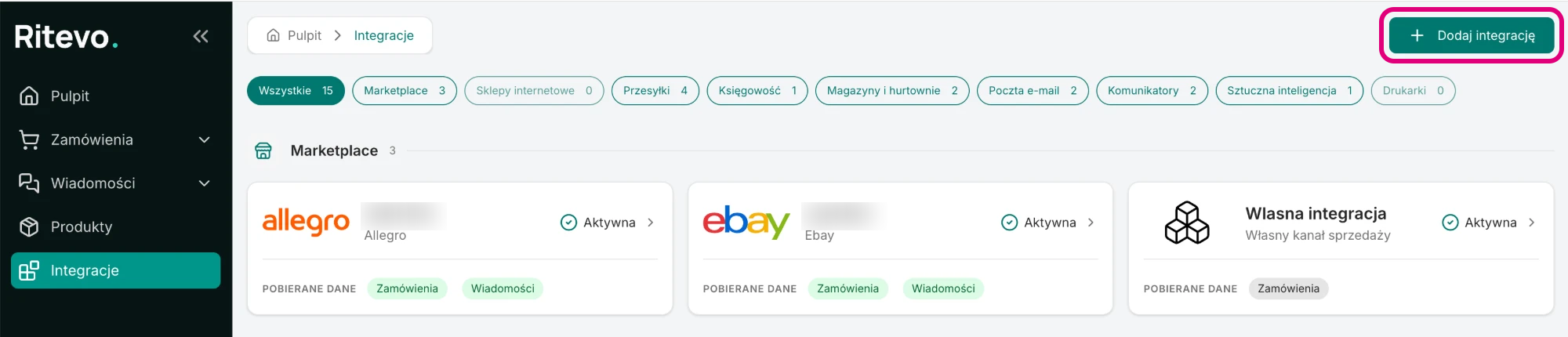
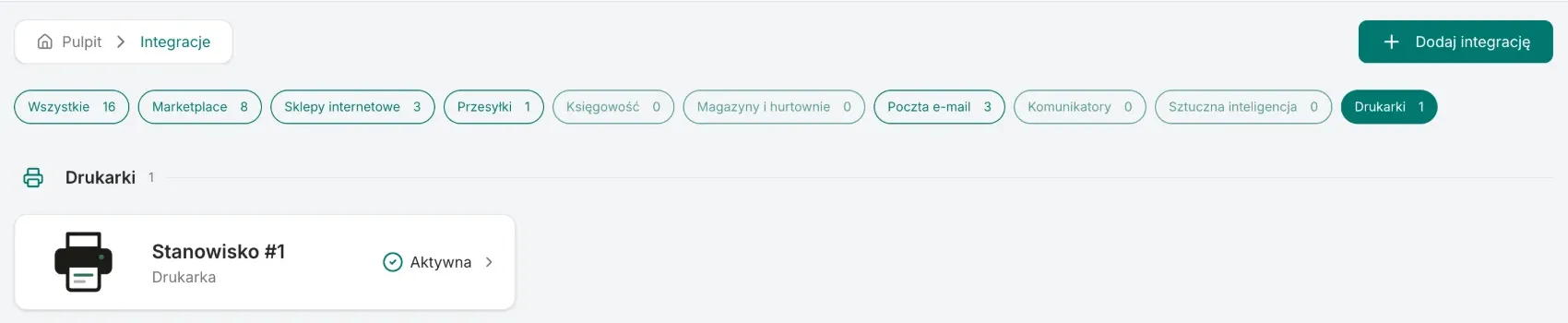
- Go to Integrations in the left panel and click Add integration in the top right corner.
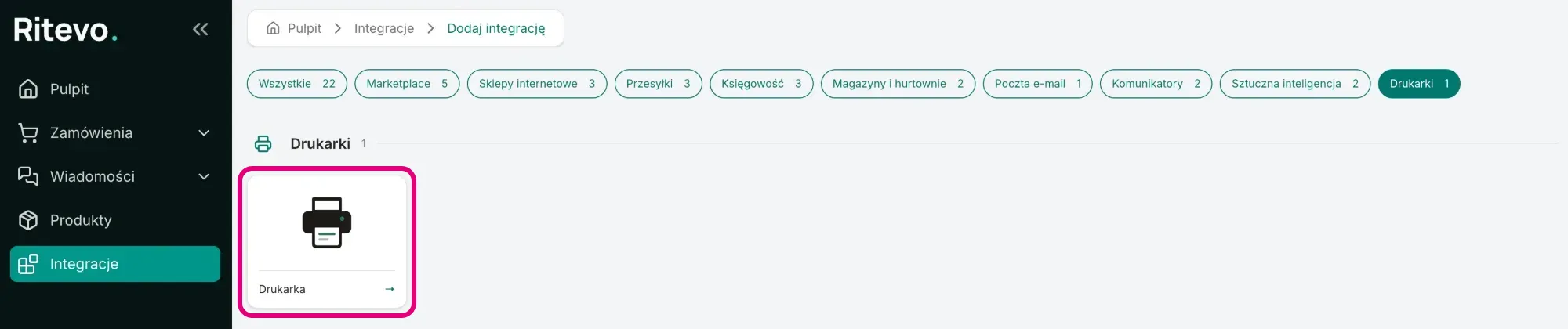
- In the Printers section pick the Printer tile.
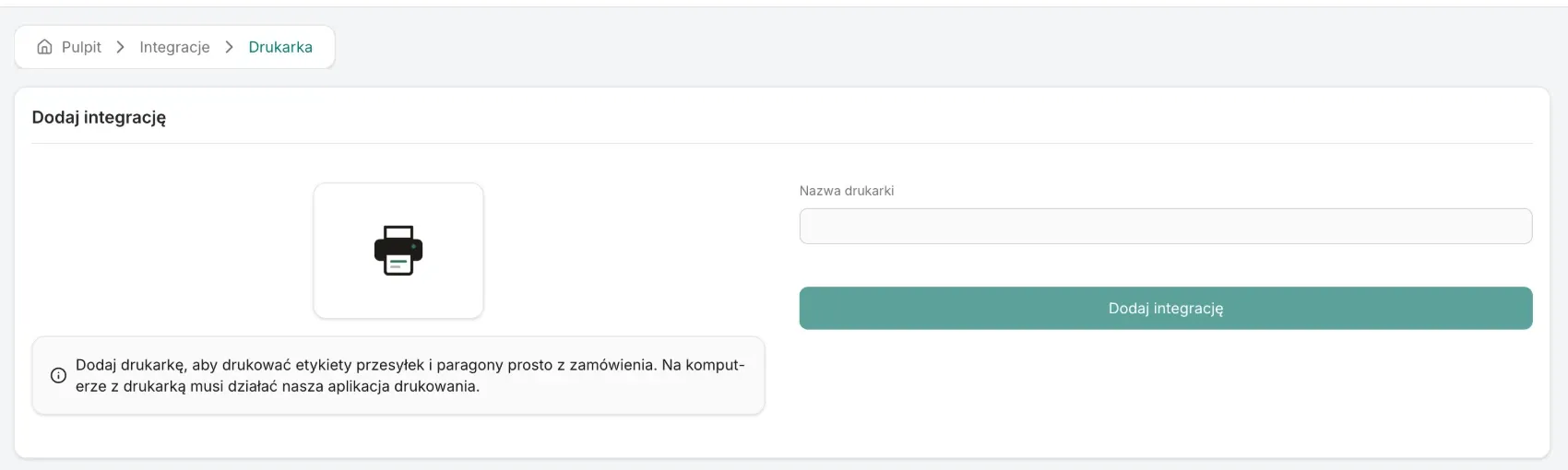
- Enter the Printer name - your own name, e.g. of the workstation - and click Add integration.
- Open the printer in the integrations list and in the Printer token card click Show token. Copy it - you paste it in the app.
Adding the printer in the app
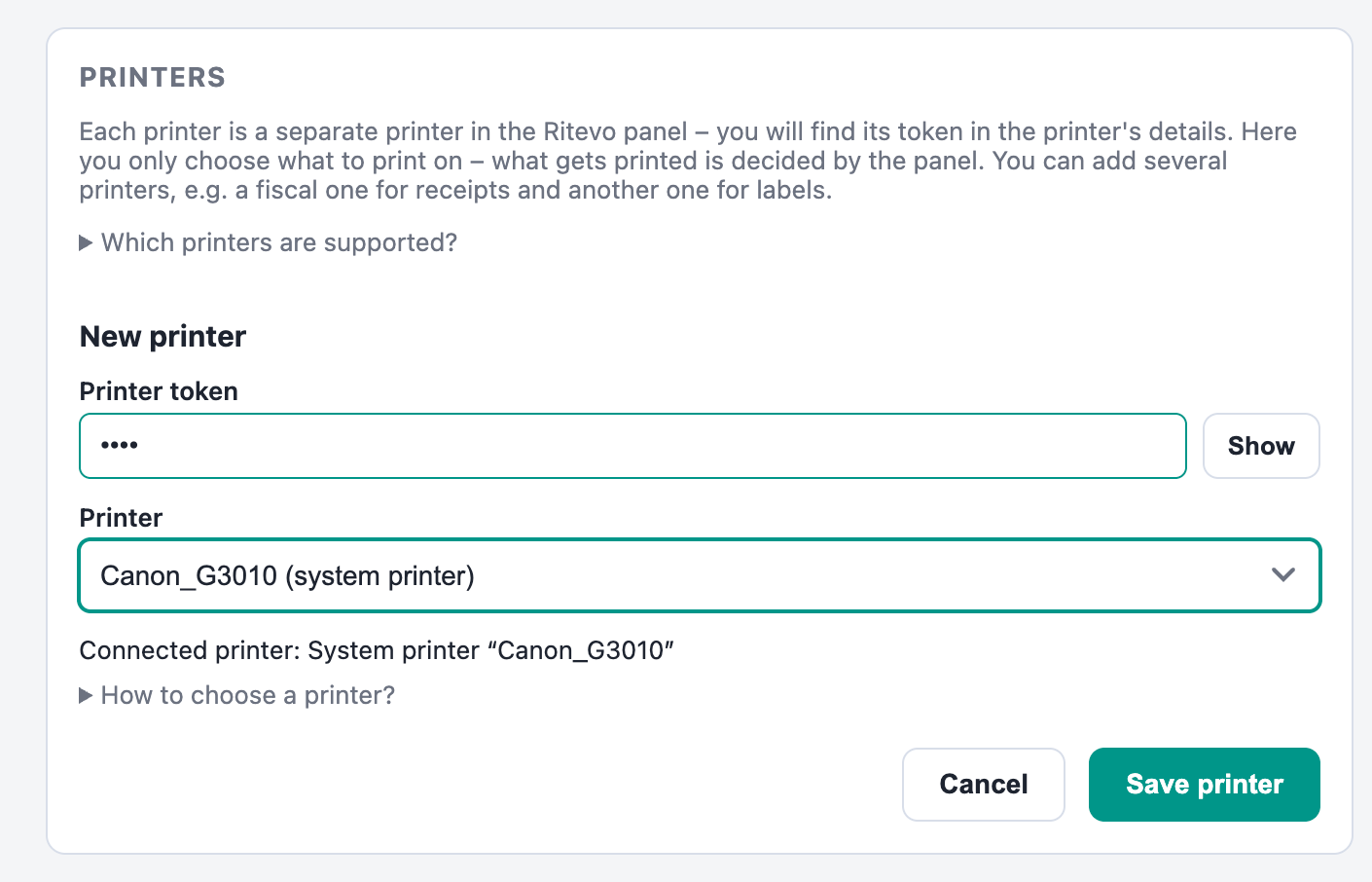
- Open Ritevo Printer and click + Add printer.
- Paste the Printer token from the panel.
- In the Printer field choose the printer you want to use. Choose a fiscal printer connected to the network as Fiscal printer on the network (IP address) and enter its address.
- The app finds out by itself what printer it is and shows Connected printer.
- Click Save printer.
- Click Start. The printer shows Working - waiting for jobs.
You can add more printers, e.g. one for labels and another for receipts: click + Add printer again and paste the token of the next printer from the panel.
Printing
You order a printout by hand or with an automatic action:
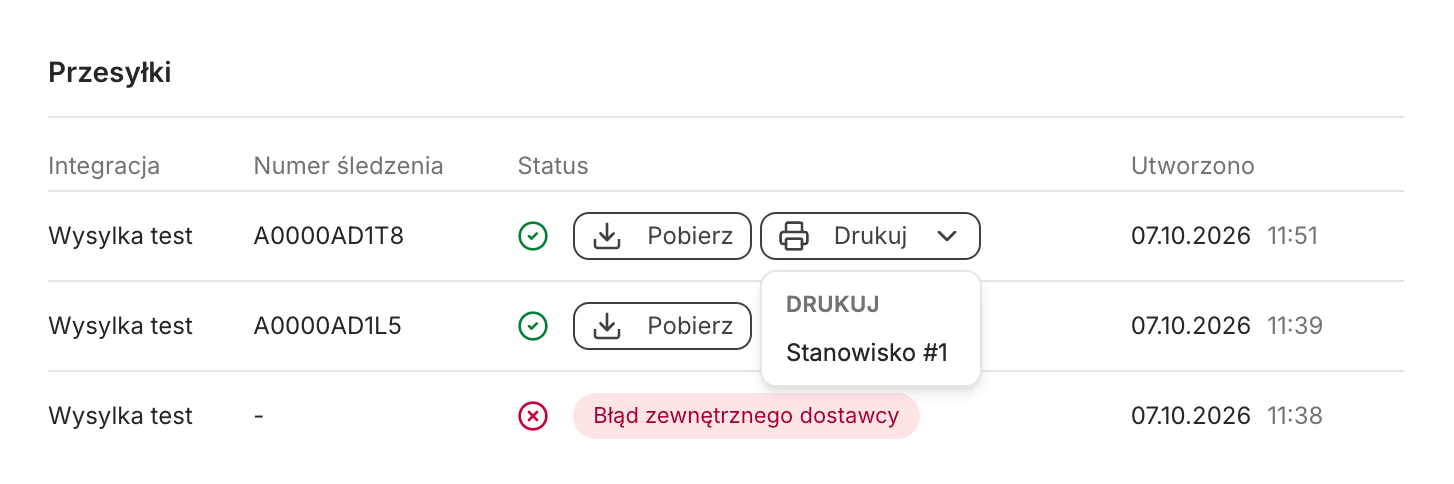
- Label (by hand) - in the order details, in the Shipments card, click Print and choose the printer.
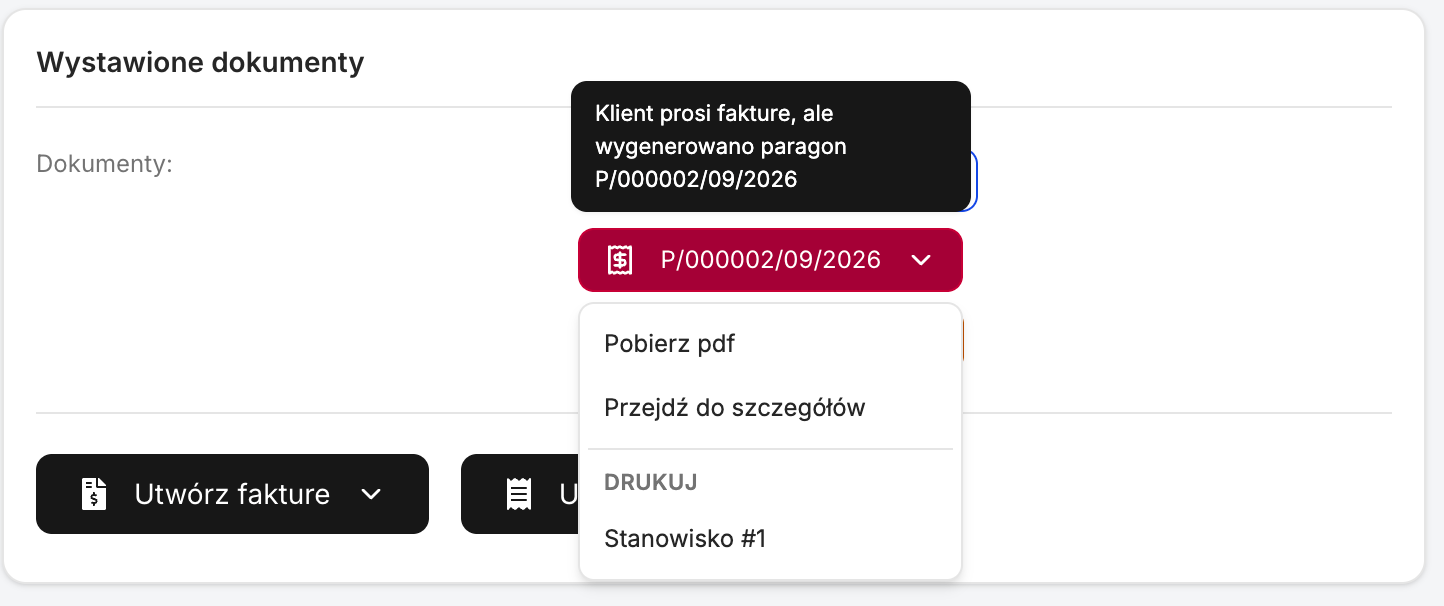
- Receipt (by hand) - in the order details open the receipt button and choose the printer in the Print section. You can do the same from the documents list.
- Print shipment label (action step) - prints the label of the order's newest successful shipment on the chosen printer.
- Print receipt (action step) - prints the order's newest receipt on the chosen fiscal printer.
- Print job ordered (action trigger) - starts the action when a printout is ordered.
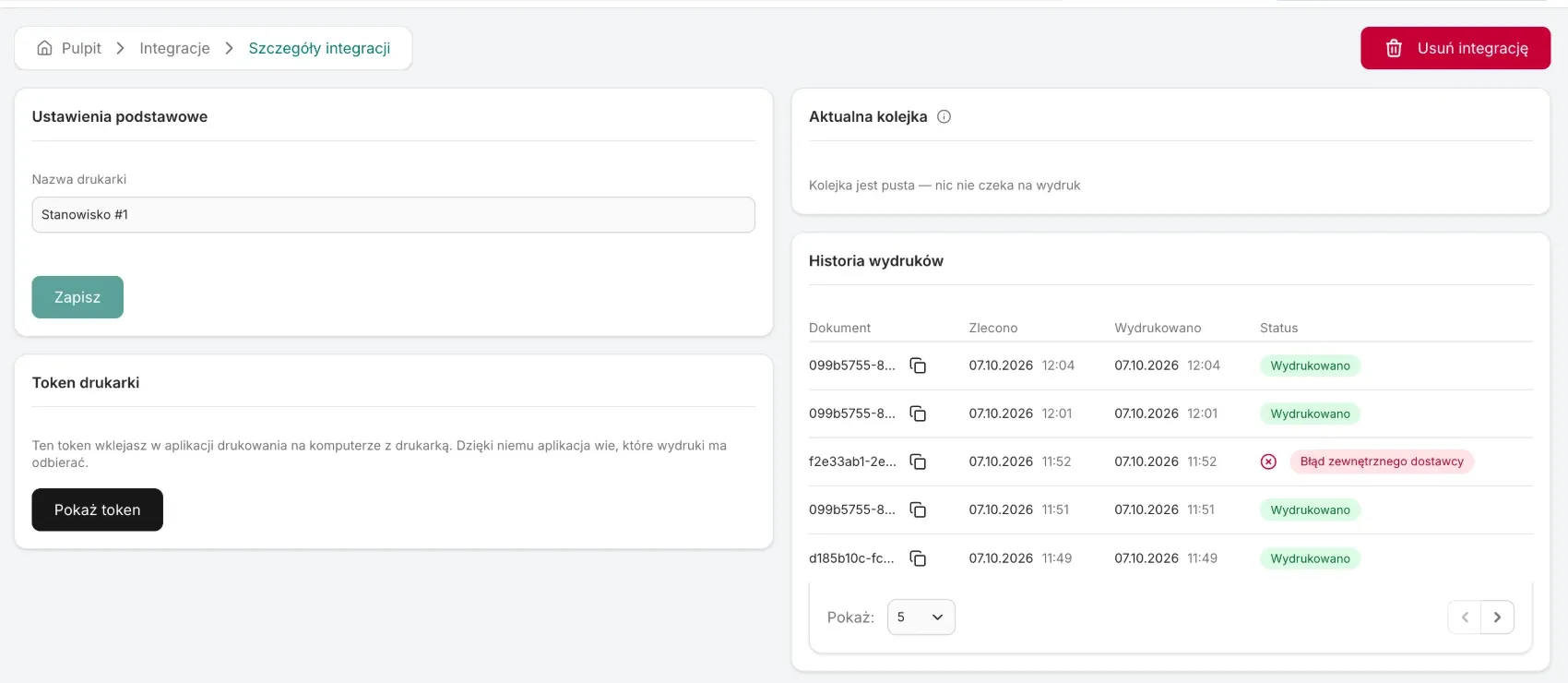
An ordered printout waits in the Current queue card in the printer's details until the app picks it up - printouts ordered while the computer is off come out once it is on. You see the result in the Print history card:
- Printed - the app picked up the printout and sent it to the printer.
- Error - the printout could not be prepared, e.g. the courier did not hand over the label. The badge shows the kind of error and the icon next to it the message.
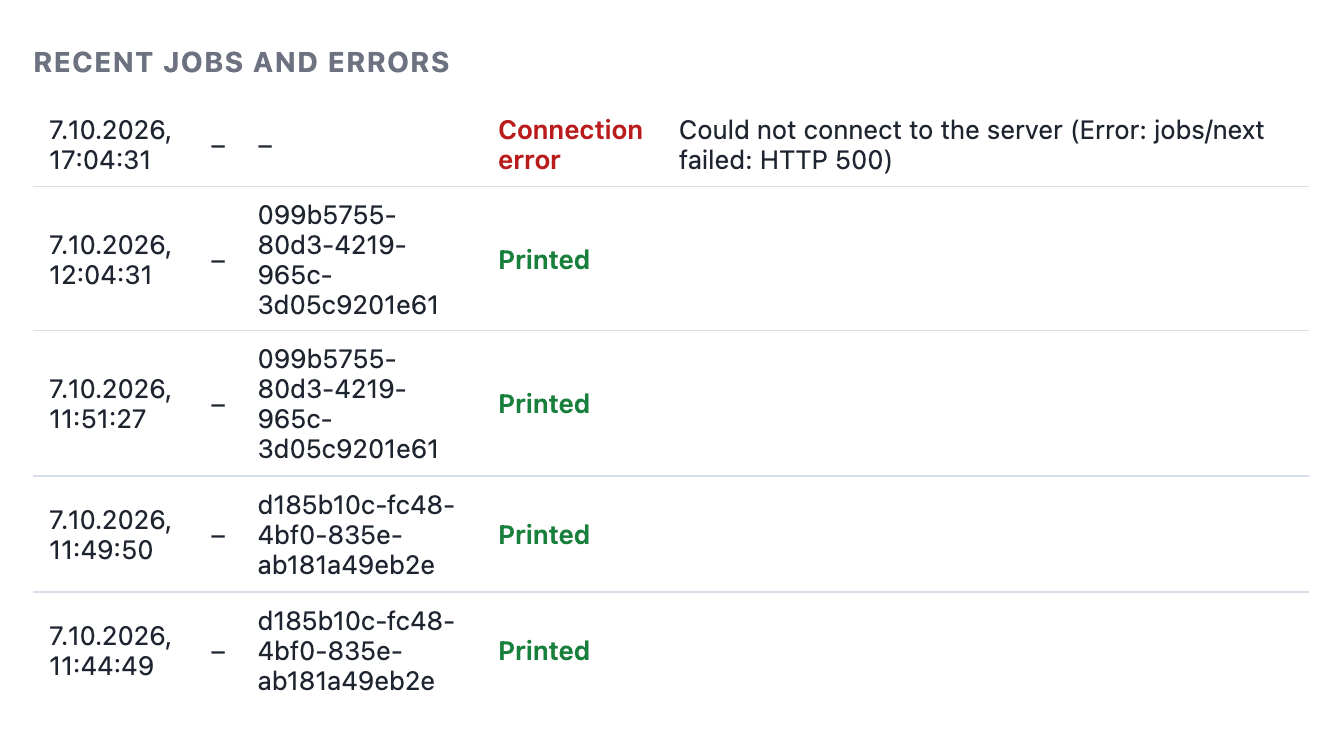
In the app itself, in the Recent jobs and errors section, you see what was printed on which printer, and printer errors such as running out of paper.
Printing in an automatic action
What to keep in mind when an action is to print something:
- Print shipment label - takes the order's newest shipment that was created successfully. If there is none, the step ends with an error.
- Print receipt - takes the order's newest receipt that has not been deleted. If the order has no receipt, the step ends with an error.
- Create shipment, then Print shipment label - first the shipment, the label in the next step. The shipment step waits for the courier's answer, so the label is ready before it is time to print.
- Generate receipt, then Print receipt - the same for a receipt: first the document, the printout in the next step.
- Shipment status is - to avoid printing a label after a failed shipment, add a branch with this condition and the value Created successfully in the print step.
The print step does not wait for the paper to come out of the printer. The action moves on once the printout is in the queue, or right away when it fails - an error does not stop the action. There is no condition on the printout's result, so you check it in the Print history. If a printout reaches the wrong kind of printer - a label on a fiscal one or a receipt on an ordinary one - only the app on the computer rejects it. You see that in the app's history; the action does not learn about it.
Fiscal receipts
- A receipt is printed only through the printer vendor's official library.
- Before a receipt reaches the printer we check that it is a receipt in Polish zloty and that its items add up to the document total.
- The app remembers every receipt it printed. If the same receipt is ordered again on this computer, it is not printed a second time and the app shows a message. This protection works only within one computer, so connect a fiscal printer in the app at one workstation only and order each receipt to one printer - another workstation does not know what has already been printed.
- When the connection to the printer breaks during a receipt, the app shows Check the printer - check on the printer whether it came out before sending it again.
Deleting the integration
In the printer's details in the panel click Delete integration - printouts stop going to it. In the app remove it with the Remove button next to the printer.
What the integration does not do
- It does not print invoices or corrections on a fiscal printer - only receipts.
- It does not print receipts in a currency other than PLN.
- It does not support fiscal printers from outside Poland or Novitus printers in the classic protocol.