
KSeF
The KSeF integration sends invoices and corrections issued in Ritevo to KSeF, the Polish National e-Invoicing System. You connect it with a KSeF certificate, and invoices go to KSeF in online mode.
You can add as many KSeF integrations as you like, including several for the same account - for example with different details or different document settings. Each works on its own.
Which documents it sends
- VAT invoice - goes to KSeF as a basic invoice.
- Invoice correction - goes to KSeF as a corrective invoice.
- Receipt - not supported.
How to get a KSeF certificate
You generate the certificate in Aplikacja Podatnika KSeF, the Ministry of Finance's KSeF taxpayer application. The private key password cannot be recovered, so keep it together with both files - you will enter them in Ritevo when adding the integration. If you lose the password or the key file, the only way out is to generate a new certificate with a new key pair.
- Sign in to Aplikacja Podatnika KSeF, for example with Profil Zaufany (the Polish trusted profile).
- In the certificates section choose Wnioskuj o certyfikat (request a certificate).
- Choose the authentication certificate, enter its name and set the private key password.
- Click Generuj (generate). The private key file (.key) is saved on your computer.
- Once the request is approved, download the certificate file (.crt).
Connecting the account
Start in Ritevo:
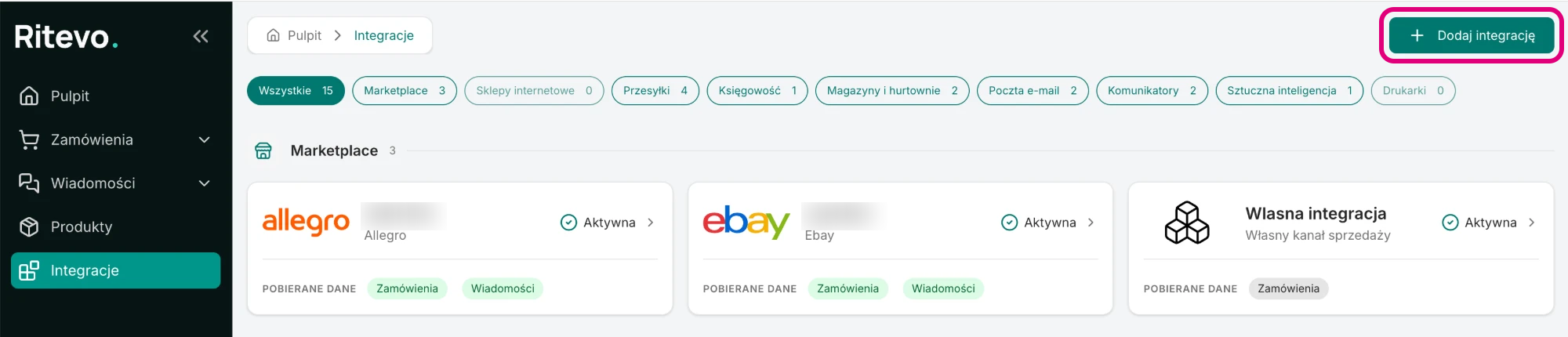
- Go to Integrations in the left panel and click Add integration in the top right corner.
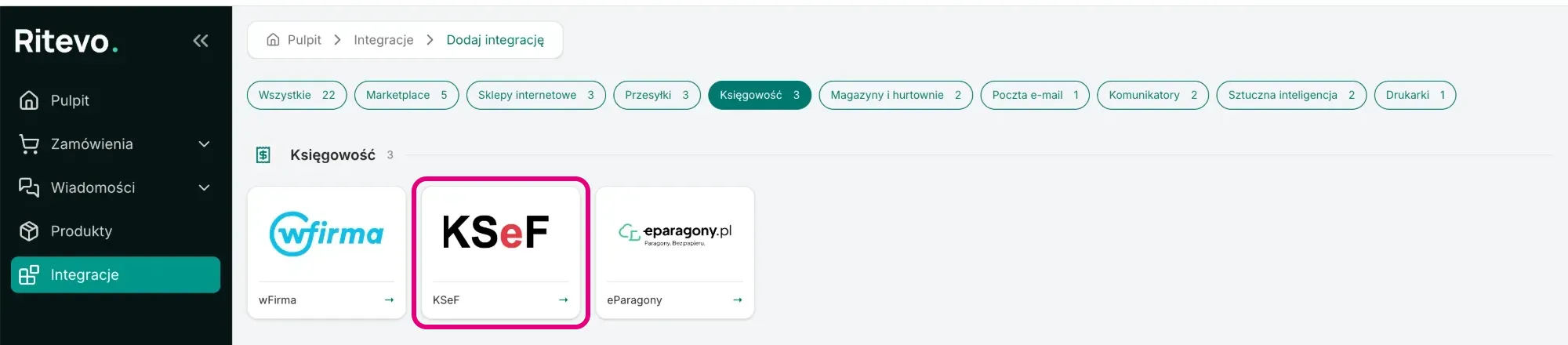
- In the Accounting section pick the KSeF tile.
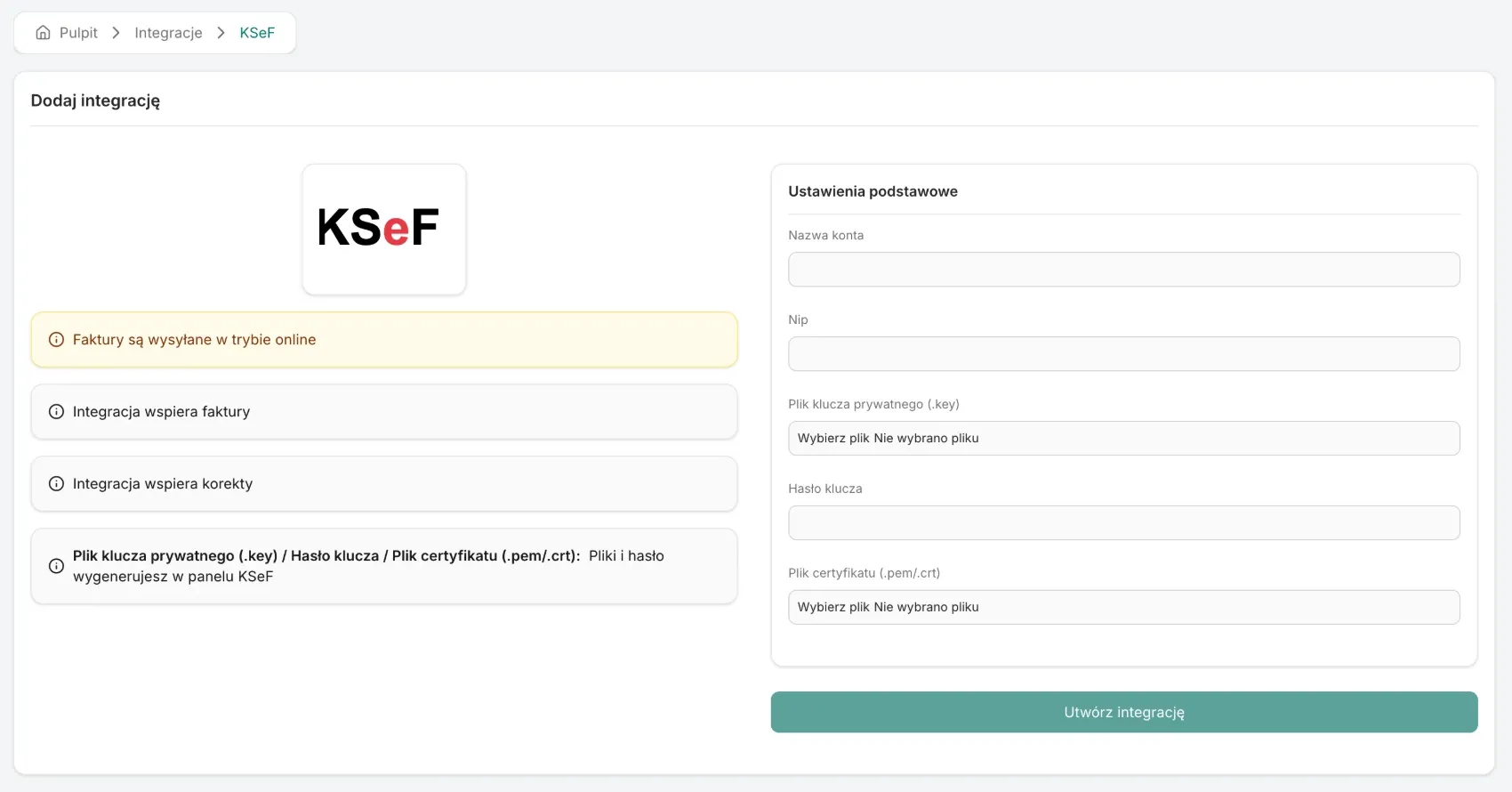
- In the Account name field enter your own name for the integration, and in the Nip field the NIP of the company you issue invoices for.
- Add the Private key file (.key), enter the Key password and add the Certificate file (.pem/.crt).
- Click Create integration. We sign in to KSeF with the certificate right away: if it works, the integration is added and its settings open. If not - you will see an error and nothing is saved.
Integration settings
On the integration page you will find:
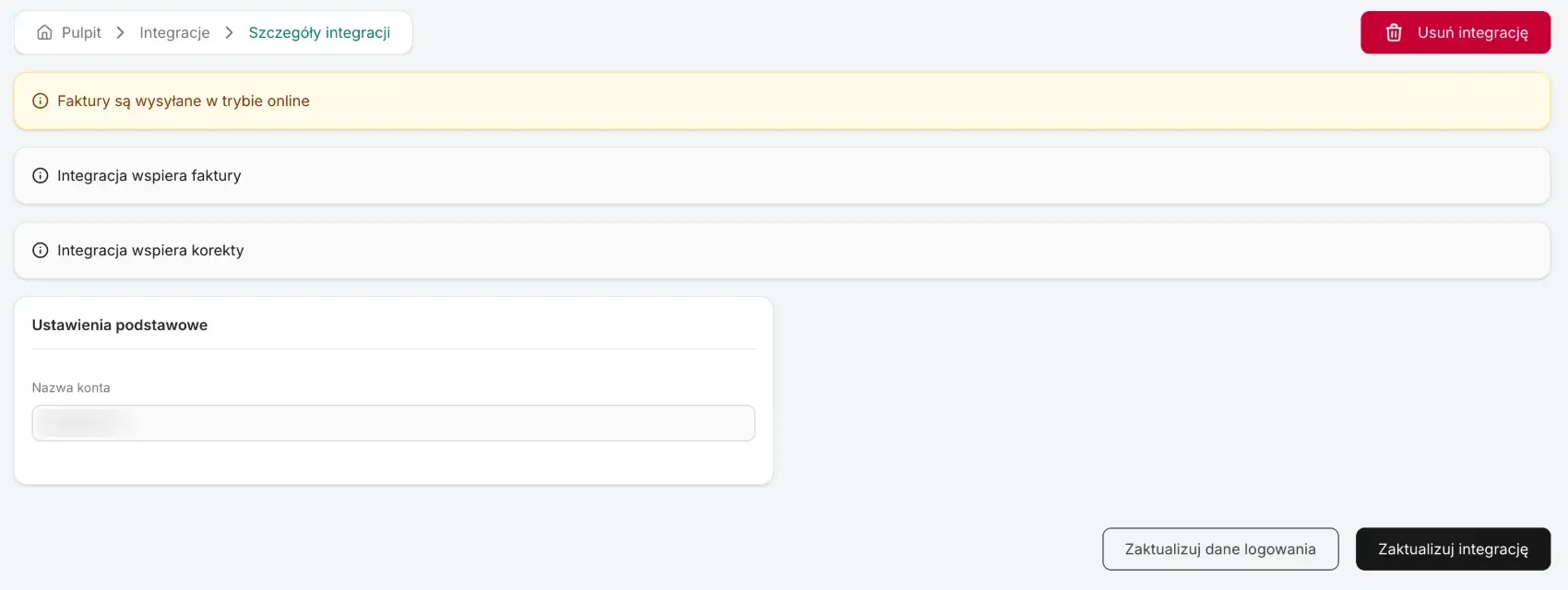
- Invoices are sent in online mode - every invoice goes to KSeF as soon as you send it.
- Account name - your own name for the integration. You change it and save it with Update integration.
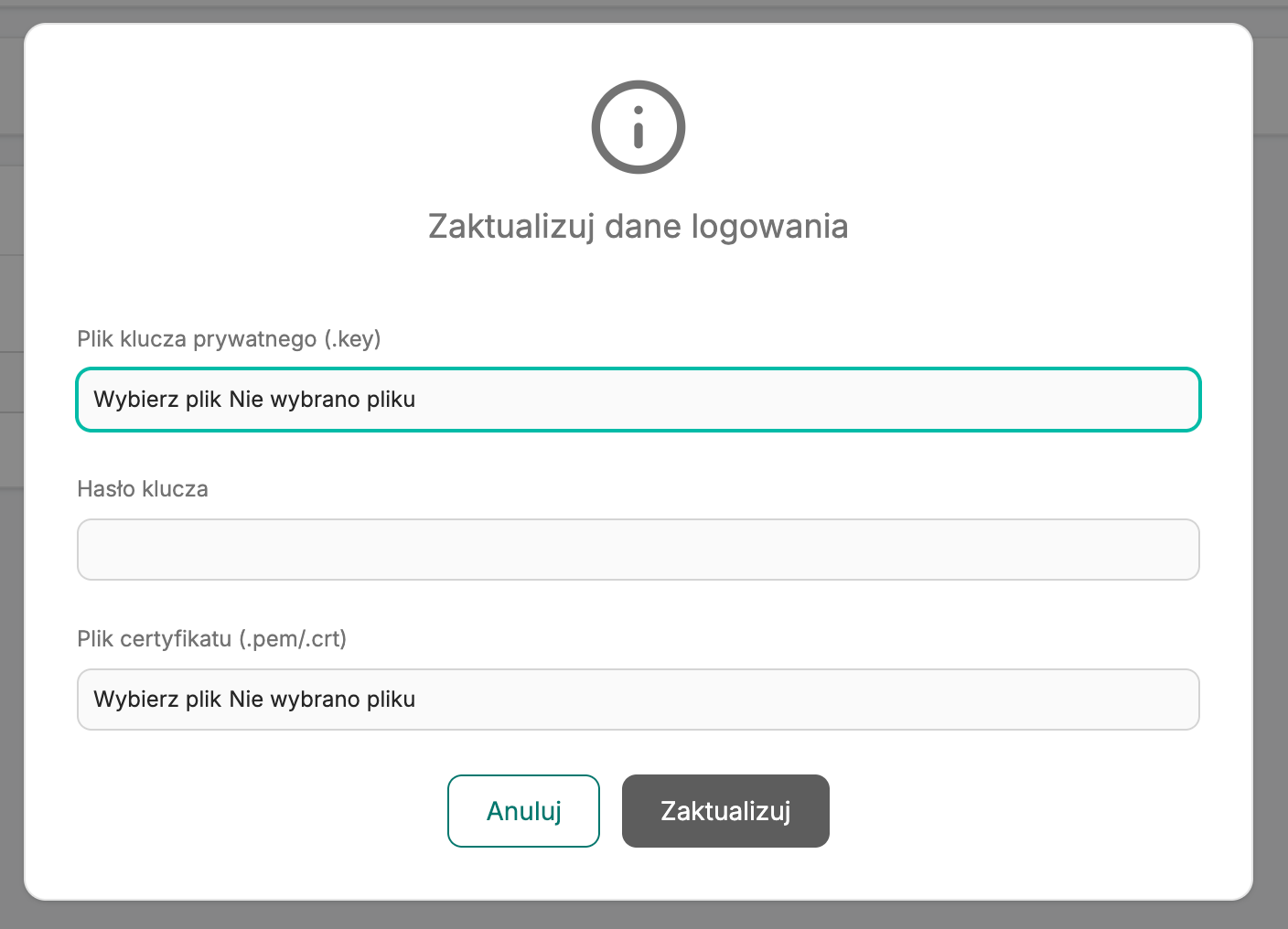
- Update credentials - you enter new files and a password, for example when the certificate is about to expire. We check them in KSeF the same way as when adding.
Sending documents
You issue documents in the order. You send them to KSeF in two ways:
- By hand - in the document details, in the External accounting systems card, click the button with the KSeF account name. The button shows up only on documents this integration supports.
- Automatically - with the Send invoice to external accounting or Send receipt to external accounting step in order actions.
Plan sending documents step by step - first issuing, then sending:
- Invoice - the first action ends with the Generate invoice step. The second starts on the Invoice (added/removed) trigger, has the Has invoice condition and the Send invoice to external accounting step.
- Receipt - the same: the first action ends with the Generate receipt step, and the second starts on the Receipt (added/removed) trigger, has the Has receipt condition and the Send receipt to external accounting step.
- Corrections - you can issue many corrections to one invoice. Send each right after issuing it, before you issue the next one.
In the same card every sending has its own icon. Hover over it to see the account, the state and the date:
- Sending - the document is sent and we are waiting for KSeF to confirm it.
- Sent successfully - the document is in KSeF. Click the icon to download or open it.
- Sending failed - the document did not reach KSeF. The reason is shown under the state.
How an invoice reaches KSeF
- Confirmation - KSeF processes the invoice after receiving it, so at first it is Sending. We check the KSeF response every few seconds. If KSeF does not confirm the invoice within 24 hours, the sending ends with an error.
- Numbers and date - the invoice carries the number assigned in Ritevo. Once accepted, KSeF gives it a KSeF number. The issue date in KSeF is the day of sending.
- PDF - clicking the icon downloads a PDF prepared from the invoice stored in KSeF, with the KSeF number.
- Corrections - you send them by hand. Automatic actions send only invoices and receipts.
- VAT rates - KSeF accepts 23%, 8%, 5%, 0%, WDT (intra-EU supply), Zw. (exempt) and O.o (reverse charge) from us, as well as the former 22% and 7%. OSS rates are sent as OSS sales. An invoice with any other rate is not sent - you will see the Tax rate not supported error.
Reconnection required
This state shows up when KSeF stops accepting the certificate - for example after it expired or was revoked. Until then invoices will not reach KSeF.
- Generate a new KSeF certificate - the same way as the first time.
- On the integration page click Update credentials, add the new files, enter the password and confirm. A valid certificate refreshes the connection, and the history of sent invoices stays unchanged.
Deleting the integration
Delete integration turns the integration off in Ritevo. Documents sent earlier stay in KSeF. Restore integration turns it back on.
What the integration does not do
- It does not send receipts.
- It does not send invoices in offline mode - online only.
- It does not change invoices that are already in KSeF - you make changes with a correction.
- It does not fetch purchase invoices or other documents from KSeF.