
eparagony.pl
The eparagony.pl integration sends receipts issued in Ritevo to eParagony. You connect it with API credentials from the eParagony panel and point it at a point of sale.
You can add as many eparagony.pl integrations as you like, including several for the same account - for example with different details or different document settings. Each works on its own.
Which documents it sends
- Receipt - goes to eParagony as an e-receipt.
- VAT invoice and Invoice correction - not supported.
Where to find the credentials
eParagony provides the API credentials after you register for the service, together with the API documentation. Have them ready before adding the integration:
- Create an eparagony.pl account if you do not have one yet.
- Have the Client ID, the Client Secret and the webhook secret ready.
- Have the ID of the point of sale (posId) the receipts should go to ready.
- If you cannot find these details, write to eParagony support: pomoc@eparagony.pl.
Connecting the account
Start in Ritevo:
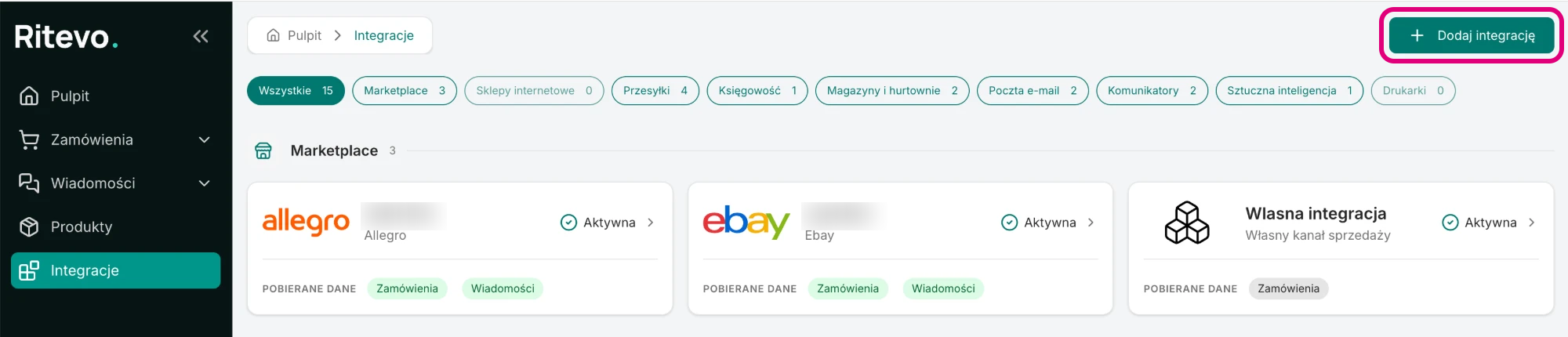
- Go to Integrations in the left panel and click Add integration in the top right corner.
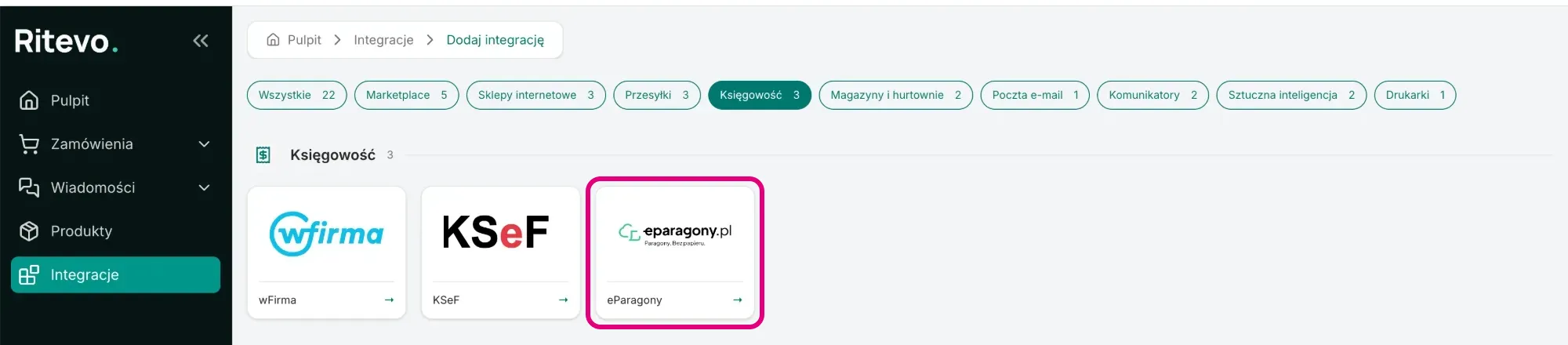
- In the Accounting section pick the eParagony tile.
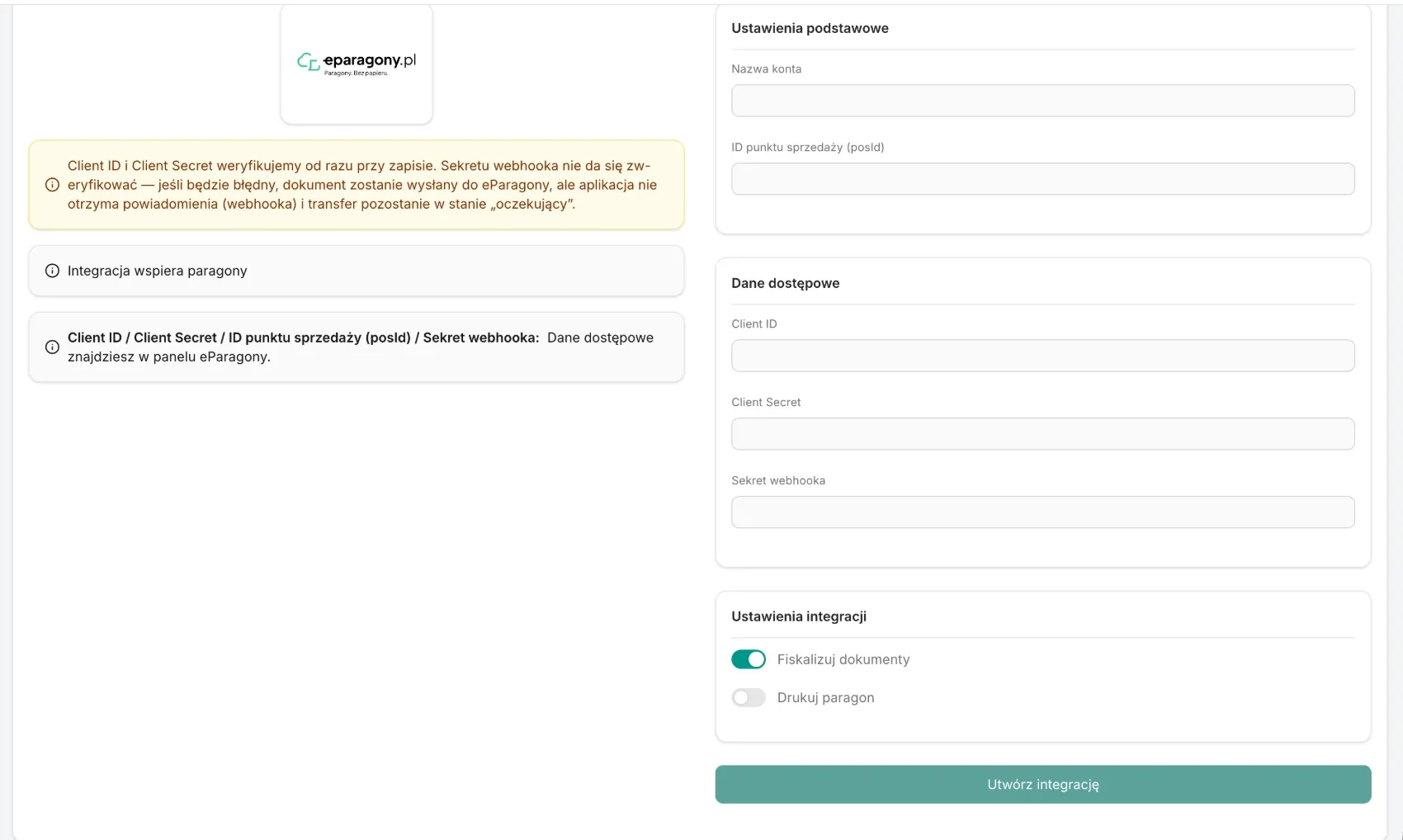
- In the Basic settings card enter the Account name - your own name for the integration - and the Point of sale ID (posId).
- In the Credentials card paste the Client ID, the Client Secret and the Webhook secret.
- In the Integration settings card set Fiscalise documents and Print receipt - described below.
- Click Create integration. We check the Client ID and Client Secret in eParagony right away: if they are correct, the integration is added and its settings open. If not - you will see an error and nothing is saved.
Integration settings
On the integration page you will find the fields below. You save changes to the name and switches with Update integration:
- Account name - your own name for the integration. You can change it at any time.
- Point of sale ID (posId) - the point entered when adding. It cannot be changed - you add another point as a new integration.
- Fiscalise documents - once on, eParagony fiscalises the receipt. This needs the eParagony document printing service running on your side. On by default.
- Print receipt - once on, eParagony prints the receipt. For a stationary point of sale only. Off by default.
- Update credentials - you enter a new Client ID, Client Secret and webhook secret.
Sending documents
You issue documents in the order. You send them to eparagony.pl in two ways:
- By hand - in the document details, in the External accounting systems card, click the button with the eparagony.pl account name. The button shows up only on documents this integration supports.
- Automatically - with the Send invoice to external accounting or Send receipt to external accounting step in order actions.
Plan sending documents step by step - first issuing, then sending:
- Invoice - the first action ends with the Generate invoice step. The second starts on the Invoice (added/removed) trigger, has the Has invoice condition and the Send invoice to external accounting step.
- Receipt - the same: the first action ends with the Generate receipt step, and the second starts on the Receipt (added/removed) trigger, has the Has receipt condition and the Send receipt to external accounting step.
- Corrections - you can issue many corrections to one invoice. Send each right after issuing it, before you issue the next one.
In the same card every sending has its own icon. Hover over it to see the account, the state and the date:
- Sending - the document is sent and we are waiting for eparagony.pl to confirm it.
- Sent successfully - the document is in eparagony.pl. Click the icon to download or open it.
- Sending failed - the document did not reach eparagony.pl. The reason is shown under the state.
How a receipt reaches eParagony
- Without fiscalisation - eParagony accepts the receipt straight away, so it is Sent successfully right after sending.
- With fiscalisation - the receipt stays Sending until eParagony confirms the fiscalisation. Then it changes to Sent successfully or to Sending failed with the reason from eParagony.
- Number - in eParagony the receipt carries the number assigned in Ritevo.
- Preview - clicking the icon opens the receipt on the eParagony site.
- VAT rates - eParagony accepts 23%, 8%, 5%, 0% and Zw. (exempt) from us, as well as the former 22%, 7% and 3%. A receipt with any other rate is not sent - you will see the Tax rate not supported error.
Reconnection required
This state shows up when eParagony stops accepting the Client ID and Client Secret - for example after they were changed in the eParagony panel. Until then receipts will not reach eParagony.
- Copy the current credentials in the eParagony panel.
- On the integration page click Update credentials, paste the Client ID, Client Secret and webhook secret and confirm. We check them in eParagony the same way as when adding - correct ones refresh the connection.
Deleting the integration
Delete integration turns the integration off in Ritevo. Documents sent earlier stay in eparagony.pl. Restore integration turns it back on.
What the integration does not do
- It does not send invoices or corrections.
- It does not change or cancel receipts that are already in eParagony.