
The e-mail integration connects an ordinary mailbox to Ritevo - a company mailbox, Gmail, Outlook or any other that supports IMAP and SMTP. Customer emails land in the shared Messages inbox next to marketplace and store conversations, and you reply to them from Ritevo. Through e-mail you also cover sales channels with no inbox of their own - such an integration's page says so.
One mailbox is connected once; if you handle several addresses, add each one as a separate integration.
Within one company account a given address can be connected only once: when you or a colleague add it again, the existing integration is refreshed - even if it was deleted before - and no second one is created. The new password and server settings replace the previous ones.
App password
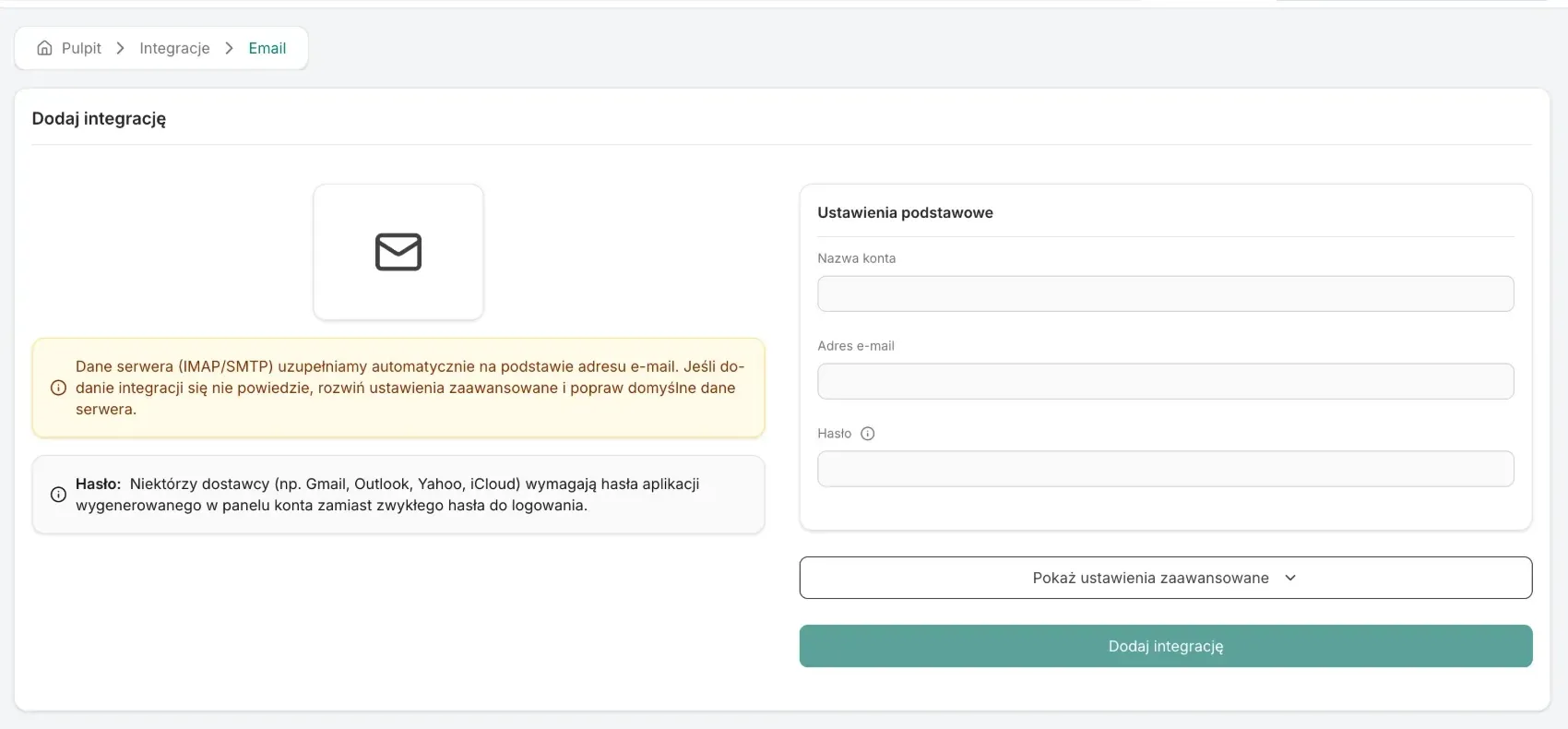
Some mail providers do not let external programs in with your ordinary sign-in password. You then generate an app password in the mail account settings and give that one to Ritevo:
- Gmail - you create an app password in your Google account settings, under security. It requires 2-step verification.
- Outlook, Yahoo, iCloud - the same idea: an app password in the account's security settings.
- Company mail at a hosting provider - the ordinary mailbox password usually works.
Connecting the account
Start in Ritevo:
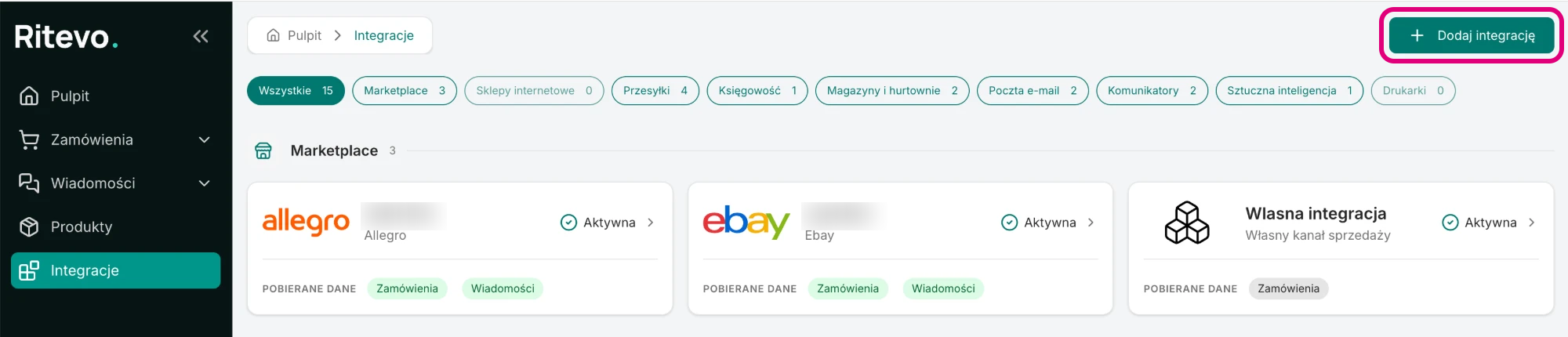
- Go to Integrations in the left panel and click Add integration in the top right corner.
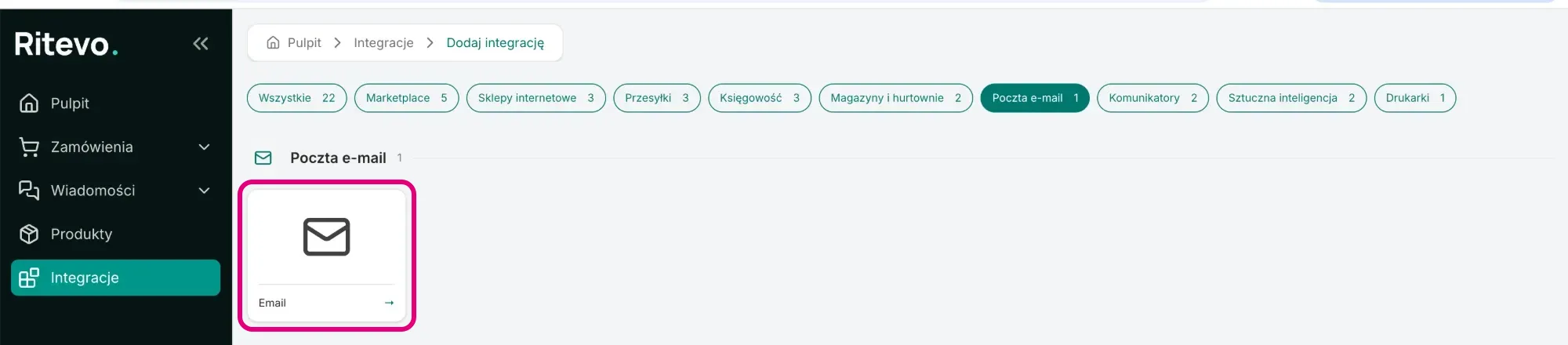
- In the E-mail section pick the Email tile.
- In the Account name field enter your own name for the integration, for example "Customer service".
- In the E-mail address field enter the mailbox address. Ritevo fills in the server details from it right away - see below.
- In the Password field enter the mailbox password or an app password.
- Click Add integration. Ritevo connects to the mail server right away - separately for receiving (IMAP) and sending (SMTP). If both connections work, the integration is added and its settings open. If not - you will see the error returned by the server and nothing is saved.
Server settings (IMAP / SMTP)
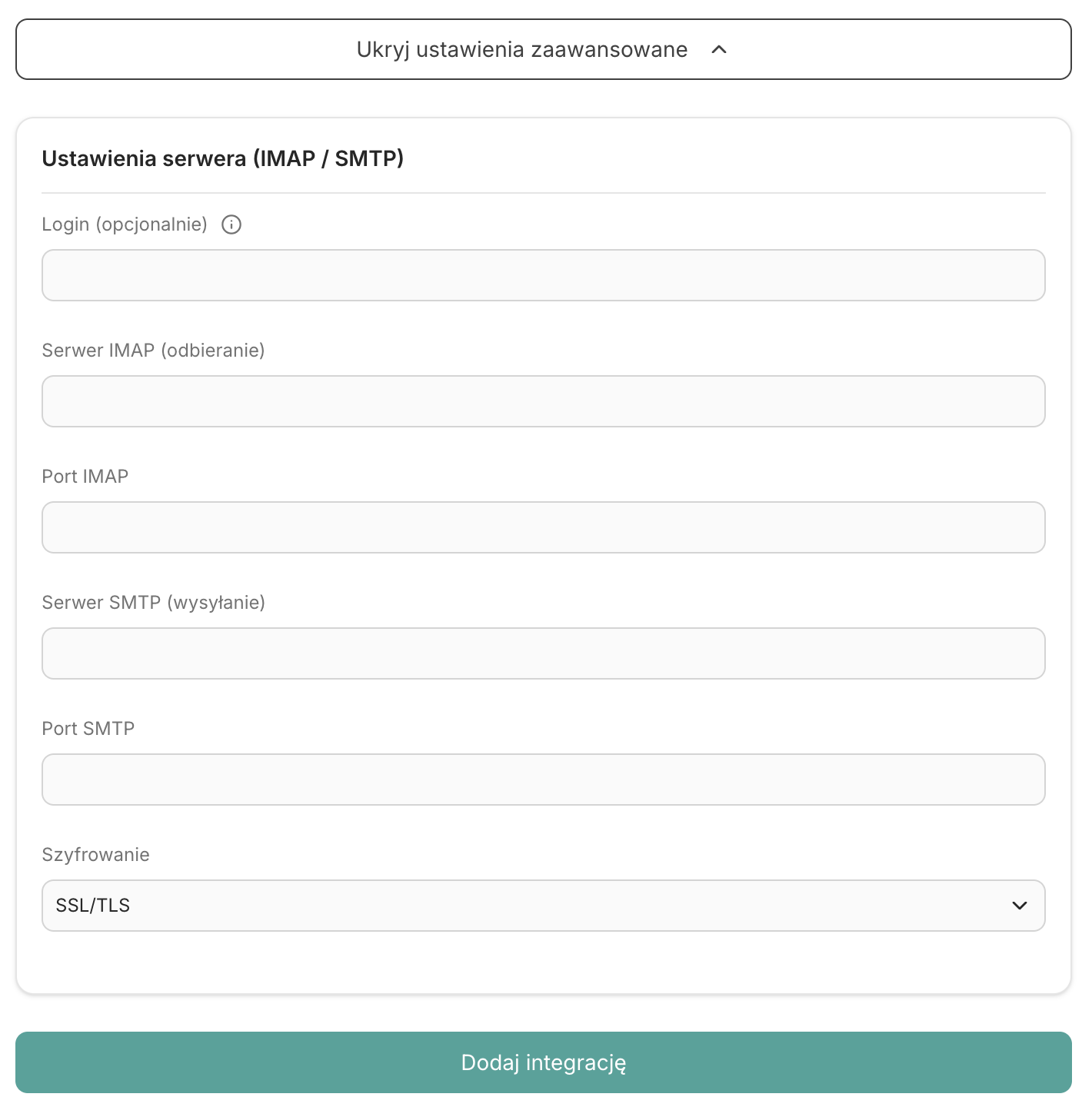
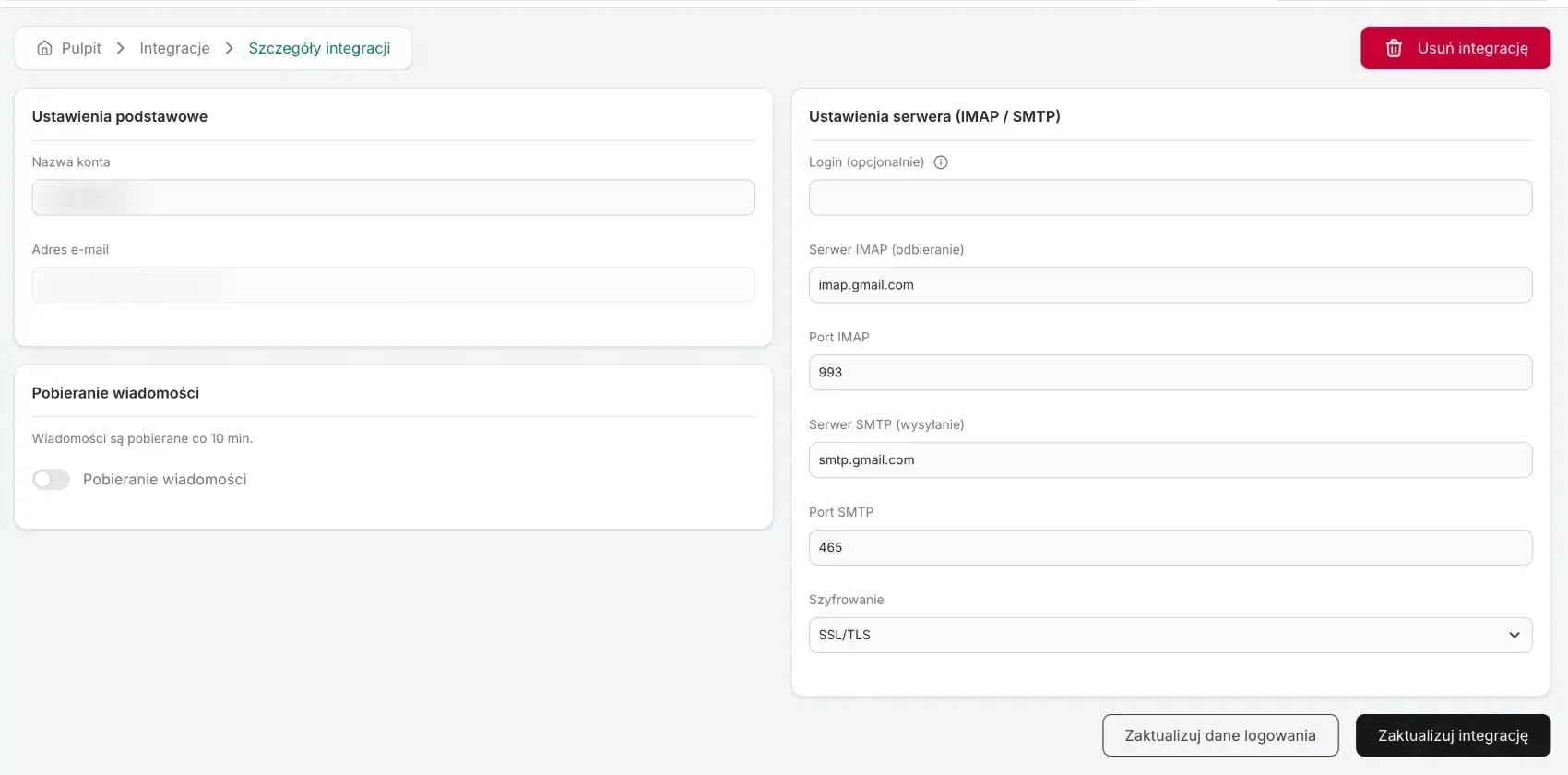
The server settings sit under Show advanced settings. Usually you leave them alone - open them when adding the integration fails:
- Login (optional) - leave it empty if you sign in with the e-mail address. Fill it in only when the server needs a different login.
- IMAP server (receiving) and IMAP port - where Ritevo fetches emails from.
- SMTP server (sending) and SMTP port - the server Ritevo sends your replies through.
- Encryption - SSL/TLS or STARTTLS. Most often: port 993 for IMAP, port 465 with SSL/TLS or 587 with STARTTLS for SMTP.
Ritevo suggests the server details from the address:
- Gmail - Google's servers, ports 993 and 465, SSL/TLS.
- Outlook, Hotmail, Live - Microsoft's servers, ports 993 and 587, STARTTLS.
- Any other address -
imap.andsmtp.on the address's domain (forcontact@mystore.comthat isimap.mystore.comandsmtp.mystore.com), ports 993 and 465, SSL/TLS.
Integration settings
After connecting, the integration is Active, but message fetching is off - you turn it on yourself. On the integration page you will find:
- Account name - your own name for the integration. You can change it at any time.
- E-mail address - the address given when adding. It cannot be changed; a different address is added as a new integration.
- Fetch messages - once on, Ritevo checks the mailbox about every 10 minutes, reaching 7 days back on the first fetch. Shared rules: Fetching messages.
- Server settings (IMAP / SMTP) - the same fields as when adding, described above.
Which emails land in Ritevo
Ritevo reads two folders of the mailbox: inbox and sent. Emails from the same correspondence are joined into one thread, the way a mail client does it:
- Threads - replies are attached to the conversation they belong to. When the customer's mail client did not mark that, Ritevo joins emails by subject.
- Sent from other programs - a reply written, say, on your phone shows up in the thread too, because it lands in the sent folder.
- Other folders - spam, archive and your own folders are not fetched. An email moved there by a mail rule will not reach Ritevo.
- Thread type - every e-mail thread is a Message; e-mail has no disputes or claims.
- Orders - e-mail threads are not linked to orders automatically, even if the customer wrote the order number in the text.
- Attachments - you see the customer's attachments in the thread and download them from Ritevo.
Replying from Ritevo
- Sender - the reply goes out from the connected mailbox's address, through its SMTP server. The customer sees an ordinary email from you.
- Thread on the customer's side - the reply lands in the same conversation in the customer's mailbox, not as a new email.
- Sent folder - the reply is saved to your mailbox's sent folder, so you also see it in your mail client.
Reconnection required
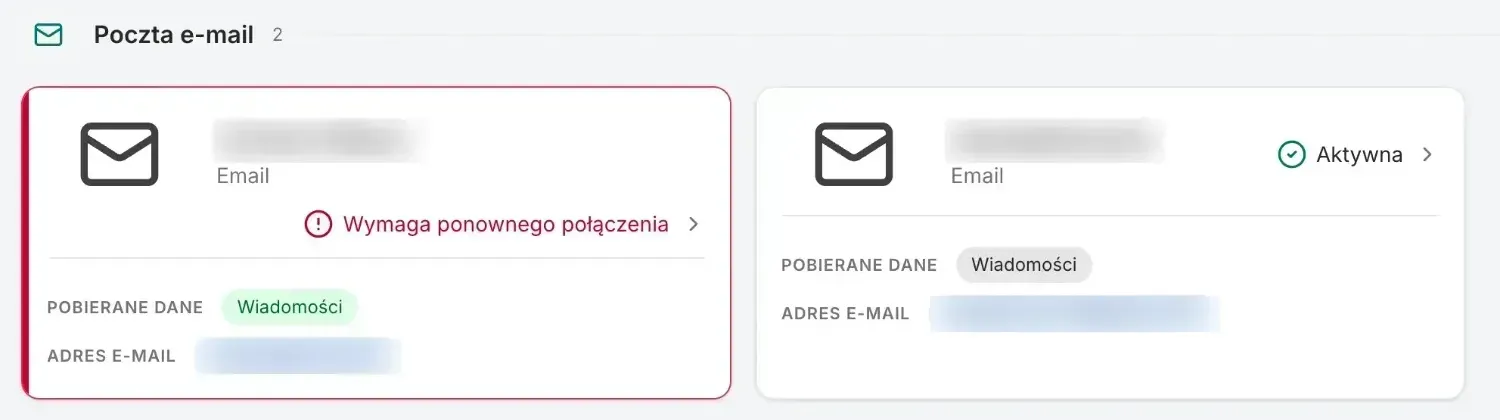
This state appears when the mail server rejected the login or password - most often after the mailbox password changed or an app password was removed. On the integrations list such a mailbox has a red frame and Reconnection required. Until you provide a new password, Ritevo neither fetches emails nor sends replies from that mailbox.
- If you use an app password, generate a new one in the mail account settings.
- On the integration page in Ritevo click Update credentials, enter the password and confirm. Ritevo checks it with the server just like when adding - a wrong password returns an error, a valid one refreshes the connection. The fetching settings and history stay unchanged.
Deleting the integration
Delete integration turns the integration off in Ritevo: it stops fetching and sending data, but what it fetched earlier stays. Restore integration turns it back on.
What the integration does not do
- It does not send new emails to customers on its own - you reply in existing threads.
- It does not fetch emails from spam, archive or your own folders.
- It does not move, flag or delete emails in your mailbox - the mailbox stays as it was.