
Invoices, receipts and corrections
Ritevo issues sales documents straight from orders: VAT invoices, receipts and invoice corrections. The data comes from the order, and the number, VAT rates, dates and seller details come from the numbering - the set of settings you pick when issuing. You download the finished document as a PDF and send it to an accounting integration.
Document types
- VAT invoice - has a payment due date, GTU codes and procedures.
- Receipt - has no payment due date. You can also print a receipt on a fiscal printer.
- Invoice correction - fixes an issued invoice: the seller details, the buyer details or the items. You issue it for an invoice only.
Issuing
You issue an invoice or a receipt in three ways. Each time you pick the numbering the document is created with:
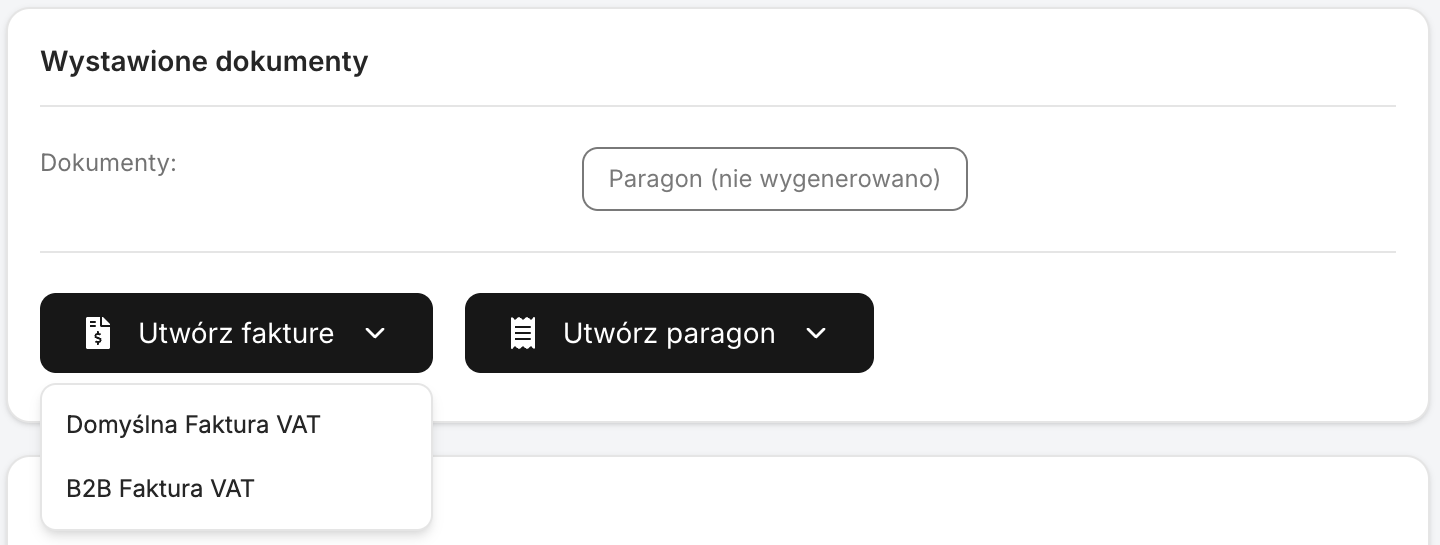
- In the order - in the Issued documents card click Create invoice or Create receipt and pick a numbering from the list.
- On the order list - select orders and click the Create invoices or Create receipts icon. Up to 1000 orders at once. Orders that already have a document of that type are skipped.
- Automatically - with the Generate invoice or Generate receipt step in order actions.
The buyer is the company details from the order, i.e. the invoice details (name, tax ID, address). We do not fill in the buyer's personal details - the only exception is the personal ID number, which we take from the buyer's details. If the order has no company details, the document has no buyer - add the details in the order or with the Update company details with buyer details step in order actions before issuing. The seller is the company set in the numbering. The items are the order's products with quantity and gross price, and shipping goes on the document according to the numbering settings. The paid amount and the currency come from the order's payment.
Numberings
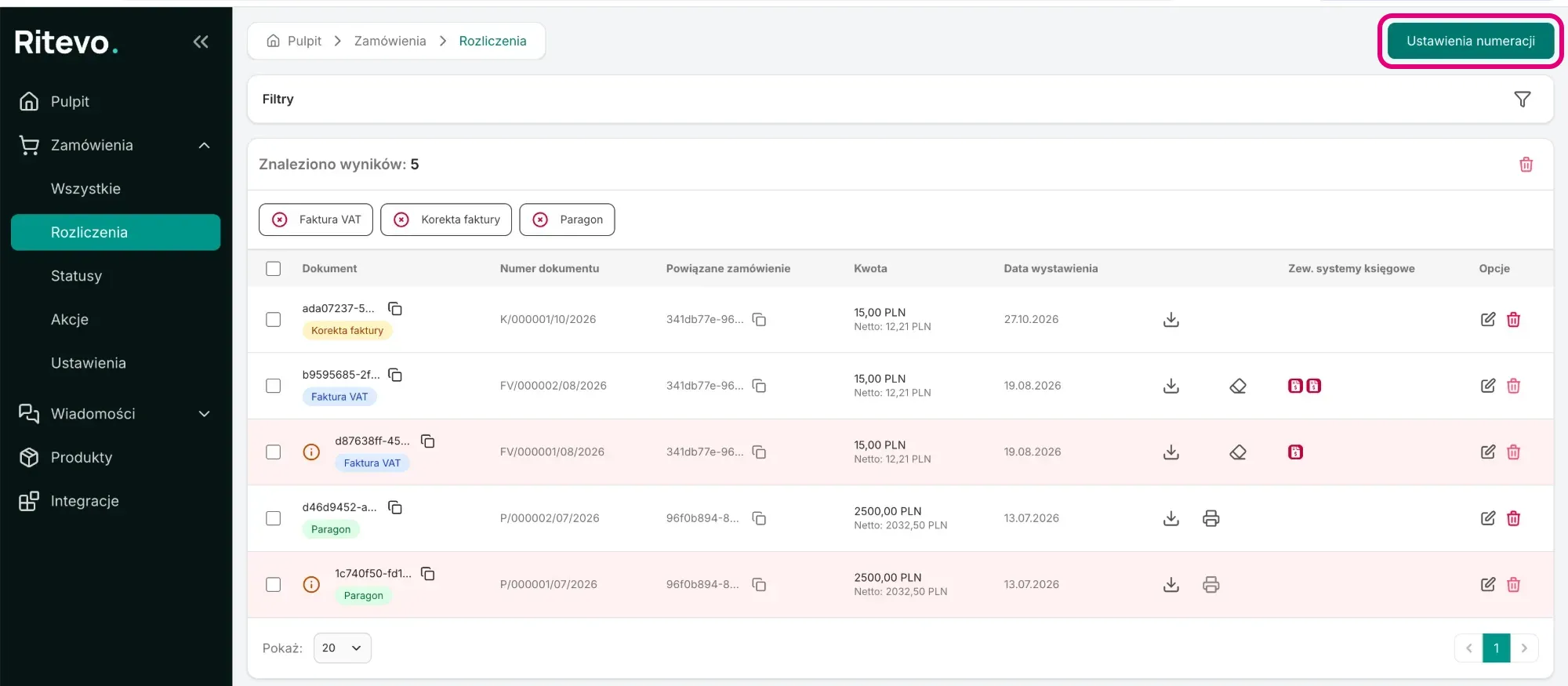
A numbering is a saved set of document settings: the number pattern, VAT rates, shipping, dates, payment and seller details. You find them in Orders → Billing, the Numbering settings button. You can have up to 50 numberings including the defaults, for example a separate one for cross-border sales. You cannot change a numbering's document type after it is created.
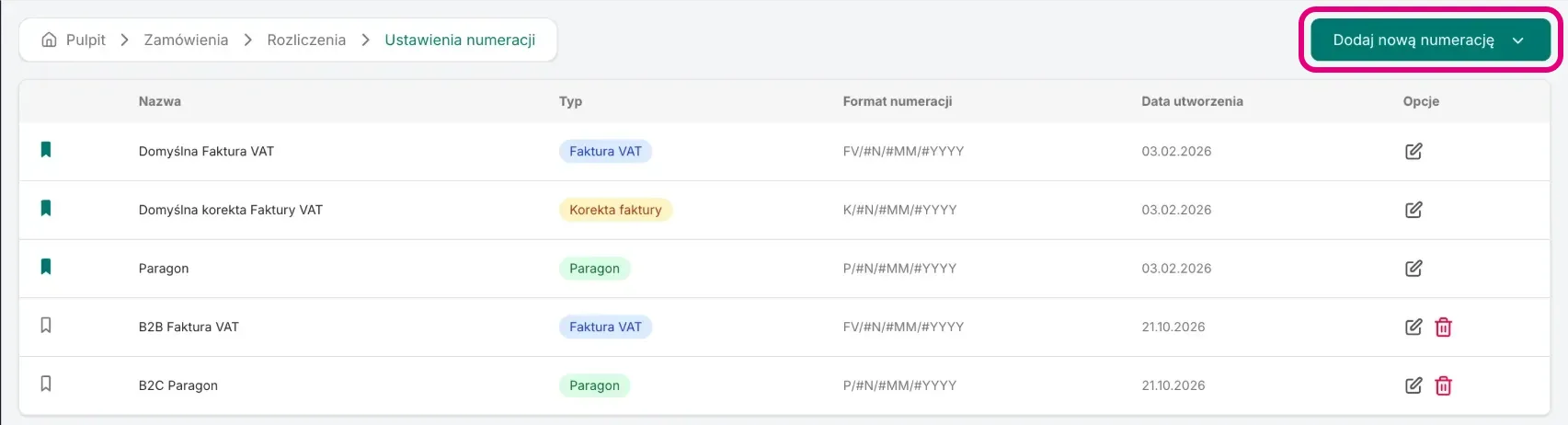
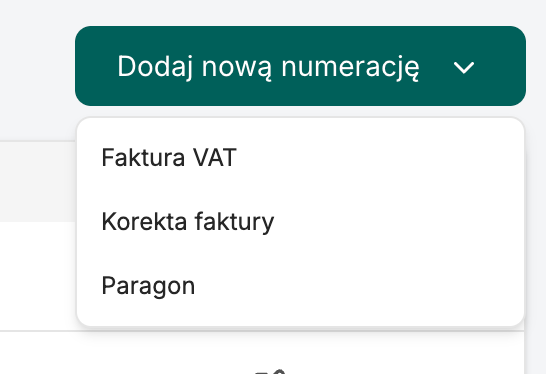
You add a new numbering with the Add new numbering button - you pick the document type: VAT invoice, Invoice correction or Receipt. The numbering is created with default settings, which you change in its details.
Every company starts with one default numbering each for invoices, receipts and corrections. You cannot delete a default numbering, nor a numbering that a document already uses.
Number format
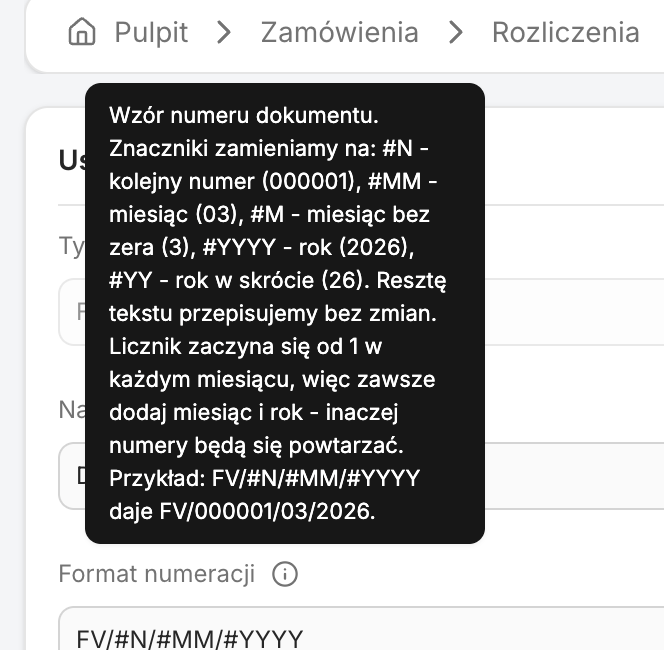
In the Number format field you enter the number pattern. Plain text is kept as is, and the tokens are replaced with values:
| Token | What we insert | Example |
|---|---|---|
#N | the next number, always 6 digits | 000001 |
#MM | month, two digits | 03 |
#M | month without a leading zero | 3 |
#YYYY | year | 2026 |
#YY | year, last two digits | 26 |
The pattern INV/#N/#MM/#YYYY gives the numbers INV/000001/03/2026, INV/000002/03/2026 and so on. The default patterns are FV/#N/#MM/#YYYY for invoices, P/#N/#MM/#YYYY for receipts and K/#N/#MM/#YYYY for corrections. Tokens are case-sensitive.
The counter is shared by all numberings of the same document type. If you have two invoice numberings, for example INV/... and EU/..., the numbers run in one sequence: INV/000001, EU/000002, INV/000003.
VAT rates
You set the rate for products in the numbering, in the VAT rate field:
- Product's assigned VAT rate - each item gets the rate it has in the order. The default.
- OSS (VAT rate of the delivery country) - the rate of the country the parcel goes to. More in the OSS section.
- Custom VAT rate - one rate for all products, picked in the Custom VAT rate field.
Shipping has a separate Shipping VAT rate field:
- Proportional to products - shipping gets the VAT rate whose items have the largest share of the gross value of the products on the document (after skipping prices). When there are no products on the document - 0%. The default.
- OSS (VAT rate of the delivery country) - as for products, by the delivery country.
- Custom VAT rate - the rate picked in the Custom shipping VAT rate field, 23% by default.
Besides the regular percentage rates there are three special ones:
- Exempt - the exempt rate, "zw." on the document.
- Reverse charge - reverse charge, "n.p." on the document.
- Intra-EU supply - a 0% rate marked as intra-EU supply (WDT). More in the intra-EU supply section.
OSS
With the OSS setting Ritevo picks the VAT rate by the order's delivery country. This is how you turn it on:
- In Orders → Billing click Numbering settings and add an invoice or receipt numbering, for example with the pattern
OSS/#N/#MM/#YYYY. - In the VAT rate field choose OSS (VAT rate of the delivery country).
- In the Shipping VAT rate field also choose OSS (VAT rate of the delivery country), so shipping has the same rate as the products.
- You pick this numbering when issuing a document - by hand or in an action step, for example with the Delivery country is condition.
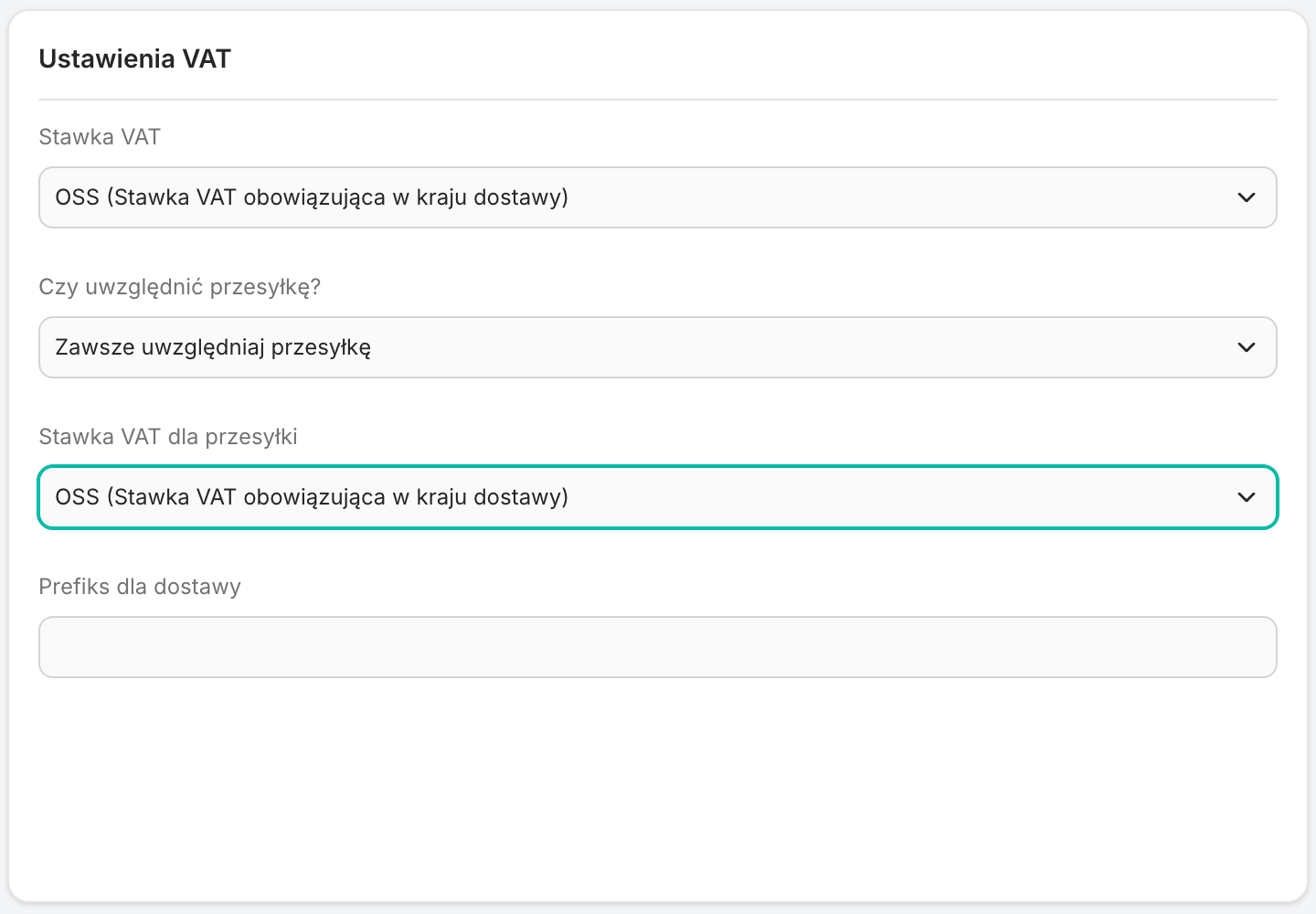
We take the rate from the delivery address country, not from the buyer's address. We use the standard VAT rates (not the reduced ones). A document is marked as OSS only when OSS is chosen in the VAT rate field for products; the marking itself is not printed on the PDF. Rates as of October 2026:
| Country | Code | Rate |
|---|---|---|
| Austria | AT | 20% |
| Belgium | BE | 21% |
| Bulgaria | BG | 20% |
| Cyprus | CY | 19% |
| Czechia | CZ | 21% |
| Germany | DE | 19% |
| Denmark | DK | 25% |
| Estonia | EE | 24% |
| Spain | ES | 21% |
| Finland | FI | 25.5% |
| France | FR | 20% |
| Greece | GR | 24% |
| Croatia | HR | 25% |
| Hungary | HU | 27% |
| Ireland | IE | 23% |
| Italy | IT | 22% |
| Lithuania | LT | 21% |
| Luxembourg | LU | 17% |
| Latvia | LV | 21% |
| Malta | MT | 18% |
| Netherlands | NL | 21% |
| Poland | PL | 23% |
| Portugal | PT | 23% |
| Romania | RO | 21% |
| Sweden | SE | 25% |
| Slovenia | SI | 22% |
| Slovakia | SK | 23% |
Intra-EU supply
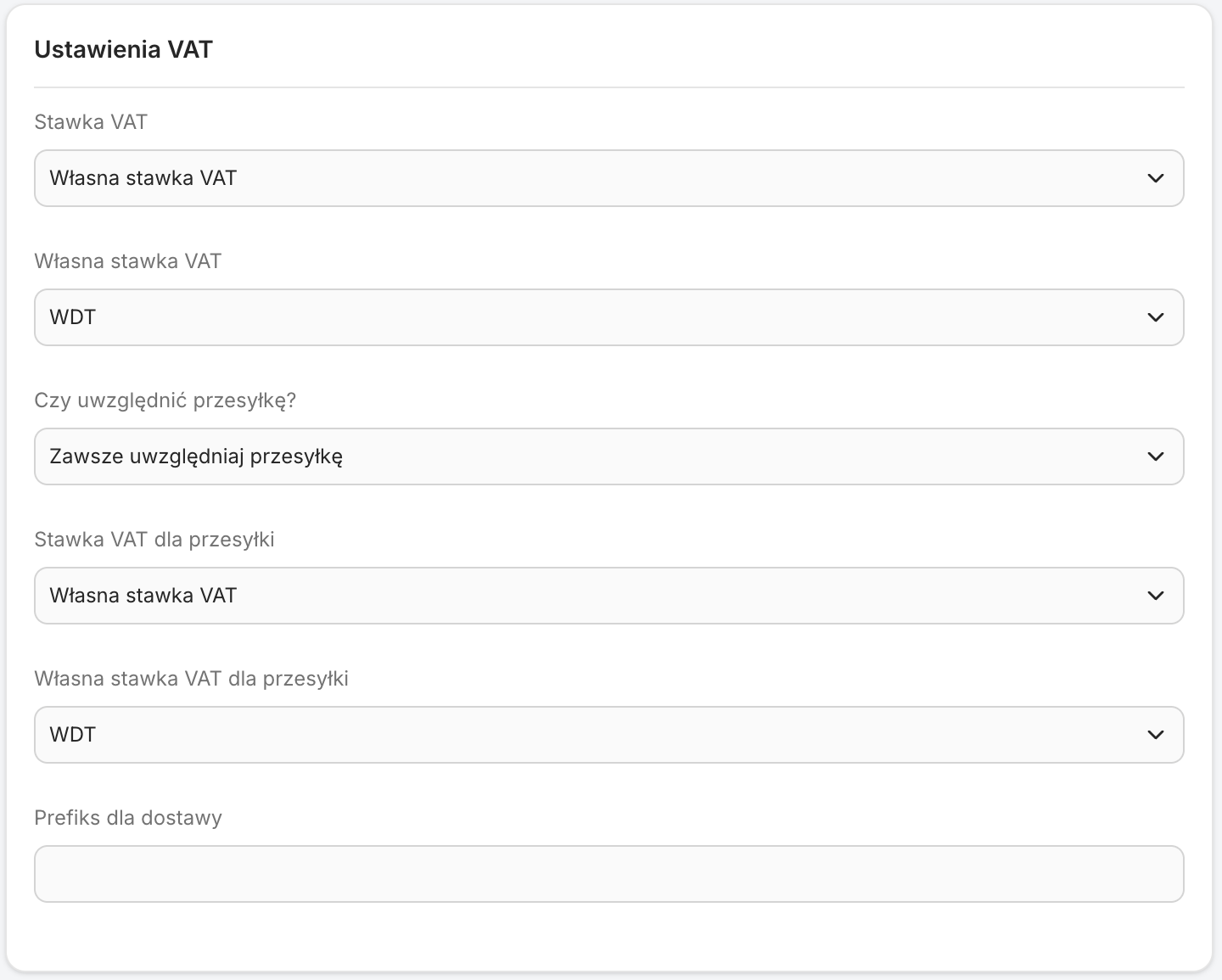
The intra-EU supply rate is 0% marked as intra-EU supply (WDT). Ritevo does not set it by itself - a document gets it from the numbering where you choose it:
- Add an invoice numbering, for example with the pattern
EU/#N/#MM/#YYYY. - In the VAT rate field choose Custom VAT rate, and in the Custom VAT rate field - Intra-EU supply.
- In the Shipping VAT rate field choose Custom VAT rate, and in the Custom shipping VAT rate field - Intra-EU supply.
- You pick this numbering when issuing an invoice. We take the buyer's VAT number from the company details in the order and do not verify it.
Other numbering settings
Apart from the number and the rates, the numbering decides what else goes on the document.
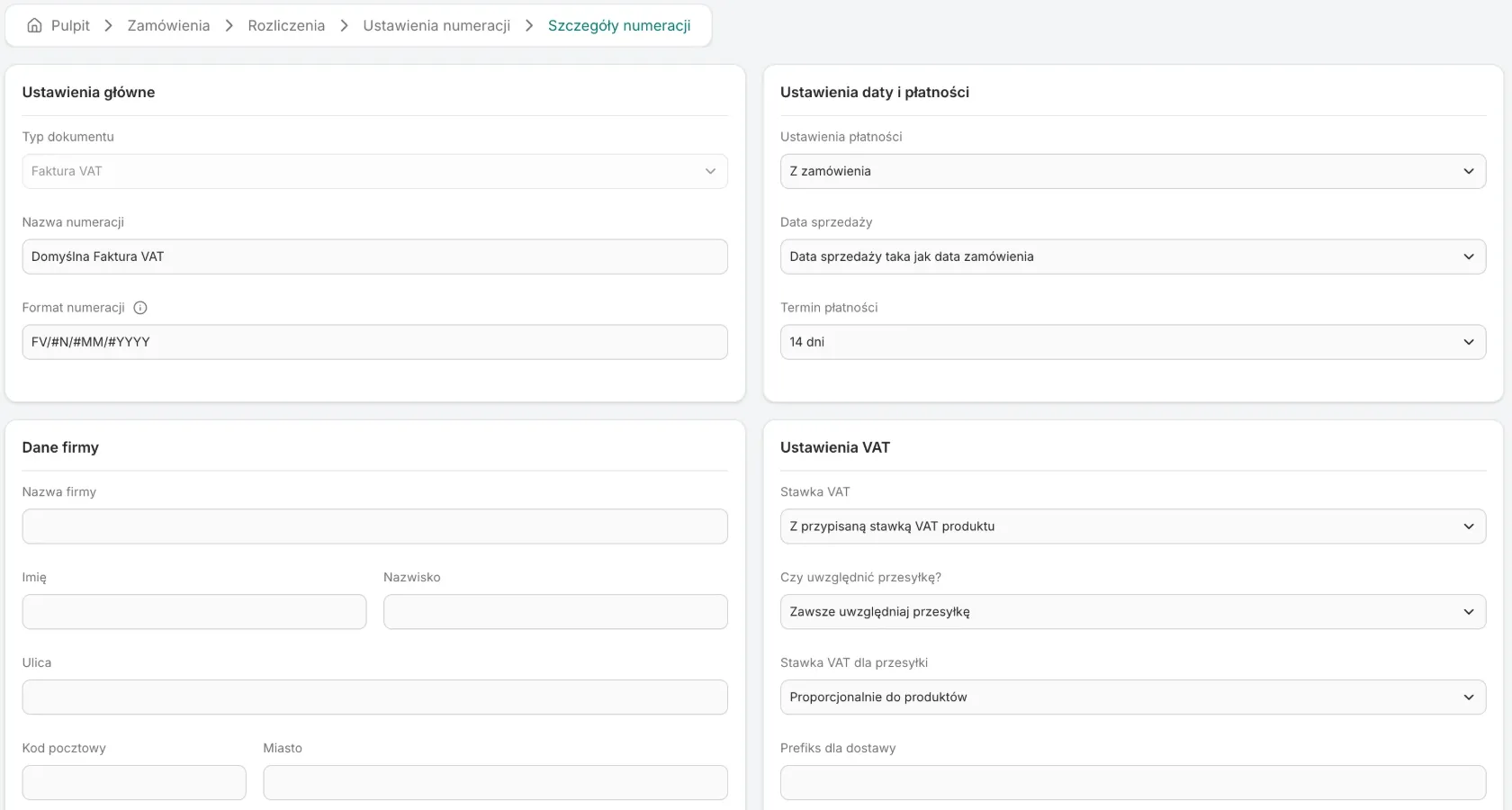
Shipping
- Do not include shipping - the document has products only.
- Always include shipping - shipping is a separate item, also when it costs 0. The default.
- Include if the shipping cost is above 0 - free shipping does not go on the document.
- Add the shipping cost to the last product - we spread the shipping cost over the units of the last item instead of adding a separate one: 4 units at 5.00 and 20.00 shipping give 4 units at 10.00. If the cost does not divide evenly into cents, the leftover cents go on one split-off unit (3 units at 5.00 and 20.00 shipping: 2 at 11.66 and 1 at 11.68), so the total always matches the order. Shipping then gets that item's VAT rate - the Shipping VAT rate field has no effect. If all products are skipped, there is no shipping on the document.
The shipping item is named after the order's delivery method. In the Delivery prefix field you can add text in front of it, for example "Delivery: ".
Skipping products by price
- Include all prices - all products with a price go on the document. Items without a price are always skipped. The default.
- Skip prices equal to 0 - no free gifts or items for 0.
- Skip negative prices - no discounts saved as separate items with a negative price.
- Skip prices equal to 0 and negative - both at once.
Dates and payment
- Sale date same as the issue date - the sale date is the day the document is issued.
- Sale date same as the payment date (or today) - the day the order was paid, and if it is unpaid - the issue date.
- Sale date same as the order date - the day the order was placed. The default.
The issue date is always the moment the document is created. The Payment due date is counted from it - you pick it from a list: No due date (the document has no payment due date), Due on the issue date or 3 to 120 days (14 days by default). A receipt has no due date. You set the payment method in the Payment settings field:
- From the order - the order's payment method, and if it has none - Other. The default.
- Custom setting - a fixed method picked in the Payment method field, for example Bank transfer.
Issuer and additional details
- Issuer details - the Issuer name and the Place of issue. Empty fields do not show on the document.
- Company details - the seller details, only in invoice and receipt numberings. A correction takes the seller from the invoice.
- Default unit of measure (e.g. pcs, kg, service) - the unit of every item. "szt." (pcs) by default.
- GTU codes and Procedures - Polish JPK markings saved in invoices and corrections and passed to the accounting integration. They are not printed on the PDF.
- Additional information on the invoice (if available) - a fixed text saved in the document and passed to the accounting integration. It does not appear on the PDF generated by Ritevo.
Editing and deleting
- Editing - in the document details you change the seller details, the buyer details and the items (add, fix, delete). Net amounts, VAT and totals are recalculated after every change. If the document was issued without buyer details, you add them here.
- Deleting - a deleted document disappears from the order but stays on the Billing list marked as deleted, and you can issue a new one. An invoice with a correction cannot be deleted - delete the corrections first. You delete up to 1000 documents at once; if any of the selected invoices has a correction, none is deleted.
Corrections
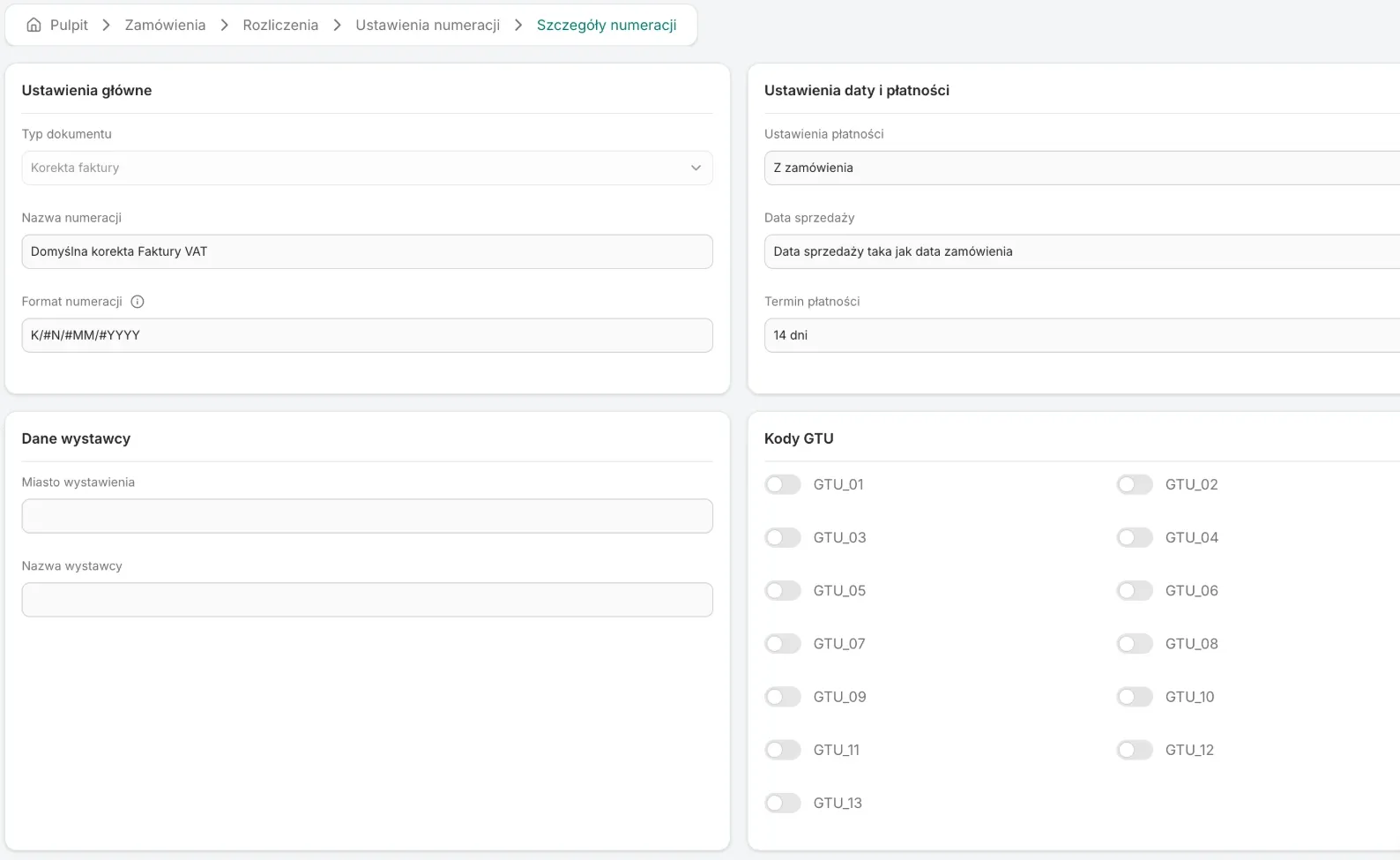
You create a correction in the invoice details with the Create correction button or with the icon next to the invoice on the Billing list - first you pick a correction numbering. A correction has its own numbering and its own counter, and a correction numbering only has the payment, dates, issuer, unit, GTU code and procedure settings. You tick what you correct:
- Seller correction - new seller details.
- Buyer correction - new buyer details.
- Order items correction - a new, full list of items. An item missing from the list is gone from the correction.
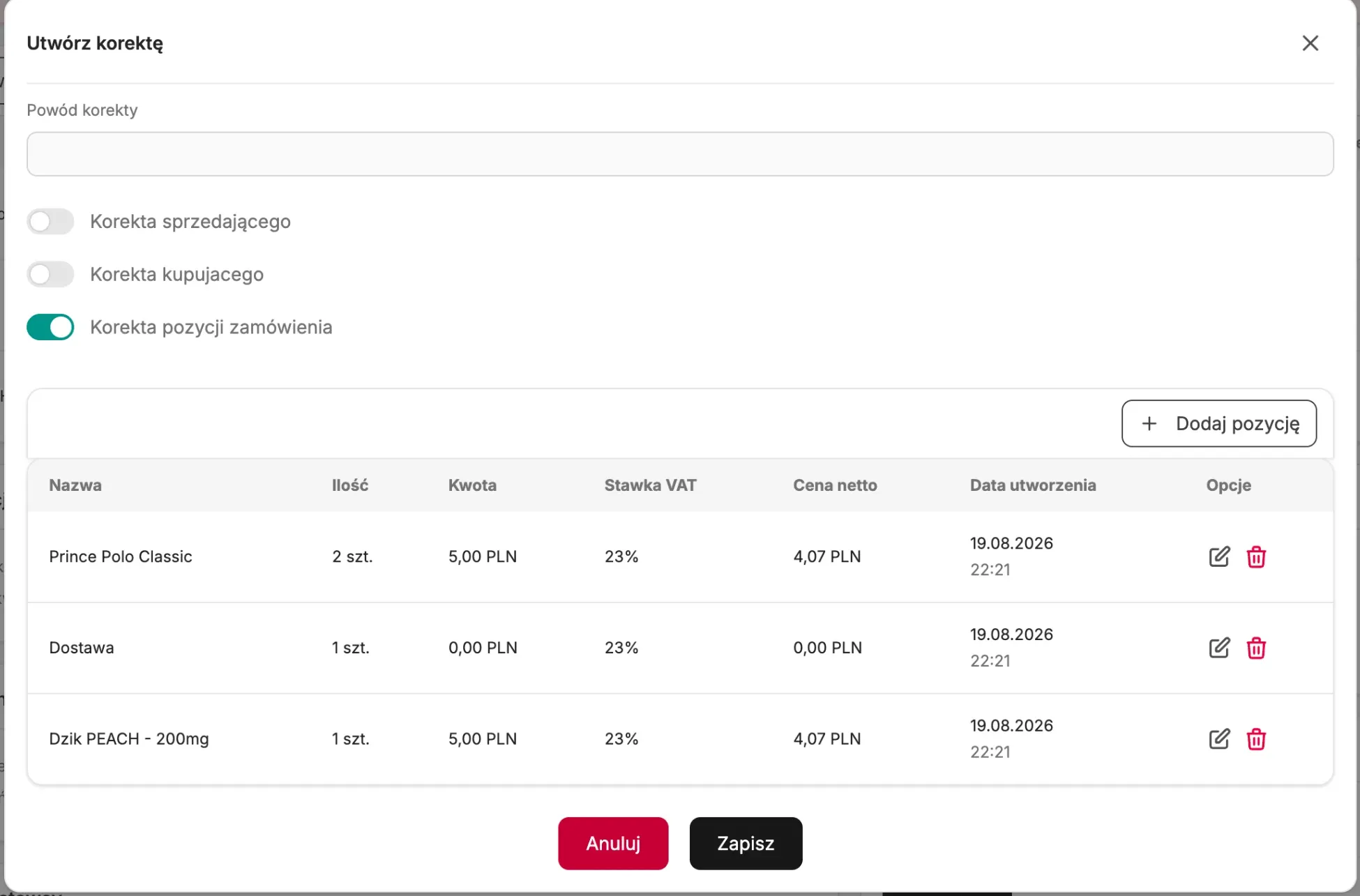
Seller details, buyer details and items you do not tick are copied from the invoice. Dates, payment method, GTU codes, procedures and issuer details come from the correction numbering. You enter the Correction reason (up to 255 characters) when creating it - the field is optional, and the reason is printed on the correction PDF. The currency, the paid amount and the OSS marking come from the invoice. You cannot correct a receipt or another correction, and automations do not create corrections.
PDF, printing and accounting
- PDF - you download every document as a PDF generated by Ritevo, also after it is deleted; the file is named after the document number. An items correction shows the items table before and after the correction and the difference in the VAT summary and the amount due. A seller or buyer correction shows those details before and after.
- Printing - you print a receipt on a printer connected through Ritevo Printer. Invoices and corrections are not printed yet.
- Accounting - you send a document to an accounting integration in its details, in the External accounting systems card, and an invoice or receipt also with an action step. A deleted document cannot be sent. Which document types an integration accepts is on its page in the integrations section.
Documents in automations
Order actions can issue an invoice or a receipt, delete them, send them to accounting and print a receipt. Triggers react to an invoice or receipt being added or deleted and to its successful sending to accounting, and conditions check whether the order has an invoice, receipt or correction, whether a document was sent and whether the customer asks for an invoice. The full list is in order actions.
What it does not do
- It does not set the intra-EU supply rate by itself - a document gets it from the numbering where you choose it.
- It does not verify the buyer's EU VAT number.
- It does not convert amounts to another currency - the document is in the order's payment currency.
- It does not generate the PDF in any language other than Polish.
- It does not e-mail documents to the customer.
- The Currency conversion, Document language, Price display and Show VAT options in the numbering settings do not change the document or the PDF yet.