
Offer management
You work with a sales channel's offers in its integration details, on two tabs. The first shows the offers already on the channel, the second is for listing new offers from warehouse products.
For now offer management works for Allegro; more channels will follow.
How it works
- Offer management - offers already on the channel. The list is always live: we fetch it from the channel every time you open it and keep it up to date, we do not save anything on our side. Every change goes straight to the channel, and the list shows it once the channel has saved it.
- Offer listing - creating new offers from warehouse products. Here we save your orders: each product goes through the statuses until the channel lists the offer. Then it leaves this tab and the offer shows up in Offer management, already linked to the product.
Offer management
Here you preview an offer, change one or many offers at once, end or resume them and link them to a warehouse product.
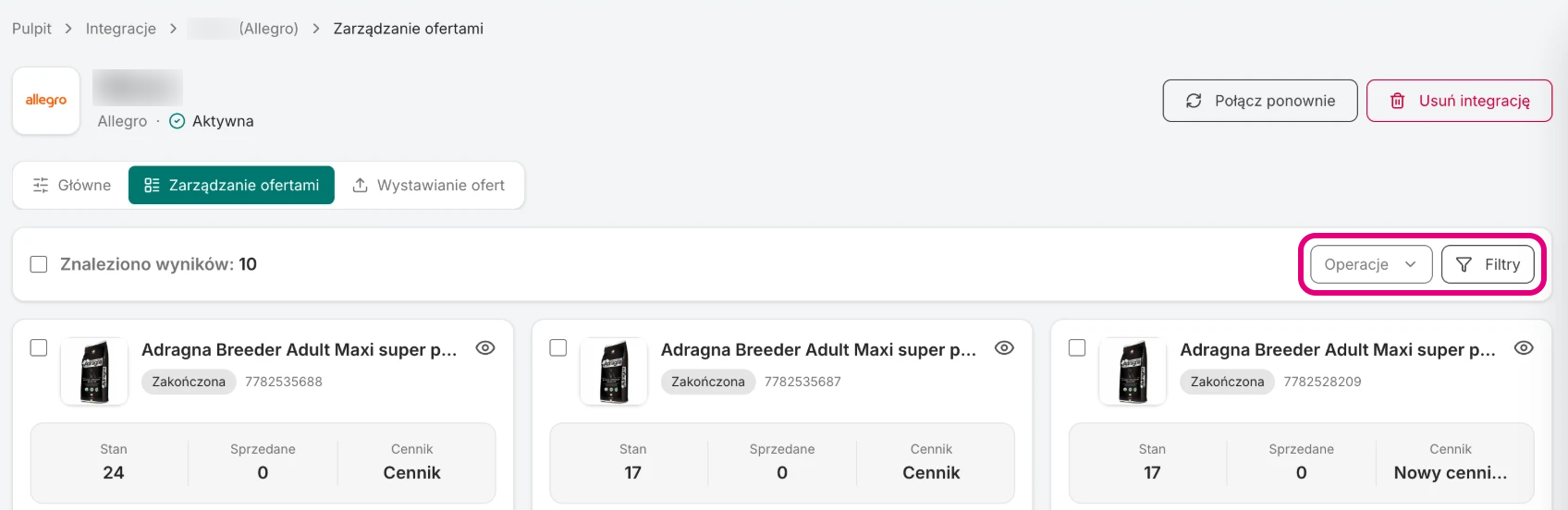
- Offer card - image, title, status and offer number from the channel, below them the key numbers (for example stock, items sold and shipping rate) and the linked warehouse product. Text that is too long is cut - hover to see all of it.
- Selecting - the checkbox on a card selects one offer, and the one next to Results found selects the whole page. Changing the page or the filters clears the selection.
- Operations - the menu with changes for the selected offers: stock, price, delivery, content, ending and resuming. Each change opens a window where you set only what you want to change - an empty field stays unchanged.
- Filters - the button opens the panel with the channel's filters. The number on the button tells how many filters are on.
- Preview - click the title or the eye icon to see the whole offer: images, description, parameters and conditions. Warnings from the channel are here too, for example why the offer was refused.
Offer listing
Here you see the products ordered for listing and the stage each of them is at.
- On the Products list, select products and click the channel's listing button, for example List on Allegro.
- The products show up on the Offer listing tab, each with its status. You can close the browser - the listing goes on.
- If the channel needs it (for example you have to choose a product from its catalogue), complete the offer and click Approve and list.
- Once the channel lists the offer, the product leaves Offer listing and the offer shows up in Offer management. It is already linked to the warehouse product you listed it from.
- If the channel does not accept the offer, the product gets the Error status and you see the reason the channel gave next to it. Fix it and click Retry, or remove the product from the list with Delete.
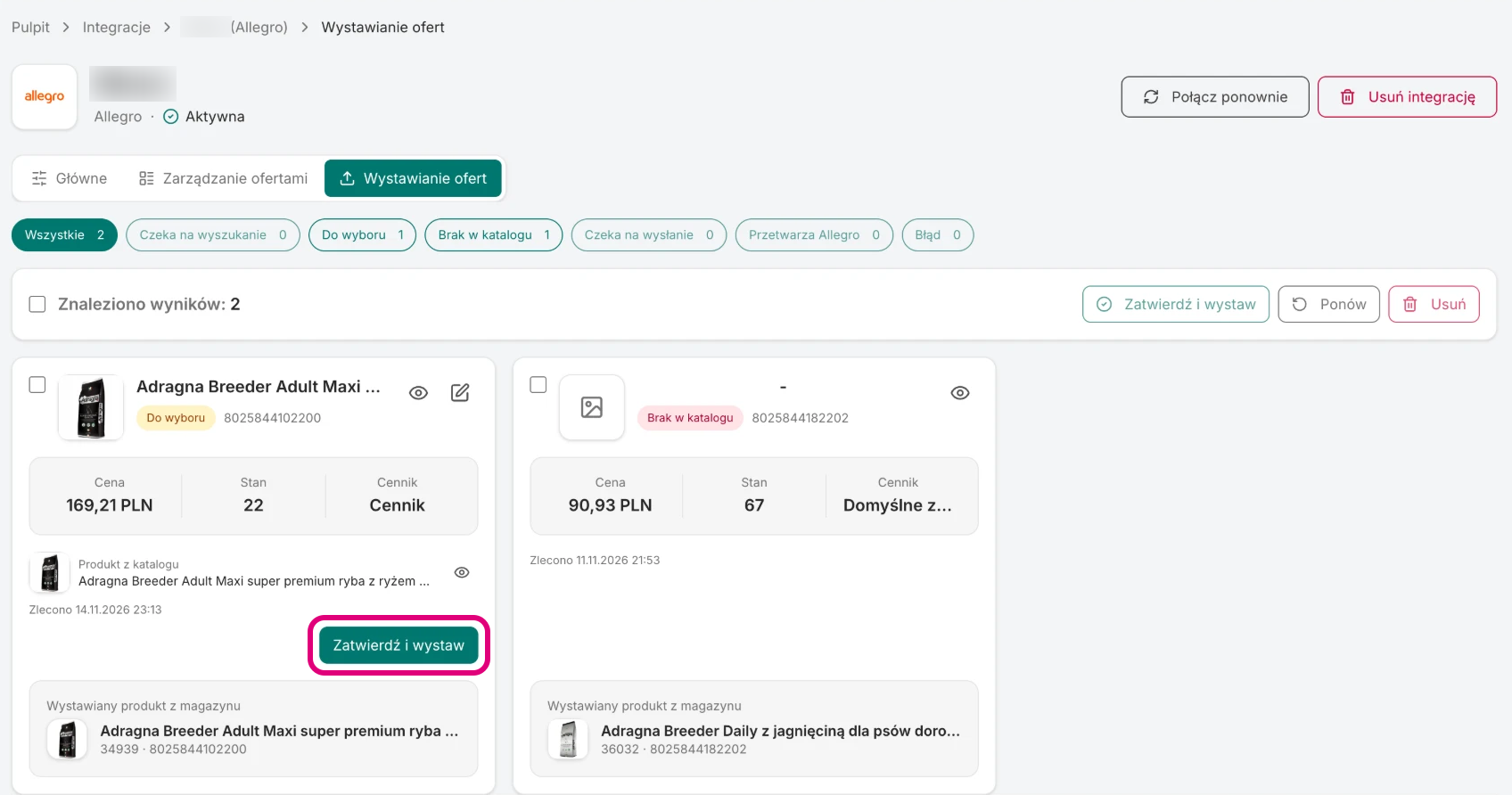
- Status filters - above the list there are buttons with the statuses and the number of products in each. All shows the whole list.
- Product tile - on top the future offer (title, image, price, number of items, shipping rate and the order date), below it the warehouse product you list it from.
- Bar above the list - the checkbox next to Results found selects the whole page. Approve and list, Retry and Delete work on the selected products the action makes sense for.
- Corrections - the title or the pencil on a tile opens a window with the whole offer. You fix the data there before approving or retrying.
What the statuses mean
- Waiting for search - we are looking the product up in the channel's catalogue by its EAN.
- To choose - we found a matching product in the channel's catalogue (sometimes several). Choose the right one, check the offer and click Approve and list.
- Not in catalogue - the channel's catalogue has no product with this EAN. For now we do not list offers of products missing from the channel's catalogue, so this product cannot be listed. You can remove it from the list.
- Waiting to be sent - the offer is ready, we send it to the channel in a moment.
- Processing (for example Processed by Allegro) - the channel got the offer and is checking it. It usually takes a few seconds.
- Error - the channel did not accept the offer. You see the reason the channel gave next to the product. Fix what it is about and click Retry.
How long an item stays on the list
Products stay on the Offer listing list for at most 7 days from the order. Then we delete them, also those not listed yet. You can remove a product yourself earlier with Delete.
Changes and listing run in the background
Offer changes and listing are asynchronous: when you click, we send them to the channel in the background, and the channel usually carries them out within a few seconds. Where you check the result depends on what you ordered:
- Offer change (stock, price, delivery, content, ending, resuming) - the new value shows up on the list in Offer management. If it does not, the channel did not accept the change - try again or check the offer in the channel's panel.
- Listing an offer - the progress and any error with the channel's reason are in Offer listing. A listed offer moves to Offer management.
- Several changes in a row - make the next change of the same offers only once the list shows the previous one. Otherwise the older change can overwrite the newer one.
What depends on the channel
The filters on the offer list, the available changes, the ways of listing and the statuses depend on the channel. They are described on that channel's integration page.
Link to a product
On the offer card you link it to a warehouse product (the chain icon) or remove the link. The link works the same as in orders - more in Linking offers to products.
Not available yet
- A stock or price change in the warehouse does not reach the channel on its own yet - you change it in Offer management.
- It does not show the offer's change history.